
If your Netgear router is acting up or you have locked yourself out of the admin panel, knowing how to reset a Netgear router is the first step you should take. A reset fixes a surprising range of connectivity issues, but only if you pick the right method for your situation.
Manufacturer documentation specifies a 7 to 10 second hold time for the reset button on most modern models. Older routers use a different sequence entirely. As of 2026, most current Netgear routers follow a standard process, but the exact model matters.
Let us walk through the steps so you do not accidentally wipe your settings when a simple reboot would have done the job.
The Problem: When Your Netgear Router Needs a Reset
Routers get cranky. A power surge, a long uptime, a misconfigured setting, or a forgotten password can all bring your network to a halt. Before you call your ISP, a reset is usually the fix.
But there are three different types of resets. Picking the wrong one can wipe your entire custom setup. You might lose your WiFi name, password, port forwarding rules, and parental controls just because you held the button a little too long.
If you want to understand the fine print of what happens to your data during a reset, the Disclaimer covers standard procedures for hardware data handling.
Quick Answer: Which Reset Method Should You Use Right Now?
Here is a simple decision tree to get you sorted in under a minute.
- Can you log into the admin panel? Do a soft reset (power cycle) or a factory reset from the settings menu.
- Forgot your password? You need a hard factory reset using the physical reset button.
- Selling the router? Factory reset from the button, then unregister it from your Netgear account.
- No internet at all, but the lights are on? Power cycle first. If that does not work, factory reset.
- Using a very old Netgear router (pre-2010)? You might need the 30-30-30 reset.
How Netgear Router Resets Actually Work
| Method | What it does | Keeps settings? | When to use |
|---|---|---|---|
| Soft Reset (Power Cycle) | Reboots the OS. Clears temporary memory. | Yes | Slow internet, minor glitches, after a power outage |
| Factory Reset (Button) | Wipes NVRAM. Restores to factory defaults. | No | Forgotten password, selling router, major configuration errors |
| 30-30-30 Reset | Hard reset. Clears everything including NVRAM. | No | Only for very old models (pre-2010) |
A soft reset is like restarting your computer. It clears the cache and reloads the operating system, but all your settings are still there.
A factory reset is like wiping your hard drive and reinstalling the OS. Everything goes back to the way it was when you opened the box. This is what most people mean when they say "reset."
The 30-30-30 reset is a specific sequence from the early 2000s. You hold the reset button for 30 seconds while the router is powered on. You keep holding it while you unplug the router for 30 seconds.
Then you plug it back in while still holding the button for another 30 seconds. Our research, detailed on the Editorial Policy page, indicates this method should not be used on routers manufactured after 2010. It can corrupt the firmware on modern flash storage.
Your Situation Matters: Pick the Right Reset Path
You can still log into the admin panel
This is the best scenario. You have full control.
Backup your settings first. Go to Administration, then Backup Settings, then Backup. This saves a file with all your current configurations.
Then go to Administration and select Factory Defaults. Click Restore Factory Defaults.
If you just need a fresh start, go to Administration and select Reboot. This is a soft reset with no risk of data loss.
You forgot your password and cannot log in
This is the most common reason people search for reset instructions. You are locked out.
Use the physical reset button on the back of the router. This wipes the admin password back to the default.
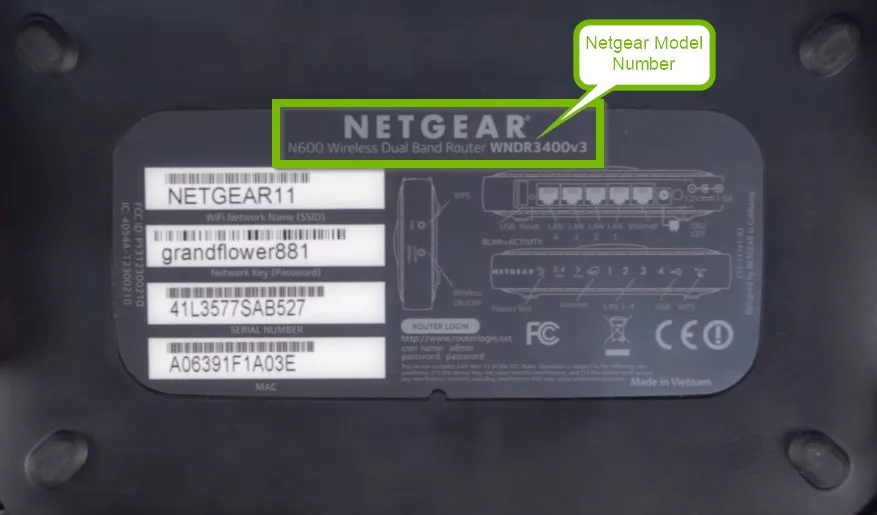
Default credentials are printed on the router sticker. The username is admin. The password is password.
Once the factory reset completes, log in with those credentials. The system will prompt you to set a new password immediately.
You have no internet but the router powers on
Do not reach for the paperclip yet. Try a power cycle first.
Unplug the router. Unplug the modem. Wait 60 seconds.
Plug in the modem. Wait for the modem lights to stabilize. Plug in the router.
Wait 2 to 3 minutes.
If you still have no internet, the router configuration might be corrupt. A factory reset is the next step. Have your ISP settings ready before you do it.
You are selling or giving away the router
You must do a factory reset. This wipes your WiFi password, personal settings, and all connected devices from the router memory.
Then unregister the router from your Netgear account. Log into your Netgear account online. Go to My Products.
Remove the device. If you have questions about data handling, see the Privacy Policy 2.
Step-by-Step: The Three Reset Methods for Any Netgear Model
Grab a paperclip, a toothpick, or a SIM eject tool. You need something thin enough to fit into the reset pinhole.
The soft reset (power cycle)
This method has zero risk of data loss.
Unplug the power cable from the router. Wait 30 to 60 seconds. This lets the capacitors drain completely.
Plug the power cable back in. Wait for the power LED to turn solid green. This takes 1 to 2 minutes.
The standard factory reset (button method)
This is the core method for a full reset.
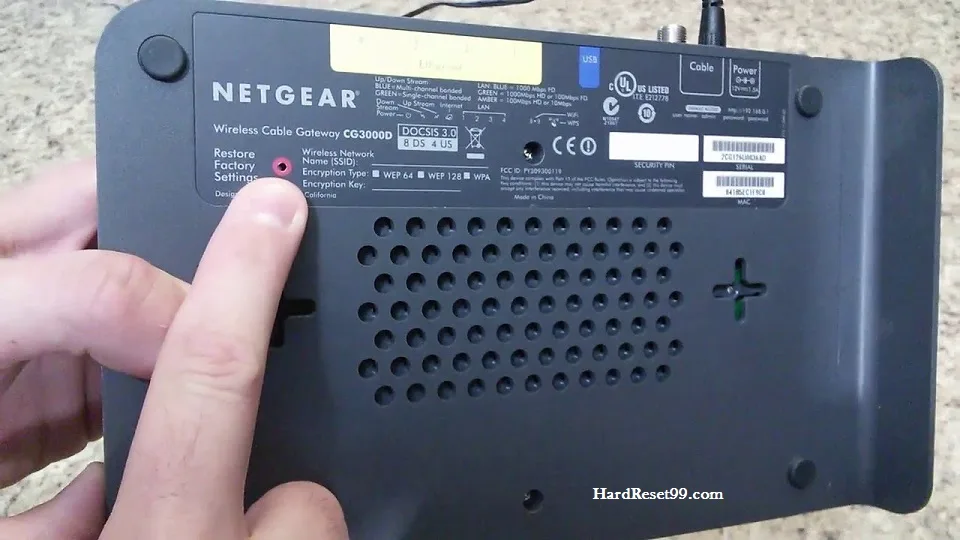
Locate the reset button. It is a small, recessed pinhole labeled Reset. On Nighthawk routers, it is usually on the back near the power port.
On Orbi mesh systems, it is on the back or bottom of the main router.
Ensure the router is powered on. Press and hold the button with your tool. You will feel a slight click.
Hold for 7 to 10 seconds continuously. Do not just press and release.
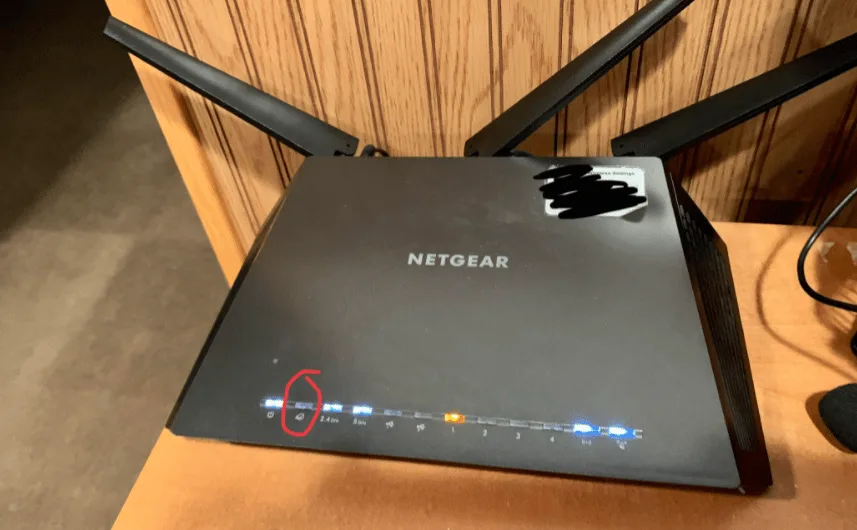
Watch the LED behavior. After about 7 seconds, the front LED starts flashing amber. This signals the reset is in progress.
Keep holding until the LED turns solid amber or starts blinking rapidly. Release.
Wait for the reboot. The power LED blinks and then turns solid green. This takes 2 to 3 minutes.
Open a browser. Go to routerlogin.net or 192.168.1.1. Log in with admin and password.
If you release the button before 5 seconds, the router simply reboots without resetting. Hold for the full 7 to 10 seconds.
The 30-30-30 reset (legacy models only)
This method is for older routers that use volatile memory. Do not use it on Nighthawk AX series, Orbi series, or any router manufactured after 2010. Only use it on legacy models like the WGR614 or WNDR3300.
With the router powered on, press and hold the reset button. Keep holding for 30 seconds. While still holding, unplug the router.
Keep holding for another 30 seconds. While still holding, plug the router back in. Keep holding for a final 30 seconds.
Release. The router boots with factory defaults.
Applying this method to a modern router can cause a bricked device. The firmware on modern flash storage is not designed for this power cycle sequence. If you run into trouble, please contact us.
By using this guide, you agree to our Terms And Conditions. We recommend checking the official Netgear support page for your specific model. The official documentation is the final authority for your hardware version.
Where is the Reset Button on Your Netgear Model?
Finding the reset button sounds simple. On some models, it is cleverly hidden.
The reset button is almost always a recessed pinhole. It requires a paperclip or SIM eject tool to press. Netgear does this to prevent accidental resets.
Nighthawk series (R7000, R7800, RAX series). The button is on the back panel near the Ethernet ports and power connector. It is a small hole about 2mm wide. It may be labeled Reset in tiny text.
On some Nighthawk models, the button is a small flush circle you press with a pointed object, not a pinhole.
Orbi mesh system (RBK50, RBK752, RBR750). The reset button is on the bottom of the main unit. You need to pick the router up to see it. On satellite nodes, it is also on the bottom.
Orbi routers often have two pinholes on the bottom. One is the sync button for pairing satellites. The other is the reset button.
Check the label to confirm.
Nighthawk app enabled routers (MK62, MK82). These newer mesh systems have the reset button on the back or bottom of the main unit. Some models have a small recessed button requiring a paperclip. Others have a slightly raised button you can press with your finger.
Legacy series (WGR614, WNDR3700, WNR1000). Older Netgear routers often had the reset button on the front panel next to the LEDs. On some models, it was a small button you could press with a pen. Check the front edges first.
General rule. If you cannot find the button, look at the sticker on the bottom of the router. It shows the model number. Search that model on the Netgear support site for a diagram.
The manual shows the exact location.
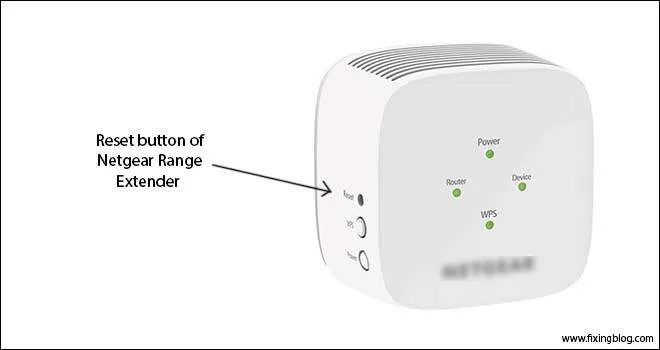
On some compact Netgear routers like the EX series extenders, the reset button is inside the device. You might need to pull a plastic cap off a jack to access it.
What Happens After You Reset: LED Patterns, Boot Times, and What Ready Looks Like
Knowing what the lights mean saves you from waiting too long or giving up too early.
Immediately after pressing the reset button. The power LED starts flashing amber or orange. This is normal. It means the router is wiping the settings.
Keep holding until the light changes. On most modern routers, the amber light turns solid for a moment.
When you release the button. The router reboots. This takes 60 to 120 seconds. The power LED turns off and then starts blinking green.
Do not unplug the router during this phase.
The ready signal. A solid green power LED means the router is fully booted and ready for setup. On some Nighthawk models, the LED is white instead of green. On Orbi systems, the ring light turns solid white or blue.
What each LED means.
| LED State | Meaning |
|---|---|
| Solid green or white | Normal operation. Router is ready. |
| Blinking green | Booting up or saving settings. |
| Solid amber or orange | Reset in progress. |
| Blinking amber | Firmware update in progress. Do not unplug. |
| No light | No power or router is bricked. |
| Fast blinking green (every second) | WPS mode is active. |
| Slow blinking green (every 3 seconds) | Internet connection issue. |
| Solid red | Overheating or critical error. |
| Blinking red | Failed firmware update or hardware fault. |
What to look for after a factory reset. The router boots with the default SSID and WiFi password. The default SSID is usually Netgear followed by a few characters from the MAC address. The default WiFi password is printed on a sticker on the bottom of the router.
The admin panel is accessible at routerlogin.net or 192.168.1.1. The default credentials are admin and password. You will be prompted to change the admin password immediately.
If the power LED is flashing amber or red after 5 minutes, the reset may have failed. Try the process again.
How long recovery takes by model family.
| Model Family | Boot Time After Reset | LED to Watch |
|---|---|---|
| Nighthawk AX (RAX) | 90 seconds | White solid |
| Nighthawk AC (R7000) | 120 seconds | Green solid |
| Orbi Mesh | 120 to 150 seconds | Ring light solid white |
| Orbi Pro | 150 seconds | Ring light solid blue |
| Legacy (WGR614) | 60 seconds | Green solid |
| EX-series Extenders | 90 seconds | Green solid |
If the router takes longer than 3 minutes without the LED turning solid, unplug it. Wait 30 seconds. Plug it back in.
Then wait another 2 minutes.
Mistakes That Kill Your Reset
Most failed resets are due to three simple errors. Avoid these and you will succeed.
Holding the button too briefly. A quick press does nothing. A 3-second hold just reboots the router. You need a full 7 to 10 second continuous hold.
The LED is your confirmation. If you do not see the amber flash, you have not held long enough.
Releasing too early during the amber flash. Some users see the amber flash and release immediately. Keep holding for the full 7 to 10 seconds even after the flash starts. The router needs that extra time to complete the wipe.
Using a sharp object. The reset pinhole is delicate. A metal paperclip can scratch the circuit board inside. A sewing needle can puncture the button membrane.
Use a plastic toothpick or a SIM eject tool instead.
Resetting during a power outage. Do not start a factory reset if your power is unstable. A power cut during the reset can corrupt the firmware. This can brick the router.
Plug the router into a surge protector first.
Using the wrong method for your model. The 30-30-30 method on a modern Nighthawk router can cause permanent damage. The standard 10-second reset on a legacy model might not clear all settings.
Forgetting to unregister the router. This does not kill the reset itself. But it causes problems for the next owner. If you sell a router without unregistering it, the buyer cannot fully manage it through the Netgear app.
| Mistake | Symptom | Fix |
|---|---|---|
| Too short hold | Router just reboots | Hold 7 to 10 seconds |
| Too sharp an object | Button stops working | Use plastic tool |
| Power cut during reset | Router is bricked | Try TFTP recovery |
| Wrong method for model | Settings not clearing | Use correct method |
| No surge protection | Corrupted firmware | Use surge protector |
What You Need to Reconfigure After a Factory Reset
A factory reset wipes everything. You need to rebuild your network from scratch.
The essential information. Write these down before you reset or save them in a password manager.
- Your ISP login credentials. If you have DSL or fiber with PPPoE authentication, you need your username and password. This is different from your admin password.
- Your desired WiFi network name (SSID).
- Your desired WiFi password. Use at least 12 characters with numbers and symbols.
- Your admin password. Set a new one immediately after logging in.
- Any static IP addresses from your ISP.
The reconfiguration steps in order.
Connect an Ethernet cable from your computer to a LAN port. Open a browser and go to routerlogin.net or 192.168.1.1. Log in with admin and password.
Set a new admin password. The setup wizard will prompt you. Set your time zone.
This matters for logs and parental controls.
Configure the internet connection. Select the correct type. Options are DHCP, PPPoE, or Static IP.
Enter your ISP credentials if prompted.
Set up WiFi. Change the SSID and WiFi password to your preferred values. Save the changes.
The router will reboot to apply them.
| Setting | Where to Find It | Default Value |
|---|---|---|
| Admin username | Router sticker | admin |
| Admin password | Router sticker | password |
| Admin URL | Router sticker | routerlogin.net |
| Default SSID | Router sticker | Netgear-XXXX |
| Default WiFi password | Router sticker | Printed on sticker |
| ISP username | ISP bill or portal | Varies |
| ISP password | ISP bill or portal | Varies |
If you do not have your ISP credentials. This is common. Call your ISP. They can usually provide the details over the phone.
Some ISPs list them on your online account page.
For cable internet from providers like Comcast or Spectrum, there is usually no PPPoE. You just plug in the router and it gets an IP automatically. For DSL or fiber, authentication is almost always required.
Restoring saved settings. If you exported a backup file before the reset, you can restore it from the admin panel. Go to Administration, then Backup Settings, then Restore.
When Resetting Does Not Work
Sometimes even a factory reset does not fix the problem. The router may be stuck in a boot loop. Or the LED may flash amber indefinitely.
Do not panic. Try these steps before buying a new router.
Try a different power supply. Netgear power adapters are known to fail over time. If the router does not power on or keeps restarting, the power supply is likely the problem.
Check the voltage and amperage on the adapter. It must match the router requirements. If you have another Netgear adapter with the same specs, swap it in.
If the router works with the replacement, you found the issue.
Try TFTP recovery. This is the last resort. TFTP recovery lets you flash new firmware to a bricked router.
Netgear routers have a special recovery mode. You enter it by holding the reset button while powering on the router. Then you upload the firmware file from your computer using a TFTP client.
The process varies by model. Check the Netgear support page for your specific router. The general steps are:
- Download the correct firmware file for your model.
- Set your computer to a static IP address of 192.168.1.10.
- Connect your computer directly to the router with an Ethernet cable.
- Power on the router while holding the reset button.
- Release the button when the power LED starts blinking slowly.
- Open a TFTP client and upload the firmware file.
- Wait for the router to complete the update.
| Recovery Method | When to Use | Success Rate |
|---|---|---|
| Standard reset | Most issues | Very high |
| Power cycle | Minor glitches | High |
| New power supply | Power related issues | High |
| TFTP recovery | Bricked router | Moderate to high |
When to call Netgear support. If none of these methods work, the router may have a hardware failure. Contact Netgear support before buying a replacement.
Have your model number, serial number, and the steps you have already tried ready. This speeds up the process. The router might still be under warranty.
Netgear offers a standard one year warranty on most consumer routers. Orbi pro models often have a two year warranty.
When to buy a new router. If the router is more than five years old and has hardware issues, replacement is often cheaper than repair. Modern WiFi 6 and WiFi 6E routers offer better performance anyway. But try the troubleshooting steps first.
A simple power supply swap costs less than twenty dollars and can save a perfectly good router.
Frequently Asked Questions
Can you reset a Netgear router without the reset button?
Yes, if you can access the admin panel. Go to Administration and select Factory Defaults. If you are locked out, you need the physical button.
There is no way to factory reset a Netgear router without the button.
Does a factory reset void the warranty?
No. Netgear supports factory resets as a standard troubleshooting step. The warranty remains valid.
Physical damage to the reset button from using a sharp object may not be covered.
Is a reboot the same as a factory reset?
No. A reboot restarts the router and keeps all your settings. A factory reset wipes everything back to the default configuration.
Use a reboot for minor glitches. Use a factory reset for forgotten passwords or major problems.
How long does a Netgear factory reset take?
The entire process takes about 2 to 3 minutes. The button press takes 7 to 10 seconds. The router then reboots for 60 to 120 seconds.
Once the power LED turns solid, you can log in.
Will a factory reset fix slow Wi-Fi?
It might, but try other steps first. Power cycle the router. Check for channel interference.
Update the firmware. If those fail, a factory reset can clear a corrupt configuration.
Do I need to reset after a firmware update?
No. Firmware updates apply without a reset. If the update causes issues, a factory reset can help.
Some users do a factory reset after a major firmware update to clear old settings.
What if the reset button is stuck?
Try gently wiggling the button with a plastic toothpick. If the button is damaged, use TFTP recovery instead. For routers still under warranty, contact Netgear support for a replacement.
Can I reset a Netgear Orbi satellite the same way?
Yes. The satellite has a reset pinhole on the bottom. Hold it for 7 to 10 seconds.
The satellite resets to factory defaults. After resetting, you need to sync it with the main Orbi router using the sync button.