
The remote sits dead in your hand. You press volume up. Nothing.
You try changing the channel. Still nothing. You dread calling support and sitting on hold.
Learning how to reset an Xfinity remote takes two minutes and solves most issues.
Comcast ships four main remote models with X1 and Flex systems as of 2026. Each uses a different reset sequence. The difference between a working remote and a brick often comes down to knowing which model you hold.
Let's walk through the process step by step.
Quick Answer
Remove the batteries. Wait sixty seconds. Reinsert the batteries.
If that does not work, use the button combination for your specific model. The XR15 needs the A and D buttons held together for ten seconds.
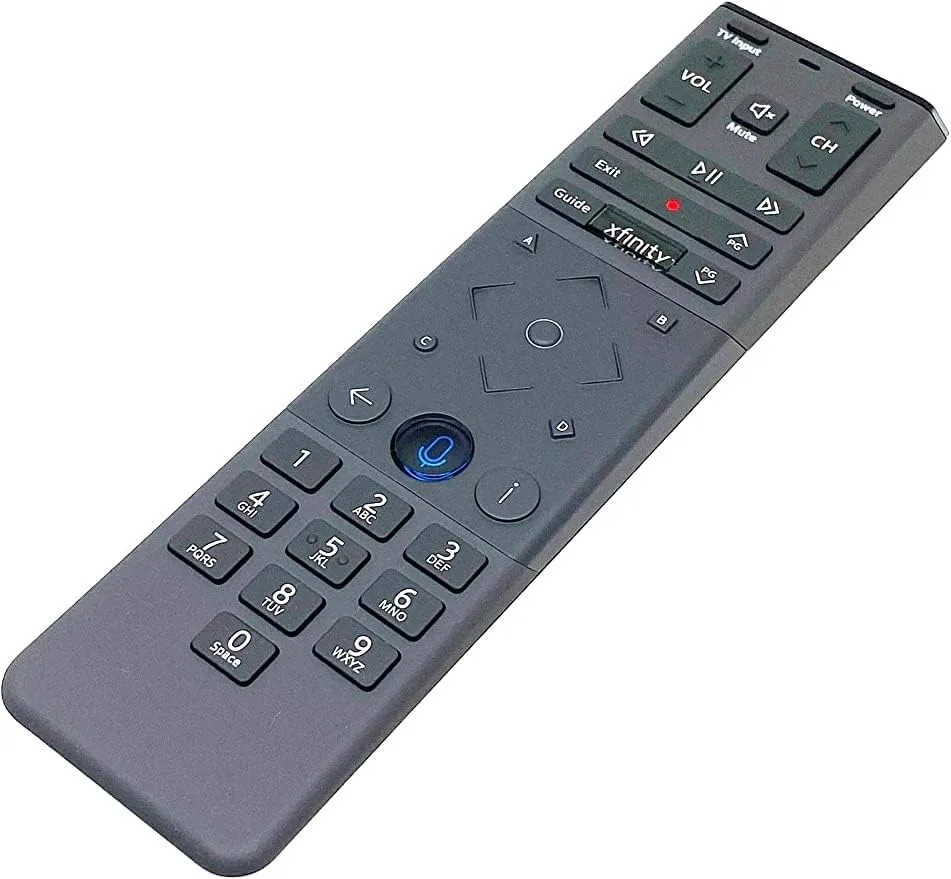
Image source: Bing (Web (fair-use with source credit))
Which Xfinity Remote Do You Have? (Find Your Model Fast)
Do not guess your remote model. Using the wrong reset sequence wastes time. The model number is printed inside the battery compartment on a white sticker.
Pop that cover off before you do anything else.
There are four remotes you are most likely to run into. Each has a distinct button layout.
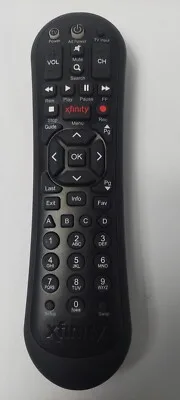
Image source: Bing (Web (fair-use with source credit))
XR15 Voice Remote
The most common remote with X1 systems. Rectangular body with rounded edges. The microphone button sits above the number pad.
No dedicated Setup button. It uses RF to talk through walls.
XR16 Voice Remote
Nearly identical to the XR15. The main difference is a redesigned microphone grille. The reset procedure is exactly the same.
Comcast phased out the XR15 in favor of the XR16 starting in late 2023, but millions of older units remain in service.
XR11 Voice Remote
The standard voice remote before the XR15 took over. Slightly bulkier with a curved back. The microphone button lives at the top center.
Uses the Setup button for its reset sequence. Also uses RF.
XR2 Basic Remote
The budget remote with no voice capability. Flat and narrow. No microphone button.
Uses infrared only. Must point directly at your cable box.
| Model | Voice Button | Setup Button | Remote Type | Common with |
|---|---|---|---|---|
| XR15 | Yes | No | RF | X1 systems |
| XR16 | Yes | No | RF | X1 systems |
| XR11 | Yes | Yes | RF | Older X1 systems |
| XR2 | No | Yes | IR | Budget setups |
Quick Fix: The One-Minute Soft Reset (Remove Batteries)
About half of all remote issues come from a software glitch that a full power drain solves. A soft reset does not erase pairing or programming. It just lets the remote restart fresh.
- Open the battery cover on the back.
- Remove both batteries completely.
- Press and hold the power button for fifteen seconds to drain residual charge.
- Wait a full sixty seconds with the batteries out.
- Insert fresh batteries. Do not mix old and new.
- Point the remote at your box and test volume and channel.
The capacitors inside the remote hold a small charge even after you remove the batteries. Waiting the full sixty seconds ensures they discharge completely. Cutting this short is the most common reason a soft reset fails.
This fix works when the remote stops responding suddenly, buttons are slow, or it worked after a battery change then stopped. It does not work if the remote needs to pair to a new box or was previously paired to a different system.
Hard Reset #1: XR15 / XR16 Voice Remote
The XR15 and XR16 have no Setup button. The factory reset uses the A and D buttons on the left side of the navigation ring.
The Buttons
The letter buttons sit on the outer edge of the directional pad. A is at the top. D is on the left.
You need both together.
Step-by-Step
- Remove the batteries.
- Press and hold the A button and the D button at the same time.
- While holding both buttons, reinsert the batteries.
- Continue holding A and D for ten seconds.
- The LED at the top flashes a few times and turns off.
- Release both buttons.
- Wait for the remote to restart. This takes about twenty seconds.
Verify the Reset
Press the Xfinity button. If the front-facing LED turns on solid for a few seconds, the reset worked. The remote is now in factory default mode.
You need to pair it to your box again.
What This Reset Does
It clears pairing to your cable box. It wipes TV codes for volume and power. It resets all button mappings.
The remote behaves like it just came out of the box.
Hard Reset #2: XR11 Voice Remote
The XR11 uses the Setup button at the top of the remote between All Power and TV Input. It is small and easy to miss.
The Combination
Setup button plus the digit keys 9, 8, and 7. This sequence works on XR11 remotes with a visible Setup button. If yours lacks a Setup button, you have an XR15 or XR16.
Step-by-Step
- Remove the batteries.
- Wait thirty seconds.
- Reinsert the batteries.
- Press and release the Setup button. The LED blinks twice.
- Press and release 9. The LED blinks twice.
- Press and release 8. The LED blinks twice.
- Press and release 7. The LED blinks four times to confirm.
- The remote is now in factory default mode.
If the LED does not blink when you press Setup, hold the Setup button for three seconds first. Some XR11 batches require a longer press. If the LED blinks once instead of twice, the remote did not enter programming mode.
Remove batteries and retry.
After the reset, the XR11 loses its pairing. You must re-pair it before it will work.
| Feature | XR11 | XR15 / XR16 |
|---|---|---|
| Setup button | Yes | No |
| Reset buttons | Setup + 9-8-7 | A + D |
| LED confirmation | Four blinks | LED turns off |
| Voice button | Yes | Yes |
| RF compatible | Yes | Yes |
Hard Reset #3: XR2 Basic Remote (No Voice Button)
The XR2 is the simplest remote. No voice control. Infrared only.
Must point directly at the box. It has a prominent Setup button near the top.
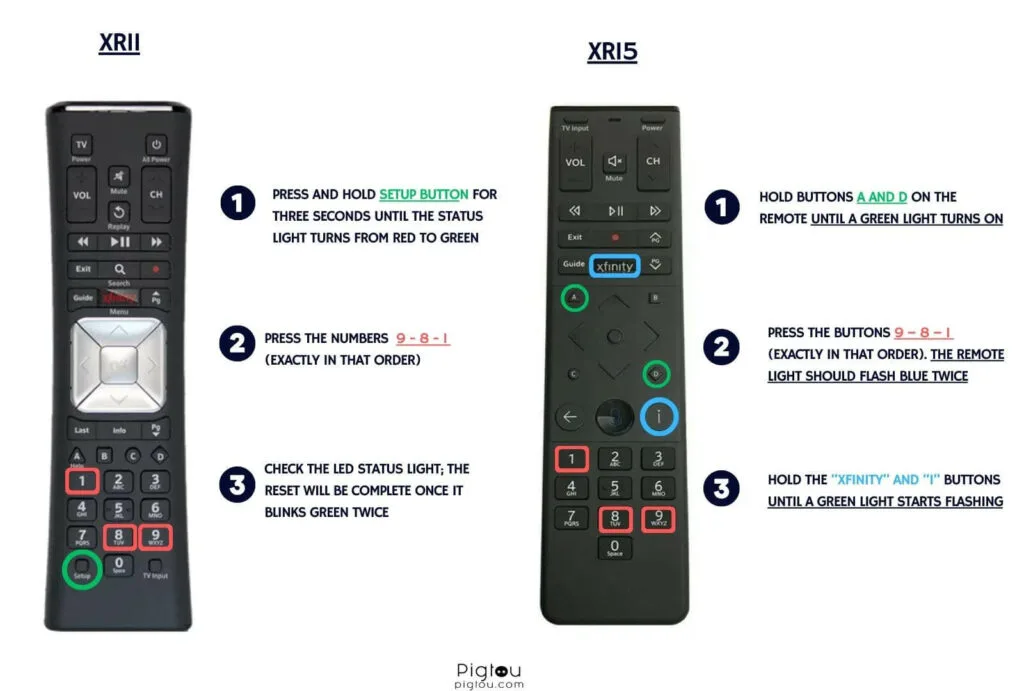
Image source: Bing (Web (fair-use with source credit))
The Combination
Setup button plus 9, 8, and 7. Same as the XR11 but with different timing.
Step-by-Step
- Remove the batteries.
- Press and hold the Setup button for three seconds.
- While holding Setup, reinsert the batteries.
- Continue holding Setup for another ten seconds.
- Release the Setup button. The LED blinks twice.
- Press and release 9. The LED blinks twice.
- Press and release 8. The LED blinks twice.
- Press and release 7. The LED blinks four times.
- The remote is now reset.
The XR2 requires you to hold Setup during battery insertion. The XR11 does not. If you try the XR11 method on an XR2, it will not work.
After the reset, the XR2 does not need pairing. It uses infrared directly. You just need to program it for your cable box and TV.
This reset works when the remote works for some buttons but not others, or after picking up a second-hand remote.
Hard Reset #4: XR22 / Newer Voice Remote
The XR22 is Comcast's latest voice remote as of 2026. It ships with X1 and Flex systems. Do not try the A plus D method on this remote.
Identifying the XR22
More rounded shape than the XR15. Microphone grille at the top edge. Dedicated power button top left, mute top right.
Model number reads XR22 in the battery compartment.
The Combination
B button and D button together. B is on the right side of the navigation ring. D is on the left.
Step-by-Step
- Remove the batteries.
- Wait thirty seconds.
- Press and hold the B button and the D button at the same time.
- While holding both, reinsert the batteries.
- Continue holding for ten seconds.
- The LED flashes rapidly and then stays solid.
- Release both buttons.
- The remote restarts automatically. About twenty seconds.
A factory reset on the XR22 clears pairing and TV codes. You must re-pair it.
| Remote Model | Reset Buttons | Hold During Battery Insertion | LED Confirmation |
|---|---|---|---|
| XR15 / XR16 | A + D | Yes | LED turns off |
| XR11 | Setup + 9-8-7 | No | Four blinks |
| XR2 | Setup + 9-8-7 | Yes | Four blinks |
| XR22 | B + D | Yes | Rapid flash then solid |
If the LED does not flash after ten seconds, release and try again. Press B and D, not the directional arrows. Some firmware versions need fifteen seconds instead of ten.
Re-Pairing the Remote to Your Xfinity Box (After Reset)
A factory reset clears pairing. The remote will not control your box until you re-pair. This applies to RF remotes only.
The XR2 does not need pairing.
Automatic Pairing
Press the Xfinity button. The X1 box detects the remote and prompts you on screen within five seconds. Select Pair Remote.
On-Screen Menu
- Press the Xfinity button.
- Go to Settings (gear icon).
- Select Device Settings.
- Choose Remote Settings.
- Select Pair Remote or Re-Pair Remote.
Manual Pairing
- Hold the Setup button until the LED blinks twice.
- Press the Xfinity button.
- The LED blinks twice again.
- Point at your box and press any number key.
- The remote should now work.
Automatic pairing takes five to fifteen seconds. On-screen menu takes about thirty seconds. Manual takes about one minute.
What If the Remote Still Won't Pair? (RF Pairing Mode)
Use RF pairing when standard methods fail. It forces a fresh radio connection between remote and box.
The Process
- Press and hold the Setup button for five seconds.
- Release. The LED blinks twice.
- Press and release the Xfinity button.
- Point at your box and wait up to thirty seconds.
- When the LED stops flashing and stays solid, pairing is complete.
RF pairing only works on RF-capable remotes. The XR2 will not respond. Stay within three feet of your box.
Optimal distance is one to three feet.
RF pairing bypasses the universal remote protocol. It uses a direct radio frequency handshake. This is more reliable when the software layer is corrupted.
Programming the Remote to Control Your TV (Volume, Power, Input)
Resetting erases TV control settings. You need to program the remote for your specific TV brand. This is separate from pairing.
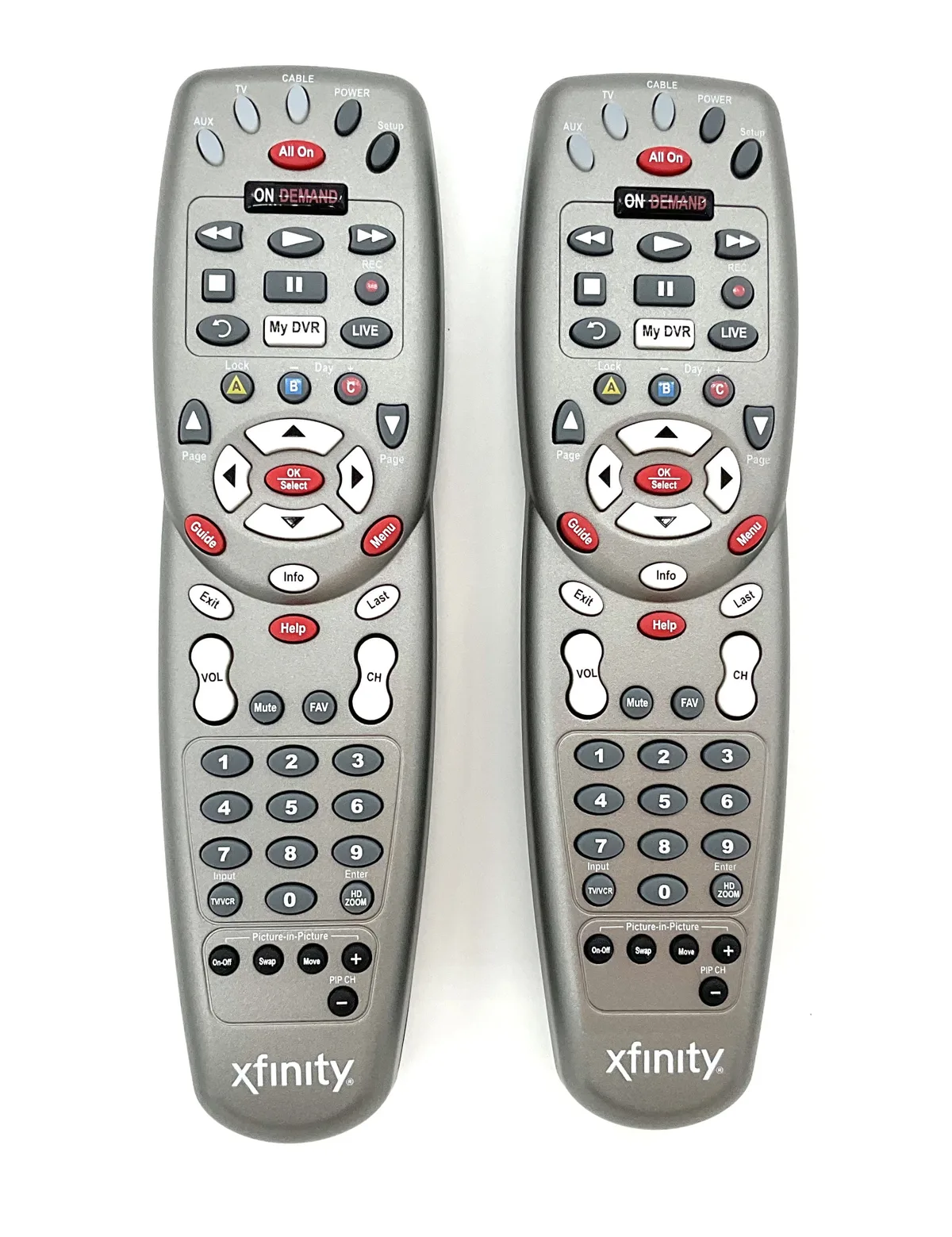
Image source: Bing (Web (fair-use with source credit))
Auto-Scan Method
- Turn your TV on manually.
- Point the remote at the TV.
- Press and hold Setup until the LED blinks twice.
- Press and release TV Power.
- Press Volume Up repeatedly once every two seconds.
- When the volume changes, press Setup to lock in the code.
Auto-scan takes up to two minutes. Works on most major brands.
Manual Code Entry
- Turn your TV on manually.
- Point the remote at the TV.
- Press and hold Setup until the LED blinks twice.
- Press and release TV Power.
- Enter the five-digit code for your brand.
- If correct, the LED blinks twice and stays solid.
| TV Brand | Code 1 | Code 2 | Code 3 |
|---|---|---|---|
| Samsung | 10812 | 12051 | 11198 |
| LG | 11758 | 11658 | 11314 |
| Sony | 10864 | 10060 | 11100 |
| Vizio | 11756 | 10885 | 11780 |
| TCL | 11756 | 10885 | 11198 |
| Hisense | 12050 | 12049 | 11825 |
For a complete list, visit the official Comcast support site and search for TV codes.
Programming Audio Devices
Use the same process but press AUX instead of TV Power. Turn your audio device on first.
If programming fails, make sure your TV is on, point the remote directly at it, use fresh batteries, and try again.
Common Mistakes That Confuse the Reset Process
Using the wrong sequence for your model. Always check the model number. Guess wrong and you waste time.
Not holding buttons during battery insertion. The XR15, XR16, XR22, and XR2 all require you to hold the reset buttons while reinserting batteries. Do it in that order.
Confusing pairing with programming. Pairing connects to the box. Programming sets up TV control. They are different processes.
Using old or mixed batteries. Weak batteries cause intermittent issues. Use fresh alkaline. Do not mix brands.
Skipping the soft reset. It solves about half of all issues. Try it first before a factory reset.
Pointing the remote wrong. TV control uses infrared. Point the remote directly at your TV, not at your cable box.
Not waiting long enough. Hold buttons for the full ten seconds. Wait the full sixty seconds after removing batteries. Rushing causes failure.
When Nothing Works: Using the On-Screen Remote Setup Menu
If your remote is fine but the box needs a kick, use the X1 remote setup menu. Navigate using the buttons on your box or the Xfinity app on your phone.
- Press the Xfinity button.
- Go to Settings.
- Select Device Settings.
- Choose Remote Settings.
- Select Troubleshoot Remote or Re-Pair Remote.
The menu offers three options: Re-Pair Remote, Reset Remote to Factory Defaults, and Check Remote Battery Level. It works when the remote is partially paired but erratic. If neither the remote nor the box recognizes each other, use the Xfinity app as a temporary remote.
Expert Tips for Long-Term Remote Health
Use fresh alkaline batteries. Rechargeable NiMH batteries have lower voltage. Some remotes behave unpredictably with them.
Store out of direct sunlight. UV light can degrade the IR sensor and plastic casing.
Clean battery contacts. White or green residue can be wiped with a dry cloth or rubbing alcohol. Let dry completely before inserting batteries.
Avoid dropping the remote. Internal ribbon cables can loosen. A hard drop may cause hardware failure that no reset can fix.
Let firmware updates complete. Comcast pushes updates through the X1 box. Do not ignore on-screen prompts.
Keep the Xfinity app as a backup. Download it now. It gives you a working remote through Wi-Fi without needing a paired remote.
Decision Guide: Which Reset Method Should You Use?
Is the remote completely unresponsive? Yes: try the soft reset first. Remove batteries, wait sixty seconds, reinsert. No: go to programming for volume or TV issues.
Did the soft reset work? Yes: you are done. No: identify your remote model from the battery compartment.
Which model? XR15 or XR16: use A plus D. XR11: use Setup plus 9-8-7. XR2: use Setup plus 9-8-7, hold Setup during battery insertion.
XR22: use B plus D.
Did the remote pair automatically after the reset? Yes: program TV codes. No: try the automatic pairing method by pressing the Xfinity button.
Still not paired? Use the on-screen menu or RF pairing mode. If both fail, use the Xfinity app and check for hardware damage.
| Symptom | Try First | Try Second | Try Third |
|---|---|---|---|
| Remote completely dead | Soft reset | Hard reset for your model | On-screen menu |
| Remote works but no TV control | Program TV codes | Auto-scan | Manual code entry |
| Remote works intermittently | Replace batteries | Soft reset | Clean contacts |
| Remote paired but not working | Re-pair via menu | RF pairing | Factory reset |
| Remote was dropped | Soft reset | Inspect damage | Replace remote |
Frequently Asked Questions
Will a factory reset fix a remote that won't pair?
Yes, in most cases. It clears the remote's memory for a fresh connection. If that fails, try RF pairing mode.
If still no success, the hardware may be damaged.
How do I reset an Xfinity remote without batteries?
You cannot. The reset sequence needs power to register button presses. Install fresh alkaline batteries first.
Why is my Xfinity remote blinking but not working?
A blinking LED means the remote is trying to connect but cannot. This often happens after a battery change or when out of range. Try re-pairing through the on-screen menu or RF pairing mode.
Can I use my phone as an Xfinity remote?
Yes. Download the Xfinity app for iOS or Android. Log in to your account and select your X1 or Flex box.
The app works over Wi-Fi.
How often should I replace the batteries?
Every six to twelve months depending on usage. Voice commands drain batteries faster. If you use voice daily, change batteries closer to every six months.
What do I do if the reset button combination does nothing?
Check your remote model number. You may be using the wrong sequence. If correct, hold the buttons for fifteen seconds instead of ten.
If still nothing, use the on-screen menu or the Xfinity app.
Final Checklist Before Calling Support
- Identify your remote model from the battery compartment sticker.
- Perform a soft reset. Remove batteries. Wait sixty seconds. Reinsert.
- If that fails, do the correct hard reset for your model.
- Re-pair the remote to your box using the Xfinity button.
- Program the TV codes for volume and power.
- If still broken, try the on-screen remote setup menu.
- Try the Xfinity app as a temporary solution.
- Check battery contacts for corrosion.
- Inspect the remote for physical damage from drops.
If all nine steps fail, the remote likely has a hardware fault. Comcast will replace it free if you are leasing equipment. Call support and request a replacement.
Over 90 percent of remote issues resolve with steps one through five. The remaining ten percent usually involve hardware failure or a defective box.