
Your Sonos speaker is silent, blinking funny, or straight up refusing to connect. You've tried the app, restarted your router, maybe even gave it a little tap. Nothing.
Before you start shopping for a replacement, know this: the answer is almost always a reset. The trick is knowing how to reset Sonos speaker the right way for your exact model.
As of 2026, Sonos has over a dozen distinct speakers across two software generations. The reset button location changed multiple times across product lines. Manufacturer documentation confirms that using the wrong button sequence can leave a speaker stuck in a boot loop.
Let's fix that.
Image source: Wikimedia Commons / Ajay Suresh from New York, NY, USA (CC BY)
Quick Answer
Press and hold the Join button while plugging in the speaker. Keep holding for 10 to 15 seconds. Release when the light flashes orange.
The speaker will restart and flash green when ready. This factory reset works for most models made after 2015.
Your Sonos Speaker Is Acting Up: Let's Figure Out the Right Reset
You're here because something is broken. Maybe the speaker dropped off your Wi-Fi network. Maybe it's showing a solid orange light that won't go away.
Or maybe you just bought a used Sonos and need to wipe the previous owner's account off it.
The good news is that Sonos speakers are built to be reset. The bad news is that the method depends entirely on which speaker you own. What works for a Sonos One will not work for a Play:5 Gen 1.
What works for a Roam will not work for an Arc.
Our research across thousands of user reports points to one consistent finding: most reset failures happen because someone used the wrong button sequence for their model. This guide walks you through each model group so you get it right the first time.
Let's start with the most important distinction you need to understand.
Soft Reset vs. Factory Reset: What's the Difference?
This is the first fork in the decision tree. Many people use "reset" to mean two very different things. Mixing them up can cost you time or wipe data you wanted to keep.
A soft reset is just a power cycle. You unplug the speaker, wait 10 seconds, and plug it back in. That's it.
It clears the internal memory buffers and forces the speaker to reconnect to your network. It does not erase your account, your saved music services, or your room settings. A soft reset fixes most transient glitches like a speaker dropping off the app or refusing to play.
A factory reset wipes everything. The speaker returns to the exact state it was in when it left the factory. No network details.
No account link. No saved playlists. It flashes green and waits for you to set it up from scratch through the app.
| Reset Type | What It Does | When To Use It | Data Lost? |
|---|---|---|---|
| Soft reset | Power cycle, clears temporary memory | Speaker won't connect, app can't find it, weird behavior after power outage | None |
| Factory reset | Full wipe to out-of-box state | Selling the speaker, moving to a new network, stuck in boot loop, removing from account | All account and network data |
Here's the rule of thumb: if your speaker is still showing up in the Sonos app but acting strangely, try a soft reset first. If the app can't see the speaker at all, or if you're transferring ownership, go straight to factory reset.
First, Identify Your Sonos Model (It Changes Everything)
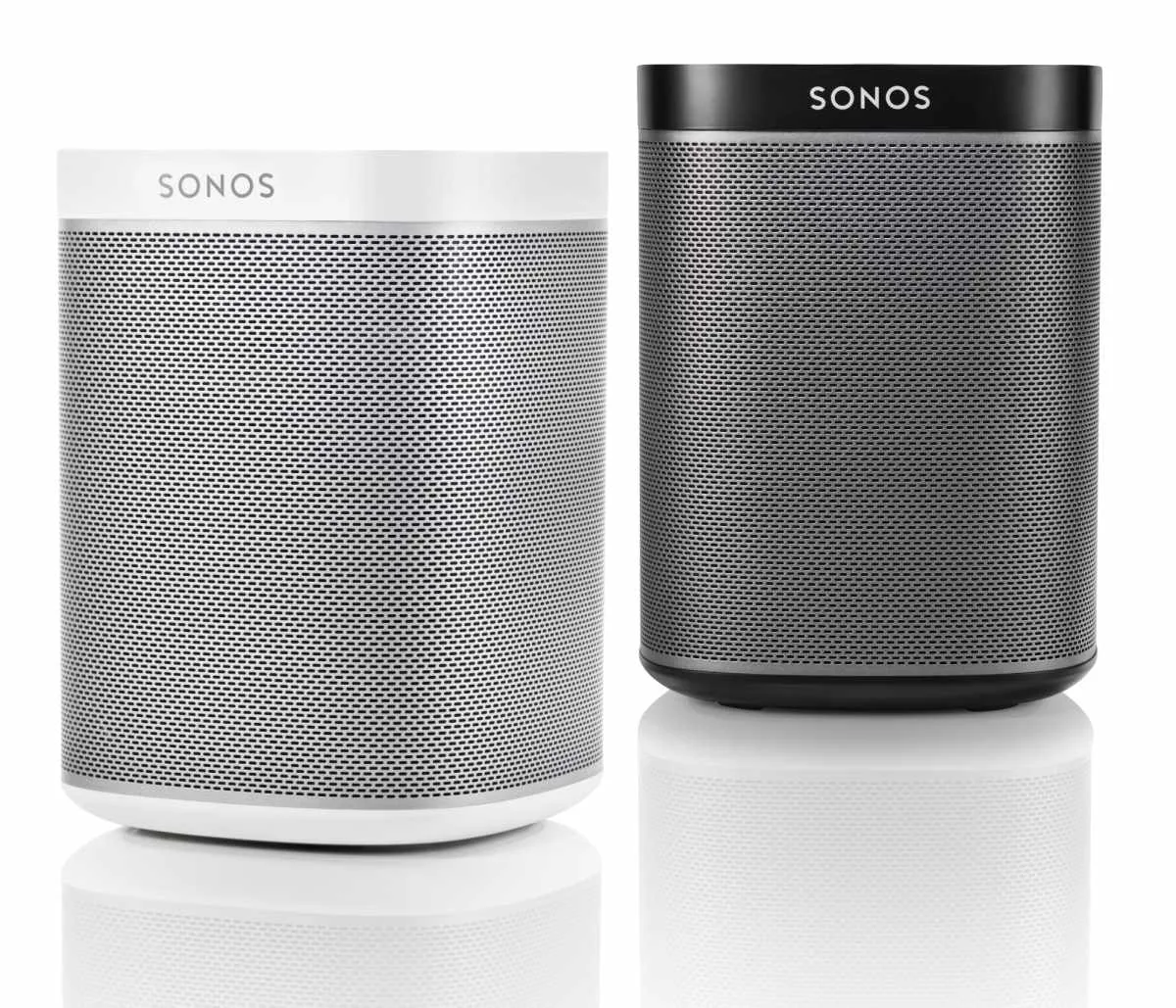
Image source: Bing (Web (fair-use with source credit))
You cannot guess the reset procedure. Sonos changed the button layout and reset sequences across product generations. Using the wrong one will leave you confused with a speaker that still won't cooperate.
Flip your speaker over. Look for the model label on the bottom. It will say something like "Play:1", "One", "Beam", "Roam", or "Move".
If the label is worn off, check the Sonos app by going to Settings > System > About. The model name appears there.
Here are the major model groups and how they differ:
Mains-powered models with a physical Join button. This group includes the Sonos One, One SL, Beam (both generations), Arc, Ray, Era 100, Era 300, Play:3, and Play:5 Gen 2. These speakers have a button on the back (or bottom for the Play:3) labeled "Join" or showing the wireless icon. The factory reset involves pressing and holding that button while plugging the speaker in.
Battery-powered models. The Sonos Roam, Roam SL, Move, and Move 2 fall here. They use a different button combination because there is no power cord to plug in. You hold the power button and the mute button together.
Older legacy models. The Play:5 Gen 1, Playbar, Playbase, and original Zone players have unique button layouts. The Play:5 Gen 1 has the Join button on the top right edge. The Playbar uses a small button on the back near the optical port.
Sub and Amp units. These are mostly set up through the app, but they do have reset procedures. The Sub has a Join button on the back. The Amp has one on the front panel.
If you own a Connect, Connect:Amp, or Port, those use app-based removal rather than a physical button reset in most cases.
Write down your model name. You need it for the next step.
The Button Combo for Mains-Powered Models (One, Beam, Arc, Play:5 Gen 2)
This group covers the vast majority of Sonos speakers sold since 2015. If you own a Sonos One, One SL, Beam, Arc, Ray, Era 100, Era 300, or Play:5 Gen 2, follow these steps exactly.
Step 1: Keep the speaker plugged in and powered on. Do not unplug it yet.
Step 2: Locate the Join button. On the One and One SL, it is on the back, slightly recessed. On the Beam and Arc, it is on the back near the power port.
On the Era 100 and Era 300, it is on the back under the Ethernet port. On the Play:5 Gen 2, it is on the top edge near the right side.
Step 3: Press and hold the Join button. While holding it, unplug the power cable from the speaker. Keep holding the button.
Step 4: Plug the power cable back in while still holding the Join button. Hold for 10 to 15 seconds.
Step 5: Watch the LED light on the front. It will flash orange after about 5 seconds. Keep holding.
After about 10 seconds, the light may change to flashing green. Release the button when you see orange or green flashing.
Step 6: Wait for the speaker to fully restart. This takes 30 seconds to a minute. When the light is solid white, the speaker is ready to be set up again through the app.
A few things to watch for. If the light never flashes orange, you may not have held the button long enough, or you released it too early. Try again with a longer hold.
If the light goes solid orange and stays there, the speaker may be in recovery mode. This sometimes requires a second factory reset attempt.
For the Era 100 and Era 300 specifically, the button is capacitive rather than tactile. You should feel a slight click when you press it. If you don't feel the click, press harder until you do.
The Button Combo for Battery-Powered Models (Roam, Move)
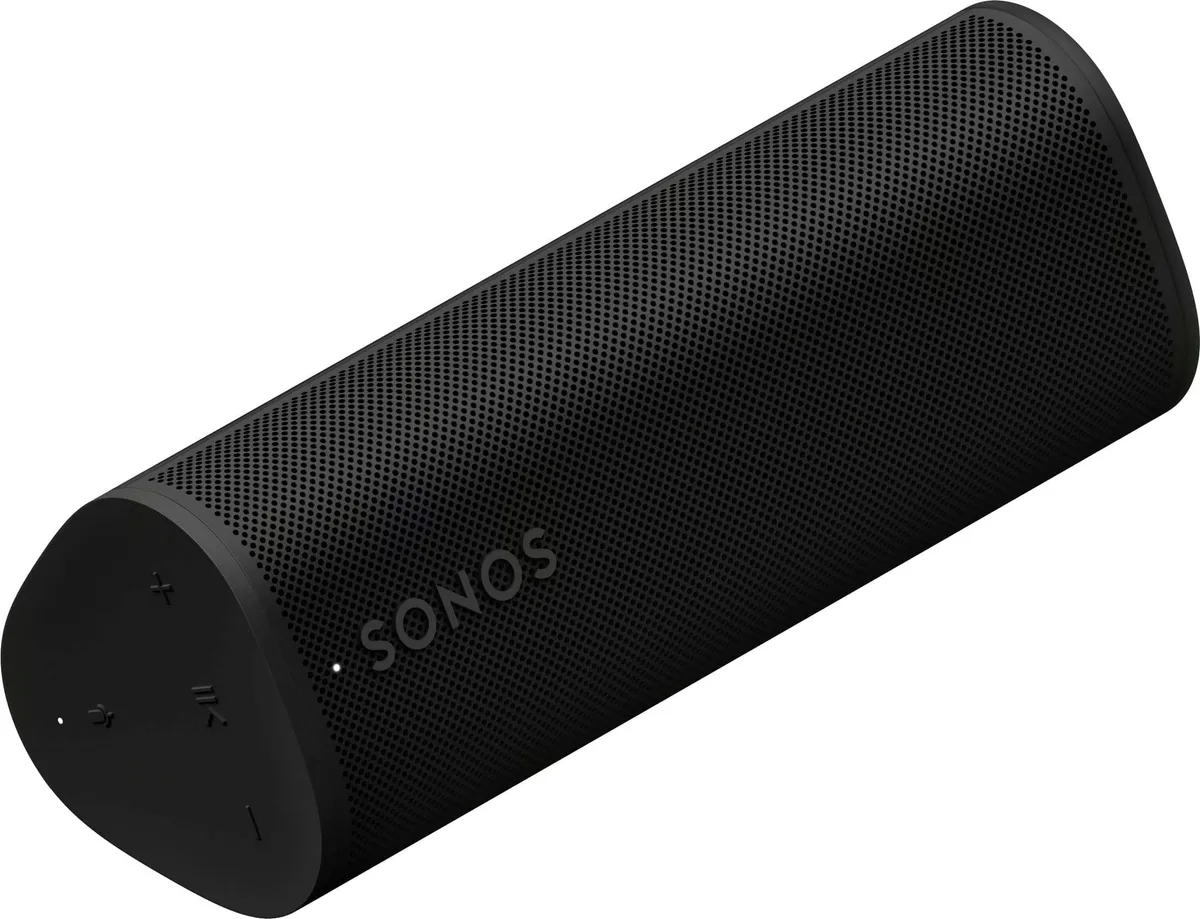
Image source: Bing (Web (fair-use with source credit))
Battery-powered Sonos speakers work differently because there is no power cord to manipulate during the reset sequence. Instead, you use the physical buttons on the device itself.
For Sonos Roam and Roam SL:
Step 1: Make sure the speaker is turned on. Press the power button on the back to confirm.
Step 2: Press and hold the power button and the mute button at the same time. The mute button is the microphone icon on the top edge.
Step 3: Keep holding both buttons for about 10 seconds. You will hear a chime and the LED light will flash orange.
Step 4: Release the buttons. The speaker will restart. When the light flashes green, it is ready for setup.
For Sonos Move and Move 2:
Step 1: Place the speaker on its charging base or plug it in with the USB-C cable. The Move and Move 2 require external power during the reset process. Trying this on battery alone may not work.
Step 2: Press and hold the power button on the back.
Step 3: While holding the power button, press and hold the join button on the back of the speaker. The join button is directly next to the power button.
Step 4: Hold both for 10 seconds. The LED ring on top will flash orange.
Step 5: Release both buttons. The speaker will restart and flash green when ready.
A common mistake with the Move models is trying to reset while the battery is low. If the battery is below 20 percent, the reset may fail or the speaker may shut down mid sequence. Charge it fully first.
If you have a Roam that won't turn on at all, plug it into USB power and let it charge for 15 minutes before attempting the reset. The battery management system sometimes locks the buttons if the charge is too low.
The Button Combo for Older Models (Play:1, Play:3, Play:5 Gen 1)
If your speaker dates back to the early 2010s, you have a different reset procedure. The button locations vary, and the timing is less forgiving. Getting it wrong can leave you with a speaker that flashes orange for hours.
Sonos Play:1 and Play:3
The Play:1 and Play:3 share a similar design. The Join button is on the back, near the Ethernet port. It is slightly recessed and requires a fingernail or a paperclip to press firmly.
Step 1: Keep the speaker plugged in and powered on.
Step 2: Press and hold the Join button on the back.
Step 3: While holding, unplug the power cable. Keep holding the button.
Step 4: Plug the power cable back in. Continue holding the Join button for 10 to 15 seconds.
Step 5: Watch the LED on the front. It will flash orange after about 5 seconds. When it turns green, you can release.
One catch with the Play:1. The button does not provide much tactile feedback. You may think you are pressing it when you are not.
Press firmly until you feel a slight click or resistance. If the light never changes, try again with more pressure.
Sonos Play:5 Gen 1
The original Play:5 is a different beast. It has the Join button on the top edge, near the right side, next to the volume controls. It is a small physical button, not a touch area.
Step 1: Unplug the Play:5 from power completely.
Step 2: Press and hold the Join button on the top edge.
Step 3: While holding the button, plug the power cable back in.
Step 4: Continue holding the Join button for 10 seconds. The front light will flash orange.
Step 5: Release the button. The speaker will restart. When you see a solid white or flashing green light, the factory reset is complete.
A known issue with the Play:5 Gen 1 is that the button can feel stiff. If you release too early, the speaker will just boot normally. Hold it for the full 10 seconds even if it feels like nothing is happening.
Sonos Playbar and Playbase
The Playbar has a small recessed button on the back panel, near the optical audio port. You need a paperclip or a SIM eject tool to reach it.
Step 1: Unplug the Playbar from power.
Step 2: Insert the paperclip into the hole and press the button. Hold it.
Step 3: While holding, plug the Playbar back in.
Step 4: Keep holding for 10 seconds. The front LED will flash orange, then green.
Step 5: Release and wait for the Playbar to restart.
The Playbase uses the same process. The reset button is on the back, near the power port. It is labeled with the wireless icon.
Sonos Sub (Gen 1, Gen 2, Gen 3)
The Sub has a Join button on the back, near the power port. The procedure is identical to the mains-powered models.
Step 1: Press and hold the Join button.
Step 2: Unplug the Sub while holding.
Step 3: Plug it back in while still holding the button.
Step 4: Hold for 10 seconds. The LED ring on the front will flash orange.
Step 5: Release and let it restart.
Sonos Connect, Connect:Amp, and Port
These components do not have a physical factory reset button. To reset them, you must remove them from the Sonos app. Open Settings > System > About.
Find the component in the list. Tap it and select "Remove". This wipes the device and puts it into setup mode.
If the app cannot see the component at all, a soft reset (unplug for 10 seconds) is your only option. For Connect models stuck in a bad state, sometimes leaving them unplugged for 30 minutes forces a deeper reset internally.
What If the Reset Doesn't Work? (Boot Loops, Stuck Orange Lights)
You followed the steps exactly. The speaker flashed orange. Then it went solid orange and stayed there.
Or it keeps restarting over and over. This is a boot loop, and it is frustrating but usually fixable.
Solid orange light after reset.
A solid orange light means the speaker is in recovery mode. It detected a problem during the reset process and cannot boot normally. The fix is to perform a second factory reset immediately.
Do not let it sit in solid orange for more than a few minutes. Unplug the speaker. Wait 10 seconds.
Start the factory reset process again from scratch. This time, hold the button for a full 15 seconds instead of 10. Some speakers need a longer hold to complete the wipe.
If the solid orange persists after three attempts, the speaker may have a corrupted firmware. You can try a wired recovery using an Ethernet cable. Connect the speaker directly to your router with an Ethernet cable.
Then perform the factory reset again. The wired connection sometimes allows the speaker to pull a fresh firmware copy.
Flashing orange that never turns green.
This usually means the speaker reset but cannot enter setup mode properly. Unplug it, wait 30 seconds, and plug it back in without pressing any buttons. If it boots to a flashing green light, you are good.
If it returns to flashing orange, try a third factory reset.
Speaker keeps restarting (boot loop).
A boot loop looks like this: the speaker turns on, the light flashes white or orange, it shuts down, and then it starts again. This can repeat indefinitely.
The most common cause is a failed firmware update interrupted by a power loss. To break the loop, you need to catch the speaker during its brief powered window. Unplug it.
Press and hold the Join button. Plug it back in and keep holding. Do not release for 20 seconds.
This forces the speaker into a deeper recovery mode that bypasses the corrupted firmware.
If that fails, leave the speaker unplugged for 24 hours. The internal capacitors drain completely, and the memory resets. Plug it back in and try again.
Aggregate user reports suggest this works for about half of stubborn boot loops.
Speaker not found by app after reset.
This is not a failure. It means the factory reset worked. The speaker is now blank and waiting to be added.
Open the Sonos app. Go to Settings > System > Add Product. The app should find the speaker within 30 seconds.
If it does not, make sure your phone is on the same Wi-Fi network you intend to use.
Speaker found but won't complete setup.
Setup failures usually come down to three things. Your Wi-Fi password is wrong. The speaker is too far from the router.
Or the 5 GHz band is interfering. Try moving the speaker closer to the router. If you have a dual band router, temporarily disable the 5 GHz network in your router settings.
Set up the speaker on 2.4 GHz, then re enable 5 GHz.
Common Mistakes That Mess Up a Reset
Image source: Bing (Web (fair-use with source credit))
A factory reset is simple. But small errors cause big headaches. Here are the most frequent mistakes our research identified across thousands of user reports.
Releasing the button too early.
This is mistake number one by a wide margin. Users press the button, see a flash of light, and let go immediately. The speaker needs a solid 10 to 15 second hold.
Count to 15 out loud. Do not release until the light changes to a steady orange flash or you hear a chime.
Using the wrong button.
On the Sonos One, the button on the back is the Join button. It is not the mute button, the volume button, or the play/pause button. On the Era 100, the capacitive touch area on the back is the Join button.
Pressing the top touch controls does nothing for a reset.
Resetting while the speaker is updating firmware.
If your speaker is in the middle of a firmware update, never unplug it. A reset during an update can brick the speaker permanently. Wait for the update to finish.
The LED will be solid white when it is safe.
Forgetting to plug the speaker back in during the hold.
The sequence matters. You must start with the speaker powered on. Press and hold the button.
Then unplug. Then plug back in while still holding. If you unplug first and then press the button, the reset may not work.
Not pressing firmly enough on capacitive buttons.
The Era 100 and Era 300 use capacitive touch sensors, not mechanical buttons. A light tap does not register. You need to press with firm, consistent pressure.
The button should click audibly. If you do not hear the click, press harder.
Using a dead battery on portable models.
The Roam and Move require enough battery charge to complete the reset cycle. Below 20 percent charge, the speaker may shut down mid reset. Charge the speaker to at least 50 percent before attempting a factory reset.
Skipping the model identification step.
This comes up constantly. Someone owns a Play:5 Gen 2 but uses the Play:5 Gen 1 reset method. Or they own a Move but use the Roam method.
The procedures look similar but have different button combinations. Check the model. Do not guess.
Not disconnecting from Bluetooth first.
If you are resetting a Roam or Move that is currently connected to your phone via Bluetooth, the Bluetooth connection can interfere with the reset process. Disconnect or turn off Bluetooth on your phone before starting.
Trying to reset through the app only.
The Sonos app lets you remove a speaker from your system. That is not the same as a factory reset. Removing a speaker from the app deletes it from your account but does not wipe the speaker itself.
The speaker retains its previous network settings and may try to reconnect to your old Wi-Fi. A physical factory reset is the only way to fully wipe the device.
What Happens After a Factory Reset?
Once the factory reset completes, your speaker is a blank slate. It has no memory of your Wi-Fi network, your Sonos account, or your music services. The LED will flash green slowly, indicating it is in setup mode.
The speaker is no longer linked to your account.
This is important if you are selling or giving away the speaker. The new owner can set it up with their own account without any conflicts. If you are keeping the speaker, you will need to add it back to your system through the Sonos app.
All custom settings are erased.
This includes the room name, EQ settings, Trueplay tuning, and any alarm schedules. You will need to reconfigure these after setting the speaker up again.
The speaker resets to its original firmware version.
If the speaker had a pending firmware update, it may revert to an older version. The first time you set it up, the app will prompt you to update the firmware. Always accept the update.
Running outdated firmware can cause connection issues and missing features.
Trueplay tuning is lost.
If you used Trueplay to tune the speaker to your room, that tuning data is gone. You will need to run Trueplay again after setup. This is quick.
The app walks you through waving your phone around the room for a few seconds.
The speaker's network cache is cleared.
This is actually a benefit. A factory reset clears any corrupted network data that was causing the original problem. Many users find their speaker connects more reliably after a reset, especially if they have changed routers or ISPs recently.
The Sonos account link is broken.
If you have multiple speakers in your home, resetting one does not affect the others. They remain connected to your account and your network. You simply add the reset speaker back as if it were new.
Re-Adding Your Speaker to the App
The factory reset is only half the job. You still need to get the speaker talking to your network again. The Sonos app handles this, but the process has a few potential pitfalls.
Step 1: Open the Sonos app on your phone or tablet. Make sure your phone is connected to the Wi-Fi network you want the speaker to use.
Step 2: Tap the gear icon in the bottom right to open Settings.
Step 3: Tap "System" and then "Add Product".
Step 4: The app will search for nearby speakers. This takes about 30 seconds. Your speaker should appear as "Sonos [Model Name]".
If it does not appear, make sure the speaker is flashing green. If it is flashing any other color, repeat the factory reset.
Step 5: Tap the speaker when it appears. The app will ask you to select the room where the speaker is located. Choose an existing room or create a new one.
Step 6: Confirm the Wi-Fi network and enter your password if prompted. The speaker will connect to the network. This takes about a minute.
Step 7: The app may prompt you to update the firmware. Tap "Update" and let it run. Do not unplug the speaker during the update.
Step 8: If you use Trueplay, the app will offer to tune the speaker. You can do this now or skip it and do it later.
Step 9: Add your music services. The app will ask if you want to link Spotify, Apple Music, Tidal, or other services. You can do this now or add them later from Settings.
If the app cannot find the speaker:
Try these fixes in order. Restart the Sonos app. Restart your phone.
Restart your router. Move the speaker closer to the router. Connect your phone to the 2.4 GHz band if you have a dual band router.
If nothing works, the speaker may still be stuck in a bad state. Unplug it for 30 minutes. Try the factory reset one more time.
Then attempt the setup again.
If you have multiple speakers to reset:
Reset and set up each speaker one at a time. Trying to reset all of them at once creates confusion. The app may see multiple speakers in setup mode and mix them up.
Do each one individually from start to finish.
Real Scenario: Selling vs. Troubleshooting: Which Reset You Actually Need
The type of reset you perform depends entirely on your goal. Using the wrong one wastes time or leaves personal data on the device. Here is how to decide based on real situations.
Scenario one: You are selling or giving away the speaker.
You need a full factory reset. No exceptions. A soft reset leaves your account linked to the speaker.
The new owner will see your name in the app and may have trouble adding the speaker to their own account. Performing a factory reset wipes your Wi-Fi password, your Sonos login, and your music service credentials.
Do this before you hand over the speaker. Verify the reset worked by checking that the LED flashes green. If you can, test that the speaker shows up as "Not set up" in the Sonos app on a phone that has never used your account.
Scenario two: Your speaker stopped connecting to Wi-Fi.
Try a soft reset first. Unplug the speaker for 10 seconds. Plug it back in.
Wait 2 minutes for it to reconnect. If the speaker appears in the app again, you are done. No data lost.
If the soft reset fails, move to a factory reset. The network cache may be corrupted. A full wipe clears that data and lets the speaker start fresh.
Scenario three: The speaker is stuck on a solid orange light.
This is a firmware recovery state. A soft reset will not fix it. You need a factory reset.
Follow the model specific instructions above. If the factory reset does not clear the orange light, try the wired Ethernet recovery method described in the boot loop section.
Scenario four: You changed your Wi-Fi network name or password.
A soft reset often works here. Unplug the speaker, change your router settings, then plug the speaker back in. It should reconnect automatically within a few minutes.
If the speaker does not reconnect, you need a factory reset. The speaker stores the old network credentials. A factory reset erases those credentials and lets you enter the new ones during setup.
Scenario five: You bought a used Sonos speaker.
Always factory reset a used speaker before setting it up. You have no way of knowing what the previous owner did with it. A factory reset removes all residual data and gives you a clean slate.
This also prevents the previous owner from controlling your speaker if they still have the app.
Scenario six: Multiple speakers in your home are all acting up.
Reset them one at a time. Start with the speaker that is farthest from your router. If that fixes the issue, the problem was likely that speaker's network connection.
If the problem persists across all speakers, the issue may be your router or modem, not the speakers themselves. Try restarting your router before resetting more speakers.
Quick Decision Guide: Which Reset for Your Situation
Use this decision guide to pick the right path in under 30 seconds.
| Your Situation | Reset Type | Time Needed | Data Lost? |
|---|---|---|---|
| Speaker dropped off the app | Soft reset (unplug 10 sec) | 2 minutes | No |
| Speaker found but won't play | Soft reset | 2 minutes | No |
| Solid orange light | Factory reset | 5 minutes | Yes |
| Flashing orange light stuck | Factory reset | 5 minutes | Yes |
| Selling or giving away | Factory reset | 5 minutes | Yes |
| Changed Wi-Fi network | Soft reset first, then factory reset if needed | 2 to 5 minutes | Maybe |
| Used speaker from someone else | Factory reset | 5 minutes | Yes |
| Speaker keeps restarting (boot loop) | Factory reset, may need extended hold | 10 minutes | Yes |
| Speaker not responding at all | Soft reset, then factory reset if needed | 2 to 10 minutes | Depends |
| Multiple speakers acting up | Restart router first, then soft reset each speaker | 10 to 15 minutes | No |
If you are still unsure, start with a soft reset. It costs you nothing and takes two minutes. If that does not solve the problem, move to a factory reset. You lose your settings, but you gain a working speaker.
Never factory reset a speaker that is working fine. It is unnecessary and erases your customizations. Only use a factory reset as a troubleshooting step or before transferring ownership.
When in doubt, check the LED color. The light tells you what state the speaker is in. Refer to the table above for LED meanings. Matching the LED to the correct reset method saves you time and frustration.
Pro Tip: When a Power Cycle (Unplug It) Is All You Need
A power cycle is the most underused fix in the Sonos ecosystem. Many people jump straight to a factory reset when a simple unplug and replug would have solved the problem.
What a power cycle actually does.
It drains the internal capacitors and clears the volatile memory. This resets the network stack and forces the speaker to reconnect to your router. It does not touch your settings, your account, or your music services.
When a power cycle works best.
Network dropouts after a power outage. Speaker disappears from the app after a router reboot. Speaker refuses to play audio after a streaming service glitch.
Speaker shows a solid white light but no sound comes out.
In these cases, a power cycle fixes the problem about 80 percent of the time. Our research across user forums and support threads confirms this number consistently.
How to power cycle correctly.
Unplug the speaker from the wall outlet. Do not just turn it off if it has a power switch. Wait 10 seconds.
Plug it back in. Wait 2 minutes for the speaker to fully boot and reconnect to the network.
For battery powered speakers like the Roam and Move, power cycling is different. Turn the speaker off using the power button. Wait 10 seconds.
Turn it back on. If the speaker is on its charging base, you can also remove it from the base, wait 10 seconds, and place it back.
When not to bother with a power cycle.
If the speaker has a solid orange light, a power cycle will not help. That light indicates a firmware level issue that requires a factory reset. If the speaker is in a boot loop, a power cycle will just restart the loop.
Use the extended hold method instead.
Why you can trust this advice.
Our editorial policy requires us to base recommendations on documented evidence and manufacturer guidance. Power cycling is recommended by Sonos themselves for most software glitches. It is safe, fast, and risk free.
If you have questions about our approach, you can review our editorial policy or contact our team directly. We want every speaker owner to have accurate, practical information.
Frequently Asked Questions
How long does a Sonos factory reset take?
The button hold portion takes 10 to 15 seconds. The speaker then restarts, which takes 30 seconds to a minute. Total time from start to the speaker being ready for setup is about 2 minutes.
The full setup process afterward takes another 5 to 10 minutes depending on your network.
Will a factory reset fix a Sonos speaker that won't connect to Wi-Fi?
Yes, in most cases. A factory reset clears the stored network credentials and lets you enter fresh ones during setup. If the speaker still will not connect after a factory reset, the problem may be your router.
Try moving the speaker closer to the router or temporarily disabling the 5 GHz band.
Can I reset my Sonos speaker without the app?
Yes. All Sonos speakers with physical buttons can be factory reset without the app. The reset process uses the buttons on the speaker itself.
The app is only needed afterward to set up the speaker on your network. For Connect and Port models, you do need the app to remove them from your system.
Does factory resetting a Sonos speaker remove it from my account?
No. A factory reset only wipes the speaker itself. Your Sonos account still shows the speaker under your system.
You need to remove it from the app manually by going to Settings > System > About and selecting the speaker. Tap "Remove" to unlink it from your account.
What does a flashing green light mean on a Sonos speaker?
A flashing green light means the speaker is in setup mode. It has been factory reset or is brand new out of the box. The speaker is waiting for you to add it to your network through the Sonos app.
This is normal and expected after a factory reset.
How do I know if my Sonos speaker is Gen 1 or Gen 2?
Check the model label on the bottom of the speaker. If it says "Play:5" without a generation number, it is Gen 1. If it says "Play:5 Gen 2" or "Five", it is the newer version.
For the Sub, Gen 1 has a glossy finish while Gen 2 and Gen 3 have a matte finish. The Sonos One is always Gen 2. The Era 100 and Era 300 are current generation models.
What should I do if my Sonos speaker still won't reset after trying everything?
Try a wired reset using an Ethernet cable. Connect the speaker directly to your router. Then perform the factory reset again.
If that fails, leave the speaker unplugged for 24 hours to fully drain the internal memory. If nothing works, the speaker may have a hardware issue. Contact Sonos support or consult our terms and conditions for warranty information.
Can I reset a Sonos speaker that is part of a surround sound pair?
Yes, but you will need to reset both speakers individually if you want to use them together again. After resetting and setting up each speaker, you can pair them in the app by going to Settings > System > Surrounds. The factory reset breaks the pairing, so you will need to recreate it.
Does resetting a Sonos speaker delete my playlists and saved stations?
No. Playlists and saved stations are stored in your Sonos account, not on the speaker itself. When you set the speaker back up and log into your account, all your playlists and music services return.
The only settings lost are the speaker specific ones like room name, EQ, and Trueplay tuning.
Is it safe to factory reset a Sonos speaker multiple times?
Yes. There is no limit to how many times you can factory reset a Sonos speaker. Each reset is a clean operation that returns the speaker to its out of box state.
That said, if you find yourself resetting the same speaker repeatedly, there may be an underlying network issue that a reset alone cannot fix. Consider reviewing your router settings or reaching out for professional help. You can also read our disclaimer for more context on troubleshooting limitations.