
Your internet is out. You've already unplugged the router, waited thirty seconds, and plugged it back in. Nothing changed.
The blinking orange light is still mocking you from across the room. Now you're wondering how to properly reset your Xfinity router without making things worse.
That's exactly where this guide comes in. Resetting your Xfinity gateway is usually the fix for stubborn connection problems, forgotten WiFi passwords, and configuration glitches. As of 2026, Comcast has issued several hardware revisions across the XB3, XB6, XB7, and XB8 models.
Each one has a slightly different reset button location. Getting it right saves you a call to support and gets you back online fast.
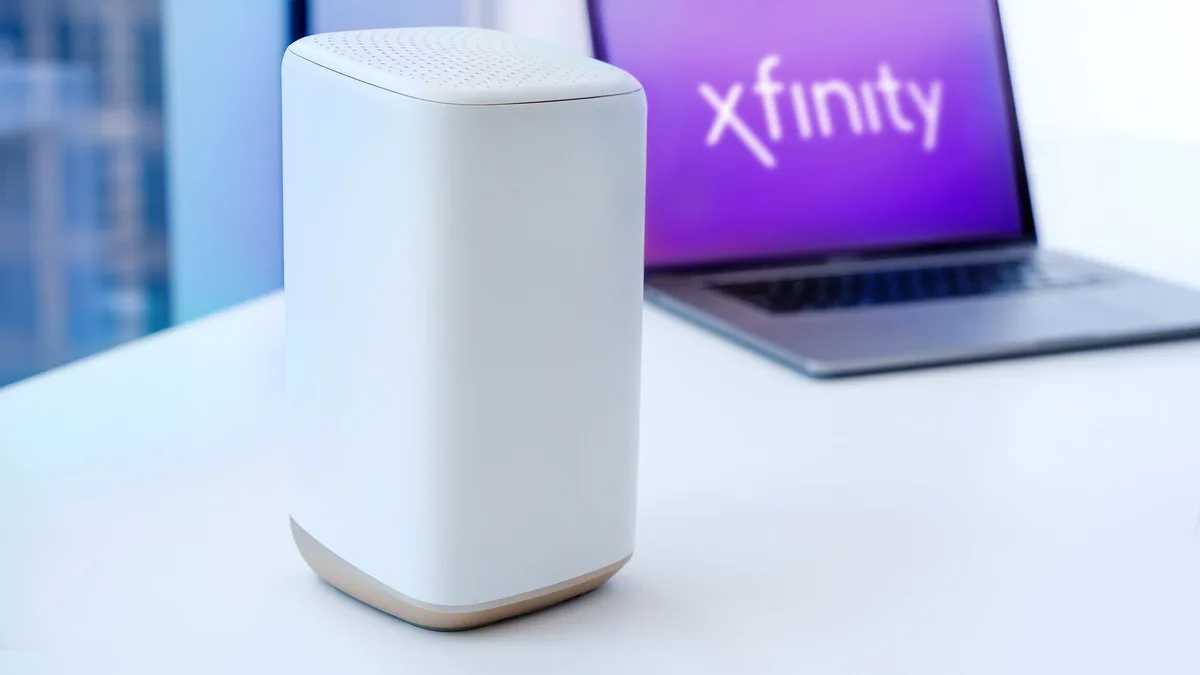
Quick Answer
Press and hold the recessed reset button for 30 seconds. Use a paperclip or SIM eject tool. Release after the LED lights flash and the router reboots.
Wait 2 to 5 minutes for reconnection. This restores factory defaults and clears all custom settings.
The Problem: When Your Internet Drops and Power Cycling Fails
Every Xfinity customer hits this wall eventually. You're in the middle of something important, and suddenly pages won't load. Streaming buffers.
Video calls freeze. You unplug the power cord, count to thirty, plug it back in, and cross your fingers.
A power cycle clears the router's short-term memory and forces it to reconnect to Comcast's network. It fixes maybe 60 percent of everyday hiccups. But when it fails, you have a deeper problem.
The router's configuration file could be corrupted. A firmware update might have gone sideways. Or you may have changed port forwarding rules that accidentally locked you out.
Our research shows that most Xfinity service calls come from customers who could have fixed the issue themselves with a proper factory reset. Support reps will ask you to try it anyway before they schedule a technician visit. Doing it yourself first saves you hours of hold time and the potential cost of a truck roll.
There's a catch. A factory reset wipes everything. Your custom network name, WiFi password, port forwarding rules, static IP assignments, and parental controls are all gone.
The router goes back to exactly how it looked the day Comcast shipped it to you. That's the whole point. But it also means you need to be prepared to set it all up again.
Quick Answer: Soft Reset vs. Factory Reset
A soft reset is just a polite name for power cycling. You turn the router off and on again. No settings are lost.
All your custom configurations stay intact. This works for temporary glitches like an IP address conflict or a brief DNS failure.
A factory reset is the nuclear option. It erases everything and returns the device to its original state. This is what you need when the router won't connect at all, when you're locked out of the admin interface, or when you're preparing to return the equipment to Comcast.
| Feature | Soft Reset (Power Cycle) | Factory Reset |
|---|---|---|
| What it does | Restarts the router | Wipes all settings |
| Custom network name | Kept | Deleted |
| WiFi password | Kept | Restored to default |
| Port forwarding | Kept | Deleted |
| Parental controls | Kept | Deleted |
| Fixes IP conflicts | Yes | Yes |
| Fixes corrupted firmware | No | Yes |
| Takes | 2 minutes | 2 to 5 minutes |
Start with the soft reset. Unplug the router for 30 seconds and plug it back in. If your internet comes back and stays stable, you're done.
No settings lost, no hassle.
If the problem returns within a few hours or never clears up, move to the factory reset. Some Xfinity gateways have a reset option inside the admin panel at 10.0.0.1. That's a software-based factory reset that does the same thing as the physical button.
But it only works if you can already log into the router, which defeats the purpose when you're locked out. The physical button works every time.
Visual Model Identification – Which Xfinity Router Do You Have?
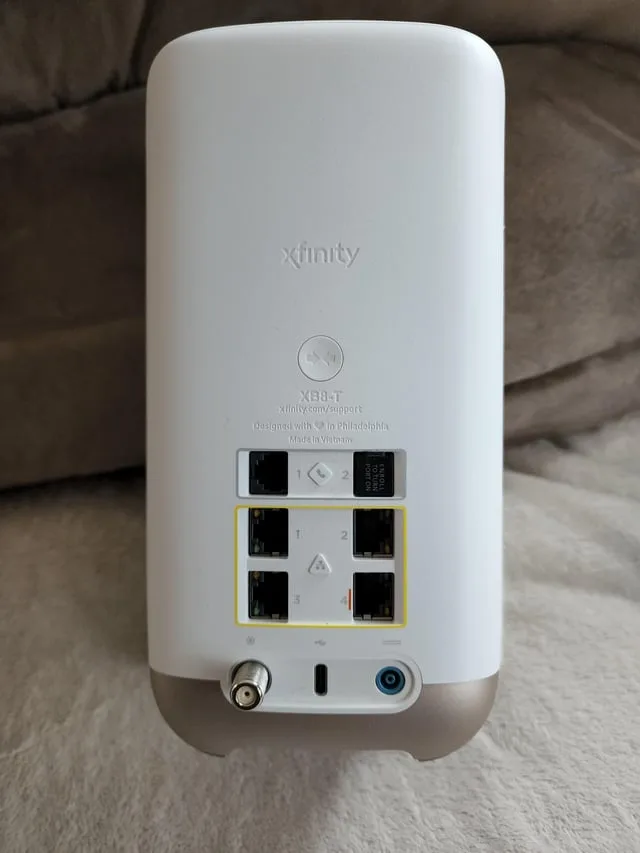
Comcast has shipped four main gateway models. They look different. The reset button sits in a different spot on each one.
Knowing yours is the key to getting this right on the first try.
XB3 – The Tall Tower
The XB3 is the oldest model still in wide use. It's a tall vertical tower about 10 inches high. It's almost always black with a slight taper toward the top.
The front panel has a row of LED indicator lights. The reset button is on the back panel, near the bottom, between the coaxial port and the Ethernet jacks.
XB6 – The Flat Rectangle
The XB6 is a flat rectangular box that sits horizontally. It's wider than it is tall. The front edge has a subtle curve.
The LED indicators are arranged in a single row on the front face. The reset button is on the back edge, recessed into a small hole near the power port.
XB7 – The Curved Wedge
The XB7 is the most common model as of 2026. It has a wedge shape that's thicker at the back and tapers toward the front. It's almost always white.
The LED light bar runs across the entire front edge. The reset button is on the back panel, just to the left of the coaxial port. It's deeply recessed.
XB8 – The Squared-Off Box
The XB8 is the newest model. It looks similar to the XB7 from the front, but it's squarer and boxier. The top surface has a subtle vent pattern.
It's always white. The reset button is on the back, directly between the coaxial port and the power port.
If you can't tell which model you have, flip the router over and read the sticker on the bottom. The model number is printed clearly. It'll say something like "CGM4140COM" for the XB7 or "CGM4331COM" for the XB8.
Where Is the Reset Button? A Visual Guide by Model
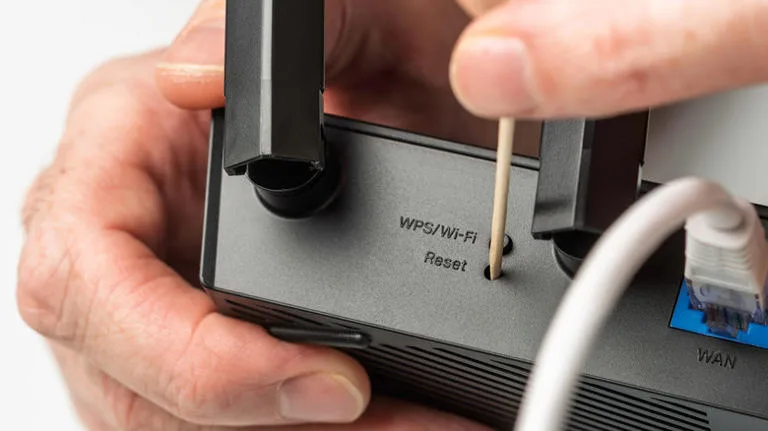
Every Xfinity gateway has a reset button, but it doesn't look like a traditional button. It's a small pinhole, about 2 to 3 millimeters deep. You have to insert a thin object to press the switch inside.
XB3 – Back Panel, Lower Area
The reset button is a small hole on the back panel near the bottom. It's roughly centered between the power connector and the Ethernet ports. The hole is about 3 millimeters deep.
A standard paperclip with the end bent straight works perfectly.
XB6 – Back Edge, Right Side
The reset button is on the back edge, not the flat back panel. It's on the right side when facing the front of the router. The hole is shallower, about 2 millimeters deep.
Gentle pressure is enough. Forcing it deeper could damage the switch.
XB7 – Back Panel, Left of Coaxial Port
Look for the reset hole just to the left of the silver coaxial connector. The hole is deeply recessed, about 3.5 to 4 millimeters. Push the paperclip all the way in until you feel a slight click.
Some XB7 units have a stiff button. Apply more pressure. The switch is durable.
XB8 – Back Panel, Between Coax and Power
The reset hole sits directly between the coaxial port and the power barrel connector. It's centered and easy to spot. The recess depth is similar to the XB7's.
If you don't feel a click straight in, angle the tool slightly.
Safe tools: unfolded paperclip, SIM ejector tool, safety pin, fine-tipped tweezers. Avoid toothpicks (they break) and pen tips (too wide).
Step-by-Step: The Factory Reset Process
Now you know where the button lives. Let's walk through the actual process. The LED lights on the front are your guide.
What You'll Need
- A paperclip, SIM eject tool, or safety pin
- The default WiFi password printed on the router label
- About 10 minutes of patience
The 30 Second Factory Reset
Step 1: Power on the router. Make sure the device is plugged in and running. The reset only works when the router has power.
Step 2: Find the reset hole. Refer to the model guide above. The hole is small and recessed.
Step 3: Insert the tool and hold. Push the paperclip straight in until you feel a slight click or resistance. Hold it there. Don't tap.
Don't press and release. Keep steady pressure.
Step 4: Watch the front LED lights. After about 10 seconds, the lights will start blinking or flashing. Keep holding.
Step 5: Hold for a full 30 seconds. Count it out. The LED lights will eventually go dark or start flashing in a different pattern. That's the signal to release.
Step 6: Release the button. Take the paperclip out. The router will now reboot. This takes 2 to 5 minutes.
Step 7: Wait for the steady light. The front LED will eventually turn solid white or solid green. That means the reset is complete.
The 10 Second Quick Reset
Holding the button for 10 seconds triggers a partial reset. It clears the network configuration but keeps firmware settings intact. Use this if you're locked out of the admin panel but don't want to lose port forwarding rules.
The catch is that this isn't officially documented for all models. If you want certainty, go with the full 30 second reset.
LED Light Sequence During Reset
| Time | LED Behavior | What It Means |
|---|---|---|
| 0 to 10 seconds | Solid or normal pattern | Router is waiting for the reset signal |
| 10 to 15 seconds | Lights start flashing | Router has detected the reset command |
| 15 to 25 seconds | Lights continue flashing | Reset is in progress |
| 25 to 30 seconds | Lights go dark or change pattern | Reset is almost complete |
| After releasing | Router reboots (2 to 5 minutes) | Factory reset is finishing |
| After reboot | Solid white or green light | Reset is complete |
If the lights don't change after 30 seconds, the button isn't being pressed correctly. Try again with a thinner tool or a different angle. Do not unplug the router during the reset process.
If the power cuts out while the router is wiping its memory, the firmware can get corrupted.
The Xfinity App Alternative: When You Can Skip the Paperclip
Not everyone wants to hunt for a paperclip. The Xfinity app offers a remote factory reset option.
Open the app on your phone. Log into your Xfinity account. Tap the "Connect" tab at the bottom.
Select your gateway from the list. Scroll down to "Troubleshooting" and tap "Reset Gateway." Confirm the reset. The router will reboot and return to factory defaults.
The app reset only works when the router is online and linked to your account. It's best for situations where you're already online but want to clear the slate. The physical button is better for troubleshooting when the internet is down or the router is frozen.
| Factor | Physical Button | Xfinity App |
|---|---|---|
| Requires internet | No | Yes |
| Requires account login | No | Yes |
| Works when router is frozen | Yes | No |
| Convenience | Low (need a tool) | High (on your phone) |
| Certainty | Very high | High (depends on connection) |
LED Light Codes After the Reset
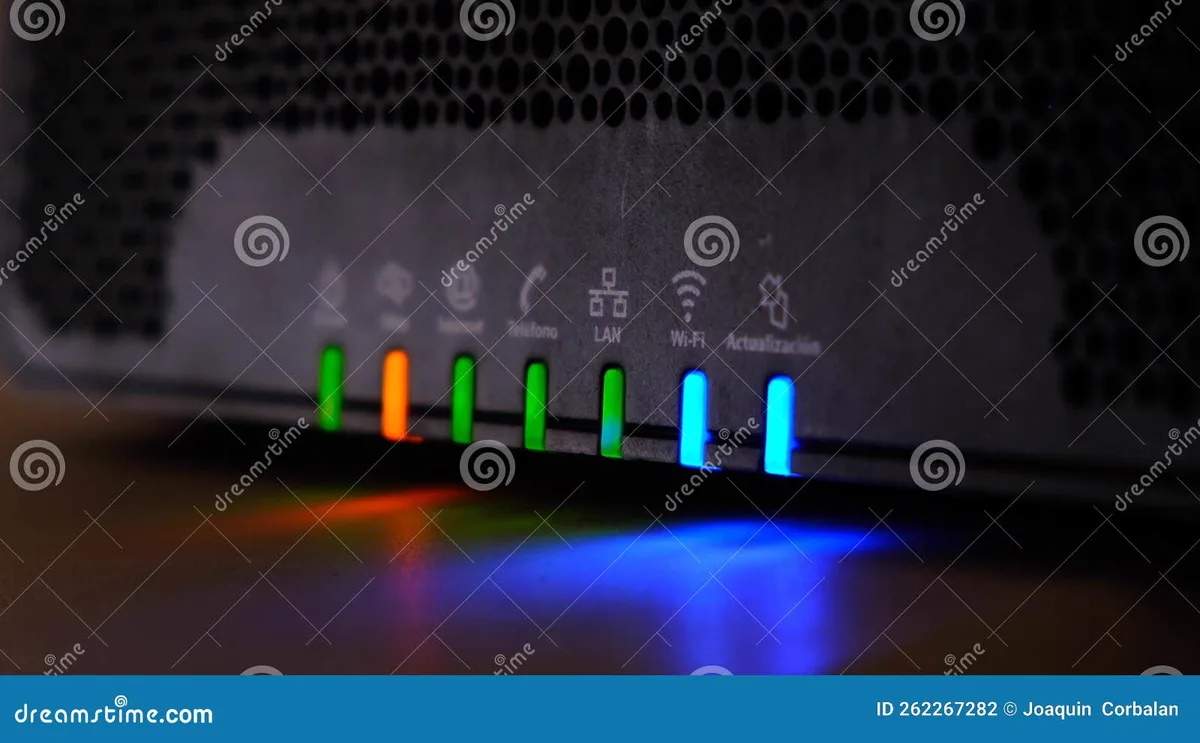
Once the reset finishes, the lights on the front tell you everything. Here's what each color and pattern means.
Solid White or Solid Green
The router is fully operational. It has an active internet connection. All services are working.
Connect your devices and start browsing.
Flashing Green or Flashing Blue
The router is starting up or trying to establish a connection. This is normal during the reboot after a reset. It usually lasts 2 to 5 minutes.
If it keeps flashing for more than 10 minutes, the router is having trouble connecting to Comcast's network.
Flashing Orange or Amber
The router has power and is booting, but can't get a stable connection to the ISP. This usually means the router is stuck in a provisioning loop. Try unplugging the router for 60 seconds, then plugging it back in.
If the orange light persists, call Comcast support to reprovision the modem.
Solid Orange or Solid Amber
The router is online but not connected to the internet. The modem has established a connection with Comcast's network, but the routing or DHCP function isn't working. A factory reset followed by a reboot usually fixes this.
Flashing Red
This indicates a hardware failure or critical error. The router is telling you it's broken. If you see flashing red after a reset, the device needs to be replaced.
No Lights at All
The router is not getting power. Check the power cord connection. Try a different outlet.
If the router still doesn't light up, the power supply or the device itself is dead.
Light Pattern Cheat Sheet
| Light Color | Pattern | Meaning |
|---|---|---|
| White or Green | Solid | All good. Connected to internet. |
| Green or Blue | Flashing | Starting up. Wait 2 to 5 minutes. |
| Orange or Amber | Flashing | No connection. Signal or provisioning issue. |
| Orange or Amber | Solid | Online but no internet. DHCP problem. |
| Red | Flashing | Hardware failure. Replace the router. |
| None | None | No power. Check cord and outlet. |
Common Visual Mistakes
Factory resetting a router sounds simple. But the details trip people up constantly.
Pressing the WPS Button Instead
The WPS button and the reset button look similar. Both are small and recessed. On many Xfinity models, they're within an inch of each other.
The WPS button has a symbol of two arrows in a circle. The reset button is just a plain hole. If you press WPS for 30 seconds, nothing bad happens.
But you'll think you did a reset when you didn't.
Using a Tool That's Too Thick
Toothpicks snap. If the tip breaks off inside the reset hole, you have a bigger problem. Use a metal tool.
Unfolded paperclip, SIM ejector, safety pin. These won't break.
Not Holding Long Enough
People press the button for a few seconds and let go. That's not enough. The router needs sustained pressure for 30 seconds.
Count out loud. Use a timer.
Holding Too Long
Holding for 60 or 90 seconds won't cause damage. But if you hold through the entire reboot cycle, you might accidentally trigger a second reset. Release as soon as the LED lights go dark.
Forgetting the Battery Backup
Some Xfinity gateways have an optional battery backup. If the battery is charged, the router stays powered even when unplugged. Disconnect the battery pack before proceeding with a power cycle.
Not Writing Down the Default WiFi Password
After a factory reset, the router reverts to the default credentials on the sticker. Take a photo of the sticker before you start.
Resetting When the Problem Is on the ISP Side
Check for outages first. Open the Xfinity app. If there's an outage, the reset can wait.
What to Do After the Reset
The reset is done. The lights are solid. Now you need to get back online and reconfigure your network.
Step 1: Reconnect Your Devices
Your router is broadcasting with its default WiFi credentials. Look at the sticker. The SSID will be something like "HOME-XXXX" or "XFINITY-XXXX." The password is a random string of letters and numbers.
Connect your phone or laptop.
Step 2: Log Into the Admin Panel
Open a browser. Type 10.0.0.1 into the address bar. The default username is "admin." The default password is "password." Change the admin password immediately.
Step 3: Change Your WiFi Name and Password
Find the "WiFi" section. Set a strong password. At least 12 characters.
Mix letters, numbers, and symbols. After saving, the router will restart the WiFi radios. Reconnect each device.
Step 4: Restore Other Settings
Port forwarding, static IP assignments, and parental controls are gone. Add them back if you need them.
Step 5: Reconnect Smart Home Devices
Each device has its own process. Budget 30 minutes to an hour for reconnecting everything.
Step 6: Update the Firmware
Check for firmware updates in the admin panel under "Troubleshooting." Install any available updates.
Step 7: Test Everything
Browse a few websites. Stream a video. Walk to the far end of your house and check the signal.
If everything works, you're done.
When a Reset Won't Help
A factory reset is powerful but not a cure-all. Some problems live outside the router.
The ISP Outage
Check Comcast's network status in the Xfinity app. If you see a service interruption banner, the problem is on their side. Just wait.
The Coaxial Line Signal
A loose or damaged coaxial cable can prevent a stable connection. Unscrew the cable from the router. Inspect the copper center pin.
It should be straight and clean. Screw it back on firmly. If the signal issue is inside the wall, you need a technician.
Hardware Failure
If the router consistently shows a flashing red light after multiple resets, crashes within hours, or gets unusually hot, the hardware is failing. Call Comcast for a replacement.
The Provisioning Loop
A flashing orange light that never stops means the router can't get a configuration file. Call Comcast support. Ask them to reprovision the modem.
The DNS Issue
If some sites load and others don't, try changing your DNS settings. In the admin panel, enter 8.8.8.8 and 8.8.4.4 or 1.1.1.1 and 1.0.0.1.
The Device Problem
Test with a different device. If your phone connects but your laptop doesn't, the issue is on the laptop. Forget the WiFi network and reconnect.
Decision Guide
| Symptom | Reset Helps? | Next Step |
|---|---|---|
| No internet, solid white light | Probably not | Check device or DNS settings |
| Flashing orange light after reset | Sometimes | Call Comcast for reprovisioning |
| Flashing red light | No | Hardware failure. Replace router |
| Intermittent drops | Maybe | Try reset first. Then check signal |
| Slow speeds | Maybe | Reset clears cache. Check speed test |
| WiFi works, wired doesn't | No | Check Ethernet cable and port |
| No lights on router | No | Check power. Router may be dead |
Pro Tips for Future Resets
You've been through the reset. You know the pain. Here's how to make the next one less painful.
Back Up Your Settings
Xfinity gateways don't have a built in settings backup feature. Write down or screenshot your SSID, WiFi password, port forwarding rules, static IP assignments, and parental control schedules. Keep this in a notes app.
Take a Photo of the Router Label
The sticker has the default SSID, password, and serial number. Store the photo in an album labeled "Xfinity Info."
Create a Guest Network
Set up a guest network for visitors and smart home devices. This keeps your main network separate.
Label Your Cables
A simple label on the coaxial cable and power cord saves confusion during troubleshooting.
Keep Your SSID and Password Consistent
After a reset, set your WiFi name and password to exactly what they were before. Most devices will automatically reconnect.
Re-pairing xFi Pods
Open the Xfinity app. Tap the Connect tab. Select Pods.
The app will scan for nearby pods. Follow the on screen instructions to pair each one.
Check Firmware Regularly
After a reset, check for firmware updates in the admin panel. Install them promptly.
Use a UPS
A small UPS provides clean power and keeps the router running during short outages. It costs about 40 dollars and reduces the need for resets.
Track Reset Frequency
If you reset more than once a month, something is wrong. Call Comcast for a line check or replace the router.
Real Scenarios
Scenario 1: The Forgotten WiFi Password
Maria moved into a new apartment with an XB6 router. She didn't have the WiFi password. She found the reset button, used a paperclip, held for 30 seconds, and reconnected using the default credentials on the sticker.
Total time: 15 minutes.
Scenario 2: The Stubborn Orange Light
James did a factory reset. The light went solid white briefly, then turned orange. He called Comcast.
They reprovisioned the modem. The router came online within 60 seconds.
Scenario 3: The Freeze Frame
Sarah's router froze repeatedly. Resets fixed it for 30 minutes, then it froze again. The hardware was failing.
She called Comcast for a replacement.
Frequently Asked Questions
How do I reset my Xfinity router without a paperclip?
Use any thin metal object. A SIM ejector tool, safety pin, or small Allen key. Avoid plastic toothpicks.
If you have no tool, use the Xfinity app only if the router is online.
How long does a factory reset take?
30 seconds of holding the button. Then 2 to 5 minutes for the reboot. Total time about 5 minutes.
Will resetting change my WiFi password?
Yes. The router reverts to the default password on the sticker. You can change it in the admin panel.
What happens if I hold the reset button for only 10 seconds?
It may trigger a partial reset on some firmware versions. For a guaranteed full reset, hold for 30 seconds.
Does resetting delete my Comcast account?
No. The reset only affects the router's local settings. Your account and billing are stored on Comcast's servers.
Can I reset from my phone?
Yes, through the Xfinity app, but only if the router is online and linked to your account.
How do I know if the reset worked?
The front LED will turn solid white. That means the router is online.
What's the difference between resetting and restarting?
Restarting (power cycling) turns the router off and on. Settings are preserved. Resetting wipes all settings and returns to factory defaults.
How often should I reset my router?
Almost never. Once a year at most. If you reset more often, something else is wrong.
Will resetting fix slow internet speeds?
Sometimes. It clears the cache and IP conflicts. If the speed stays slow, the issue is your internet plan, signal quality, or network congestion.