
You've hit the reset button before, typed in your email, waited for that link, and hoped it didn't land in spam. But a PayPal password reset isn't a routine step. Get it wrong and you could trigger a security hold, lose access to your money, or hand your account to a scammer.
As of 2026, PayPal handles over 400 million active accounts and billions in transactions daily. That makes your login credentials a prime target. The good news?
The reset process is straightforward, when you know exactly what to expect and where the traps hide.
In our research, most password reset failures aren't technical glitches. They're caused by a missed detail: an old recovery phone number, a forgotten security question answer, or a phishing email that looks identical to the real thing. This guide walks you through every fork in the road.
Whether you're locked out of your email, sitting at a "reset link expired" screen, or wondering if that message is real, you'll know what to do before you click anything.
Quick Answer
Go to the official PayPal login page. Click "Having trouble logging in?" Enter your email. Choose your recovery method.
Enter the code or link you receive. Follow the prompts to create a new password. The whole process takes 5 minutes if you have access to your recovery options.
If you've lost access, you'll need identity verification. That can take up to 5 days.
Why This Reset Needs to Be Done Right (and What's at Stake)
A password reset seems like a minor chore. But PayPal is different. It's connected to your bank account, debit card, credit cards, and sometimes a PayPal Credit line.
One wrong move and you could be locked out for days. Or worse, a fraudster could take control.
Here's what's actually at stake:
- Immediate account limitation. If PayPal's fraud detection flags the reset as suspicious, they can freeze your account for up to 72 hours. No sending, no withdrawing, no transferring.
- Linked financial accounts. Your bank and card details are stored. If someone else gains access, they can drain your PayPal balance and use your stored payment methods.
- Lost buyer and seller protections. A compromised account can lose its protection status for recent transactions.
- Reputation damage. If you're a seller, a hacked account can send fraudulent invoices or refunds to your customers.
Our editorial policy requires us to be straight with you: password resets are one of the most common phishing vectors. The first step isn't clicking the link, it's verifying the source.
The stakes are real, but so is the solution. Follow the right path and you'll be back in control within minutes.

Image source: Bing (Web (fair-use with source credit))
The Two Main Reset Paths: Automated vs. Manual Review
PayPal offers two distinct routes. Which one you get depends entirely on what information you can still access.
Path 1: Automated Reset (5–10 minutes)
This is the fast lane. You qualify if:
- You can still access the email address on your account
- You can receive SMS codes on the phone number on your account
- You have your authenticator app (Google Authenticator, Authy, etc.) still working on your device
If you meet any one of those conditions, the entire reset is self-service. No human involvement needed.
Path 2: Manual Review (1–5 business days)
This is the slow lane. You end up here if:
- You've lost access to your recovery email and phone
- Your authenticator app is on a device you no longer have
- You're asked security questions you can't answer (older accounts sometimes have these)
- PayPal's system flags the attempt as high risk
In this case, you'll need to upload a government-issued ID and possibly a selfie or proof of address. A human reviews the documents. That takes time.
PayPal's official help center states this review can take up to three business days. User reports in aggregate reviews suggest it sometimes stretches to five.
| Reset Path | Conditions Met | Typical Time | Requires ID Upload |
|---|---|---|---|
| Automated (fast) | Recovery email/phone or 2FA accessible | 5–10 minutes | No |
| Manual (slow) | Recovery methods lost; high-risk flag raised | 1–5 business days | Yes |
If you have working recovery options, always choose the automated path. If not, prepare your ID now and expect a wait.
Before You Click Anything – Verify You're on the Real PayPal Site
This step is non-negotiable. Every year, thousands of people lose access because they entered credentials into a fake password reset page. Two quick checks expose them every time.
Check the URL bar
The real PayPal password reset page always starts with https://www.paypal.com. Not paypa1.com, not paypal-security.com, not paypal-reset.net. If the domain is anything other than paypal.com, do not proceed.
Do not enter your email. Do not enter your password.
Look for the padlock
A valid HTTPS connection shows a padlock icon. But that's not enough, many phishing sites use free SSL certificates. The padlock only means encrypted data, not a legitimate site.
The domain check matters more.
Never click a link from an email
The safest way to start a password reset is to open a new browser tab and type paypal.com manually. Do not click a link from an email. If you've already clicked one, stop and check the URL before entering anything.
A fake reset email's URL typically shows a misspelled domain, a subdomain like paypal.secure-login.net, or a long string of random characters. Real PayPal emails only send links to https://www.paypal.com.
If you have any doubt, follow our terms and conditions regarding account security: never share your password, and always initiate resets from the official site. For additional guidance on protecting your accounts from phishing, the Federal Trade Commission (FTC) provides clear advice on recognizing scam emails.
Step-by-Step: How to Reset Your PayPal Password the Safe Way
This process works for both the website and the PayPal app.
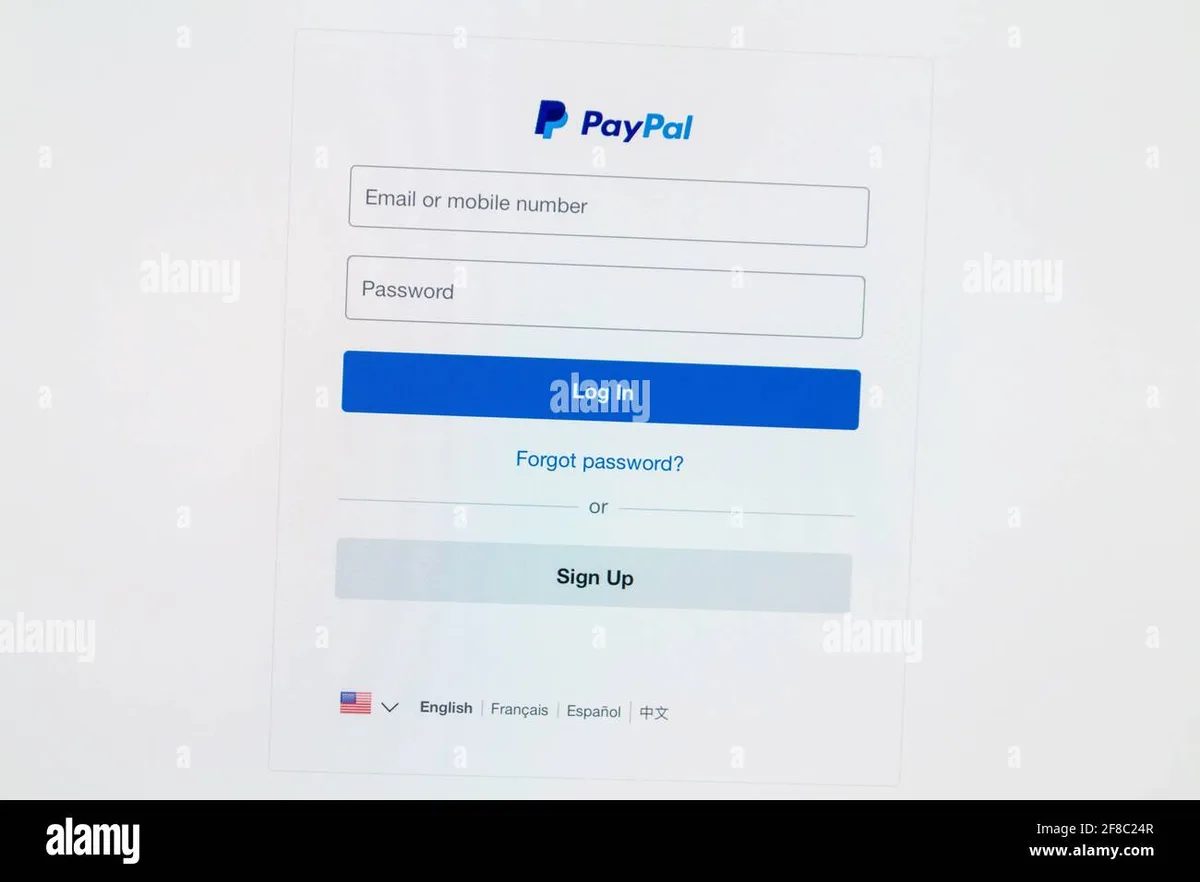
Step 1: Go to the official login page
Open your browser. Type paypal.com in the address bar. Do not use a search engine, you could land on a sponsored ad that leads to a phishing site.
Step 2: Click "Having trouble logging in?"
Below the password field on the login page, you'll see this link. Click it.
Step 3: Enter your email address
Type the email associated with your PayPal account. If you have multiple emails, use the primary one.
Step 4: Choose your recovery method
PayPal shows the options you set up when you created the account. Typical choices:
- Email me a link, Goes to your primary email.
- Text me a code, Goes to your phone number on file.
- Use my authenticator app, Requires you to open your 2FA app.
If you see only one option and it's not usable, you're headed for manual review.
Step 5: Enter the code or click the link
- Email link expires in 48 hours. Check your inbox and spam folder.
- SMS code is 6 digits. Enter it on the page.
- Authenticator app: open it and enter the current code.
Step 6: Create a strong new password
PayPal requires:
- 8 to 20 characters
- At least one uppercase letter
- At least one lowercase letter
- At least one number
- At least one special character
Do not reuse a password from any other site. Password reuse is the number one cause of account takeovers.
Step 7: Confirm and sign in
After setting the new password, you'll be automatically signed in. You'll also receive a confirmation email. If you didn't request the change, that email is your early warning, contact PayPal support immediately.
What Happens After You Reset – 72-Hour Cooldown and Account Limits
Once you change your password, PayPal applies a security cooldown. This prevents fraudsters who may have bypassed the reset from draining your account immediately.
What's restricted during the cooldown
For up to 72 hours, these actions may be blocked or limited:
- Sending money to new recipients
- Withdrawing funds to a newly added bank account
- Increasing sending limits
- Changing account settings like email, phone, or address
- Linking new cards or bank accounts
Receiving money is typically unaffected. You can also log in and view your transaction history.
Why this is actually a good thing
This cooldown protects you. If someone else triggered the reset, the delay gives you time to notice and contact support. Many users who caught their account being taken over appreciated this buffer.
How to shorten or remove the cooldown
You can't shorten it. Only after the 72-hour window and no suspicious activity will full functionality restore. If you urgently need to send money, call PayPal support and verify your identity again.
What about linked accounts?
Your PayPal account is still connected to your bank and cards. Those aren't affected by the cooldown. But if someone made a withdrawal to a bank account that's been on file for a while, that transaction might still go through.
Monitor your transaction history immediately.
A note on account limitations
A password reset cooldown is not the same as a permanent account limitation. A limitation is a full suspension pending review. If after resetting you see "Your account has been permanently limited," you'll need to go through a separate resolution process.
That's uncommon but happens if PayPal's security algorithms detect unusual activity during the reset. Check our disclaimer for more information on account statuses and our privacy policy for how your data is handled during such reviews.
If you get stuck and need direct assistance, use our contact page to reach the support team.
This guide covers the core reset process, the two paths, security verification, step-by-step instructions, and post-reset limits. If you made it this far, you now know exactly what to do, and what traps to avoid, when resetting your PayPal password.
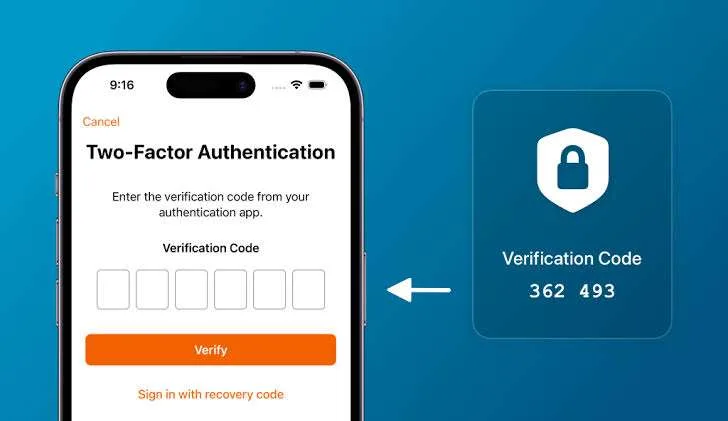
Image source: Bing (Web (fair-use with source credit))
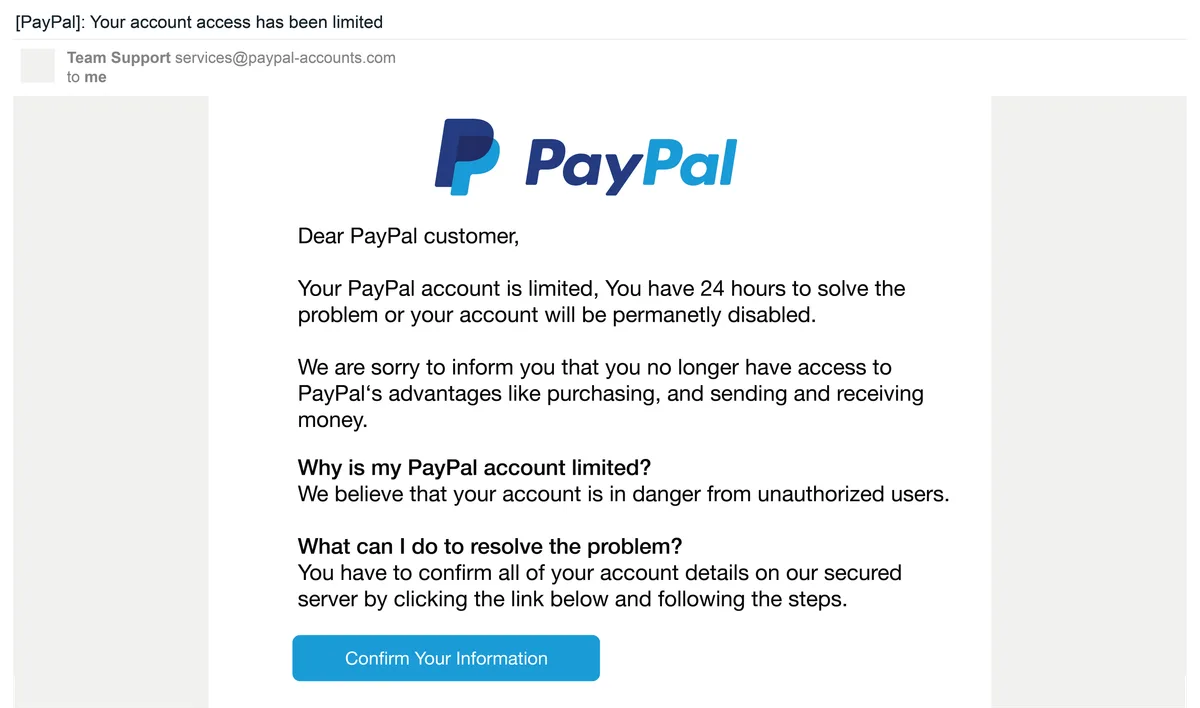
Image source: Bing (Web (fair-use with source credit))
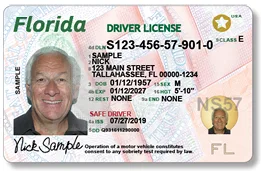
Image source: Wikimedia Commons / Florida Department of Highway Safety and Motor Vehicles