
You’re staring at the password prompt and drawing a blank. Or maybe you’ve typed the wrong one so many times the account’s now locked. Whatever the reason, you need to reset your Outlook password, and you need it done without the frustration of clicking through dead ends.
A self‑service reset takes about four minutes if you have your security info handy. If you don’t, the recovery form can take up to 24 hours. The fastest path depends entirely on which type of Outlook account you’re dealing with.
Let’s break that down first.
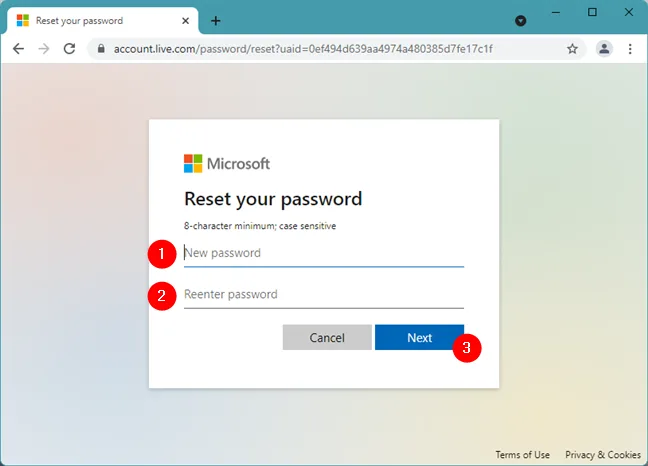
Image source: Bing (Web (fair-use with source credit))
Quick Answer
Three conditions send people here. Forgot means you don’t remember the current password. Lockout means you tried too many times and the account is temporarily blocked.
Expired means your organization forced a change and you haven’t done it yet.
For a personal Microsoft account (Outlook.com, Hotmail, Live), go directly to account.live.com/password/reset. Choose “I forgot my password” or “I know my password but can’t sign in.” Follow the verification steps with your alternate email, phone, or authenticator app. Create a new password that meets the eight‑character minimum with two of: uppercase, lowercase, number, or symbol.
For a work or school account (Microsoft 365, Exchange Online), you may have self‑service password reset (SSPR) if your organization enabled it. Check the sign‑in page for “Reset password” or “Can’t access your account?” If SSPR isn’t available, you must contact your IT admin.
If your password is expired but you know it, just sign in, the system will ask you to set a new one. If you’re locked out, wait one hour or use the reset link if available.
What Kind of Outlook Account Do You Have?
This is the single most important fork in the road. Personal accounts end in @outlook.com, @hotmail.com, @live.com, or @msn.com. You manage them entirely through your own Microsoft account profile.
Work or school accounts end in your company’s domain, like @contoso.com, or an .edu address. An organization controls them, and your IT department holds the master keys.
Open Outlook and look at the email address in the top‑left corner. If it’s a generic @outlook.com address, it’s personal. If it’s yourname@company.com, it’s a work or school account.
Also check whether you see a “Work or school” vs. “Personal” option when signing in at login.microsoftonline.com. Mixing them up is the most common reason a reset fails.
Personal accounts let you reset yourself if you can prove identity. Work and school accounts give you self‑reset only if your organization turned on SSPR. If they didn’t, only an admin can do it.
Decision Branch 1: Personal Microsoft Account
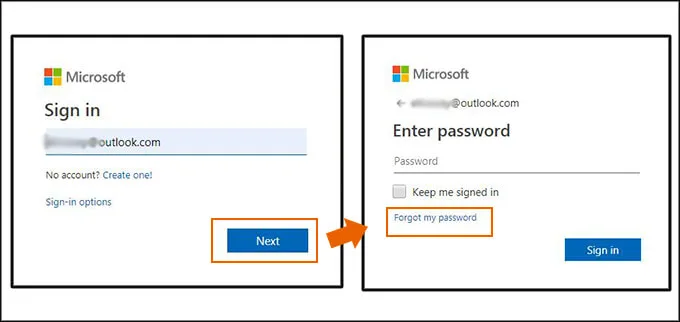
Image source: Bing (Web (fair-use with source credit))
This is the simplest scenario. You own the account, and Microsoft lets you reset as long as you can verify you’re the real owner. The process lives at account.live.com/password/reset.
No need to call anyone. No admin approval. Just a few screens and a new password.
Self‑Service Reset Step by Step
- Go to the reset page, account.live.com/password/reset. Do this on a trusted device and network.
- Select “I forgot my password” or “I know my password but can’t sign in” if your password works but MFA is failing.
- Enter your full email address, the one you’re locked out of. Type it carefully.
- Complete the CAPTCHA, proves you’re human.
- Choose a verification method, Microsoft will show the methods you set up. Options include: , Email (sends a code to your alternate email)
, Phone (SMS or call to a backup number)
, Authenticator app (a code from the app on your phone)
, Recovery code (a 25‑digit code you saved earlier)
- Enter the code you receive. Codes expire after 15 minutes.
- Create a new password, at least 8 characters, must include two of the four types: uppercase, lowercase, digit, symbol. Microsoft remembers your previous passwords and blocks reuse.
- Sign in with the new password on Outlook.com to confirm it works.
If you use the same Microsoft account for Windows, Xbox, or OneDrive, that password changes too. You’ll need to sign in again everywhere.
When You’ve Lost All Access to Your Security Info
This is where things get sticky. You have no access to your backup email. Your phone is dead.
You never wrote down a recovery code. Microsoft’s answer is the account recovery form.
On the reset page, after the “choose a method” screen, look for the link that says “I don’t have any of these”. Clicking it opens a longer form that asks detailed questions to prove ownership. You’ll need:
- The full email address of the account
- A working email address where Microsoft can contact you
- Recent passwords you remember, even wrong ones
- Subject lines of recent emails
- Names of contacts you’ve emailed
- Dates the account was created
- Physical locations where you’ve signed in
The form is reviewed by a human at Microsoft. Expect a response in 24 hours, sometimes up to 72. Your best chance is to be consistent.
Contradicting details can get it rejected.
If you have any old device that was ever signed into that account and is still connected to Wi‑Fi, try opening the Outlook app on it. The cached session might still work, letting you retrieve your security info from inside account settings before attempting the reset.
Decision Branch 2: Work or School Account
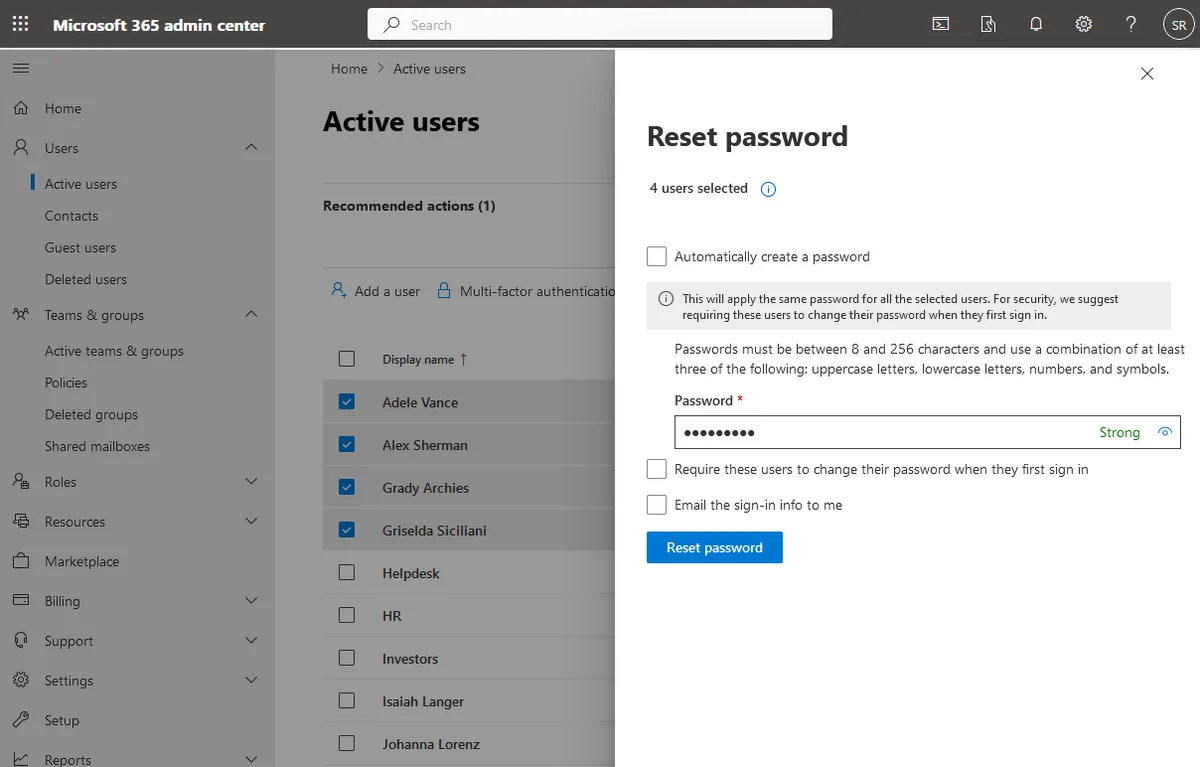
Image source: Bing (Web (fair-use with source credit))
If you’re resetting a work or school password, the rules change completely. Your organization’s password policy and IT setup determine everything. You cannot go to account.live.com, that site is for personal accounts only.
Using it on a work account will result in an “account not found” error.
The correct portal is your organization’s Microsoft 365 sign‑in page. Usually that’s login.microsoftonline.com, but some orgs have a custom URL. Enter your email.
If your company has enabled SSPR, you’ll see a “Reset password” link on the sign‑in screen.
If Your Organization Has SSPR
SSPR is a feature your IT admin must switch on. When it’s active, you can reset your password without calling anyone.
- Click “Reset password” on the Microsoft 365 login page.
- Verify with your work email, your phone, or the Microsoft Authenticator app.
- Create a new password that meets your company’s complexity rules.
- Sign in with the new password.
If your company has also enabled password writeback, the new password will work in your on‑premises Exchange server and in cloud apps. If writeback isn’t set up, your cloud password and local Windows password may be different.
If You Need to Contact Your IT Admin
No SSPR link? Then you’re stuck until someone with admin privileges resets it. Here’s what to do:
- Call or email your IT help desk, tell them your full email address and that you’re locked out.
- Have proof of identity ready, many companies verify with employee ID, manager approval, or security questions.
- Be specific, say you need a password reset for your Microsoft 365 account, not your Windows local account.
- After the admin resets it, you’ll receive a temporary password. Sign in immediately and change it to something only you know.
For smaller companies without a dedicated IT team, contact your manager. They may have delegated admin rights in the Microsoft 365 admin center. They can reset the password by going to Admin > Users > Active users > selecting your account > Reset password.
Decision Branch 3: Outlook Keeps Asking for the New Password
You successfully reset your password online. You can log into Outlook.com with no issues. But the Outlook desktop app or mobile app still pops up with “password incorrect.” You type the new password again and again.
Nothing works.
This happens because Outlook caches your old credentials. It’s holding onto the wrong password and won’t let go until you force an update.
Updating the Saved Password in Outlook
Outlook for Windows (new version)
Go to File > Account Settings > Account Settings. Select your email account, click Change, then click “Sign out of this account.” When you click Done, Outlook will prompt you to sign in again. Enter your new password.
Outlook for Mac
Go to Tools > Accounts. Select your account, click the minus sign to remove it, then re‑add the account with your new password.
Outlook mobile (iOS/Android)
Open the app, go to Settings > tap your account > Delete Account. This removes local data. Re‑add the account from scratch.
Clearing Cached Credentials When the Update Doesn’t Stick
Sometimes Windows Credential Manager holds onto the old password. Outlook won’t let go until you purge it.
- Open Control Panel > Credential Manager.
- Click Windows Credentials.
- Look for entries under “Generic credentials” containing “Outlook,” “MicrosoftOffice,” or your email address.
- Click the arrow next to the entry, then select Remove. Confirm.
- Restart Outlook. It will force you to enter your password fresh.
On a Mac, open Keychain Access. Search for “outlook” or “Exchange.” Find the entry for your account and delete it. Restart Outlook.
If you’re using Modern Authentication, the issue is often a stale token rather than a cached password. Go to Windows Settings > Accounts > Access work or school. Click your Microsoft account and select Disconnect.
Then re‑add it. This resets the entire token cache.
Common Mistakes That Lock You Out Longer
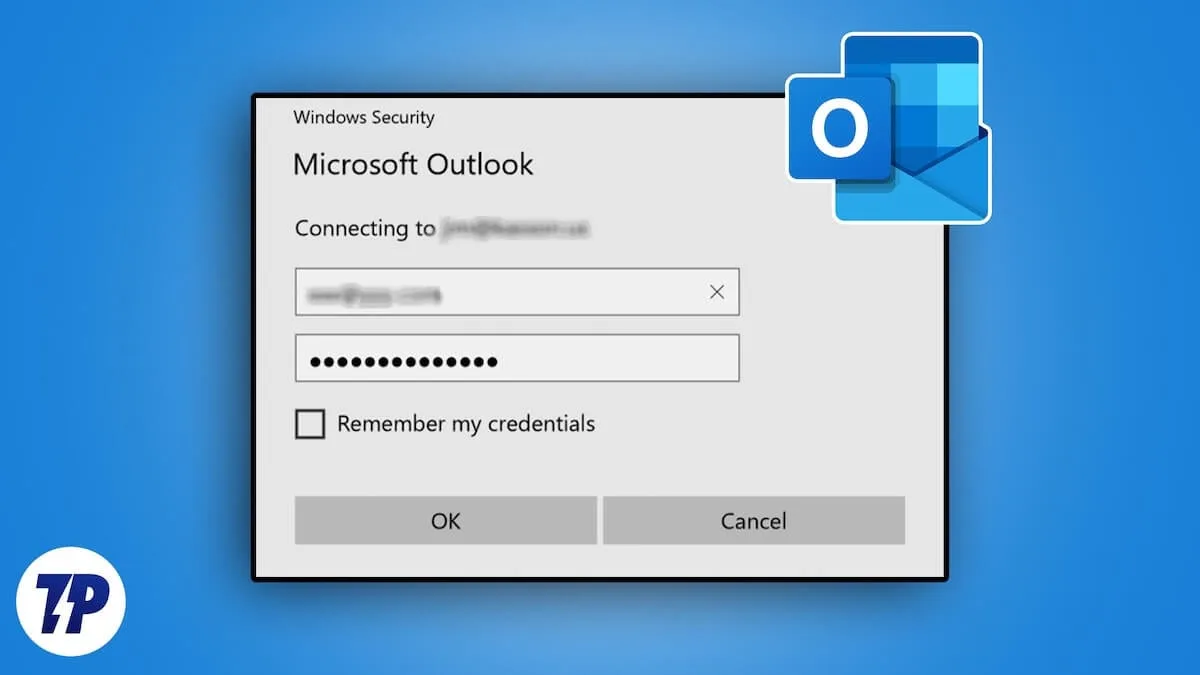
Image source: Bing (Web (fair-use with source credit))
Most password reset delays aren’t caused by Microsoft. They’re caused by simple, avoidable mistakes. Here are the three most common traps.
Using the Wrong Account Type
This is the number one reason a reset fails. You copy the link from a friend who reset their Hotmail account. You type in your work email.
The page says “account not found.”
Personal accounts live in Microsoft’s consumer identity system (Microsoft Account). Work and school accounts live in Azure Active Directory (now Microsoft Entra ID). The reset portal for personal accounts is account.live.com/password/reset.
The portal for work accounts is specific to your organization’s sign‑in page.
Always check your email domain first. If it’s @company.com or @edu, use your company’s Microsoft 365 login page. Look for the “Reset password” link there.
If it’s not present, call IT.
Ignoring MFA and App Passwords
Multi‑factor authentication is common for work accounts and increasingly for personal ones. When MFA is on, resetting the password isn’t enough. You also need to re‑register your authentication methods.
Here’s the scenario: You reset your password successfully. You sign into Outlook on your phone. It asks for a verification code.
But your authenticator app is on the same phone, and you just wiped it. Now you’re stuck again.
Set up at least two MFA methods before you lose access. The Microsoft Authenticator app, a phone number for SMS, and a backup email. Keep all three current.
If you lose one, you still have a way in.
For personal accounts, you can generate app passwords for older apps that don’t support MFA. Go to account.live.com, then Security > Advanced security options > App passwords. Generate one for each legacy app.
Store them somewhere safe.
App passwords only work with personal accounts, not work accounts. And they only work if you have MFA turned on. If you’re using a work account and an old Outlook version, upgrade or ask IT about modern authentication.
Rushing the Recovery Form with Inconsistent Details
When you have no access to your security info, the account recovery form is your only option. But it’s easy to mess up.
The form asks for recent passwords, email subject lines, contact names, account creation dates, and sign‑in locations. Microsoft checks your answers against data they already have. If you say you created the account in 2015 but their records show 2018, the form gets rejected.
Take your time. Write down everything you remember before starting. If you’re unsure about a date, leave it blank.
One inconsistent answer can derail the whole request. Use the same email address for Microsoft’s response that you’ve used in the past for account notifications.
How to Avoid This Headache Next Time
A password reset is a one‑time fix. You’ll save hours with a little proactive setup. Two things matter most: keeping your security info current and using a tool that remembers your passwords.
Setting Up Updated Security Info and Recovery Codes
Go to account.microsoft.com/security while you still have access. Under “Security info,” you’ll see your current verification methods. Have at least two of these active:
- An alternate email address (not your @outlook.com one)
- A phone number that receives SMS
- The Microsoft Authenticator app
Update them every time you change your phone number or primary email. Stale security info is the leading cause of the “I don’t have any of these” scenario.
Also generate and save your recovery code. In the same security section, find “Recovery code.” It’s a 25‑digit string that works once. Write it down physically and store it somewhere secure.
Don’t keep it on your computer or in cloud storage you might lose access to.
If you lose everything else, that recovery code is your golden ticket.
Using a Password Manager
The whole “forgot password” problem becomes rare when you stop trying to remember passwords. A password manager creates, stores, and fills in strong, unique passwords for every account. Apps like Bitwarden, 1Password, and Apple’s iCloud Keychain are well‑reviewed.
Set up one password manager across your phone and computer. When you change your Outlook password, the password manager saves it automatically. Next time you’re prompted, it fills in for you.
Protect your password manager’s master password. If you lose that, you lose everything. Write it down on paper and store it with your recovery code.
Decision Guide – Your Quick Path Based on Symptoms
Use this quick‑reference table to find the right branch for your situation.
| If this is happening | Start here |
|---|---|
| You forgot your password | Go to account.live.com/password/reset (personal) or your company’s sign‑in page (work) |
| You tried too many times and are locked | Wait one hour or use the reset link if available |
| Your password expired but you know it | Sign in normally; you’ll be prompted to change it |
| Outlook keeps asking for the new password | Clear cached credentials from Windows Credential Manager or Keychain |
| You can’t access your recovery email or phone | Use the “I don’t have any of these” recovery form |
| You have a work account and no SSPR link | Contact your IT admin or manager with reset privileges |
| You have a personal account with no security info | Fill out the account recovery form and wait up to 24 hours |
| You’re getting “account not found” on reset page | Check if you’re using a personal portal for a work email domain |
| The authenticator app isn’t working | Use SMS, alternate email, or a recovery code instead |
Frequently Asked Questions
Can I reset my Outlook password without my phone?
Yes. When you choose a verification method on the reset page, pick “Email” instead of phone. A code will be sent to your alternate email.
If you don’t have access to either, use the recovery form with the link “I don’t have any of these.”
How many times can I try before getting locked out?
Microsoft locks your account after about 10 incorrect attempts in a row. The lockout lasts roughly one hour. After that, you can try again or use the reset link if available.
Does resetting my Outlook password affect my other Microsoft services?
Yes. Your Microsoft account password is shared across Outlook.com, OneDrive, Xbox, Skype, and Windows sign‑in. Changing it updates the password for all of them.
You’ll need to sign back into each service with the new credentials.
What if my company uses two‑step verification for work email?
Your password reset works normally, but you’ll also need to verify with your second factor after the reset. Make sure you have access to your authenticator app, phone, or backup codes before starting. If those are lost, contact your IT admin.
Can I use the same password I used before?
Microsoft blocks reuse of recent passwords. For personal accounts, they remember the last several passwords and won’t let you use any of them again. For work accounts, your organization’s password history policy determines how many old passwords are blocked.
I accidentally deleted my Outlook account. Can I get it back?
If you deleted a personal Microsoft account within the past 60 days, you can recover it. Go to account.live.com and try signing in. Microsoft will detect the deleted account and offer a recovery path.
After 60 days, it’s permanently gone.