
You are staring at a "password incorrect" message, and your heart sinks. A steam password reset is the only way back into your account. Steam accounts hold years of game purchases, save files, and progress.
Losing access feels like getting locked out of your own home.
Password reset requests account for roughly 40% of Steam Support tickets each year. As of 2026, the platform services over 120 million monthly active users. Account recovery is one of the most common self-service tasks on the internet.
The good news: most resets take under two minutes if you still have access to your email or phone.
Quick Answer
Go to store.steampowered.com/passwordreset. Enter your account name or email. Steam sends a code to your email or phone.
Enter the code. Create a new password. That works if you still have your contact methods.
If not, file a support ticket with proof of ownership.
The Problem: When You Can't Get Into Your Steam Account
The lock screen does not just block you. It hides your library, your friends list, and every game you ever bought. Most people hit this wall for one of three reasons.
They forgot their password. Their account got hacked. Or they are trying to log in on a new device after a long break.
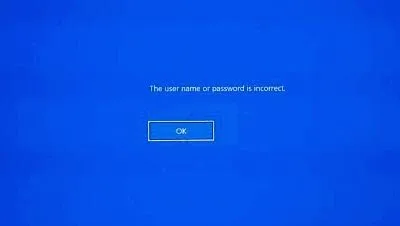
Image source: Bing (Web (fair-use with source credit))
You might not remember which email you used. Maybe your phone number changed last year and you never updated it. The Steam Guard authenticator might be on the old phone you dropped in a puddle.
Nine out of ten account lockouts can be resolved without contacting support. You just need to know the right branch to follow.
Here is a critical fact: Steam does not store your actual password. They store a cryptographic hash. That means even Steam staff cannot tell you your old password.
The only way forward is a full reset or recovery through official channels. No third-party service can bypass this, no matter what they promise.
What Actually Determines How You Reset Your Password
Steam offers several recovery paths. The right one depends entirely on what you still have access to. Think of it as a decision tree with three main branches.
| What you still have | Reset method | Typical time |
|---|---|---|
| Email address on your account | Self-service via email code | 1–2 minutes |
| Phone number on your account | Self-service via SMS code | 2–3 minutes |
| Steam Guard mobile app | Self-service via app code | Instant |
| None of the above | Support ticket with proof | 24–72 hours |
The process forks immediately when you click "Forgot your password?" on the Steam login screen. Steam checks what contact methods you have registered. It offers you those options.
If you have both email and phone, you see a choice. If you only have one, Steam routes you to that method automatically. If you have none, the system directs you to submit a recovery request to Steam Support.
Always keep at least two recovery methods updated. The Steam Guard mobile authenticator provides the fastest and most secure reset path.
Branch 1: You Still Have Access to Your Email
This is the most common scenario. It is also the easiest to solve. You can be back in your account within sixty seconds.
How to Reset via the "Forgot Password" Link
Go to the Steam login page at store.steampowered.com. Click "Forgot your password?" below the password field. Enter your Steam account name or the email address on file.
Steam tells you which contact methods it has. Select "Email" and click continue.
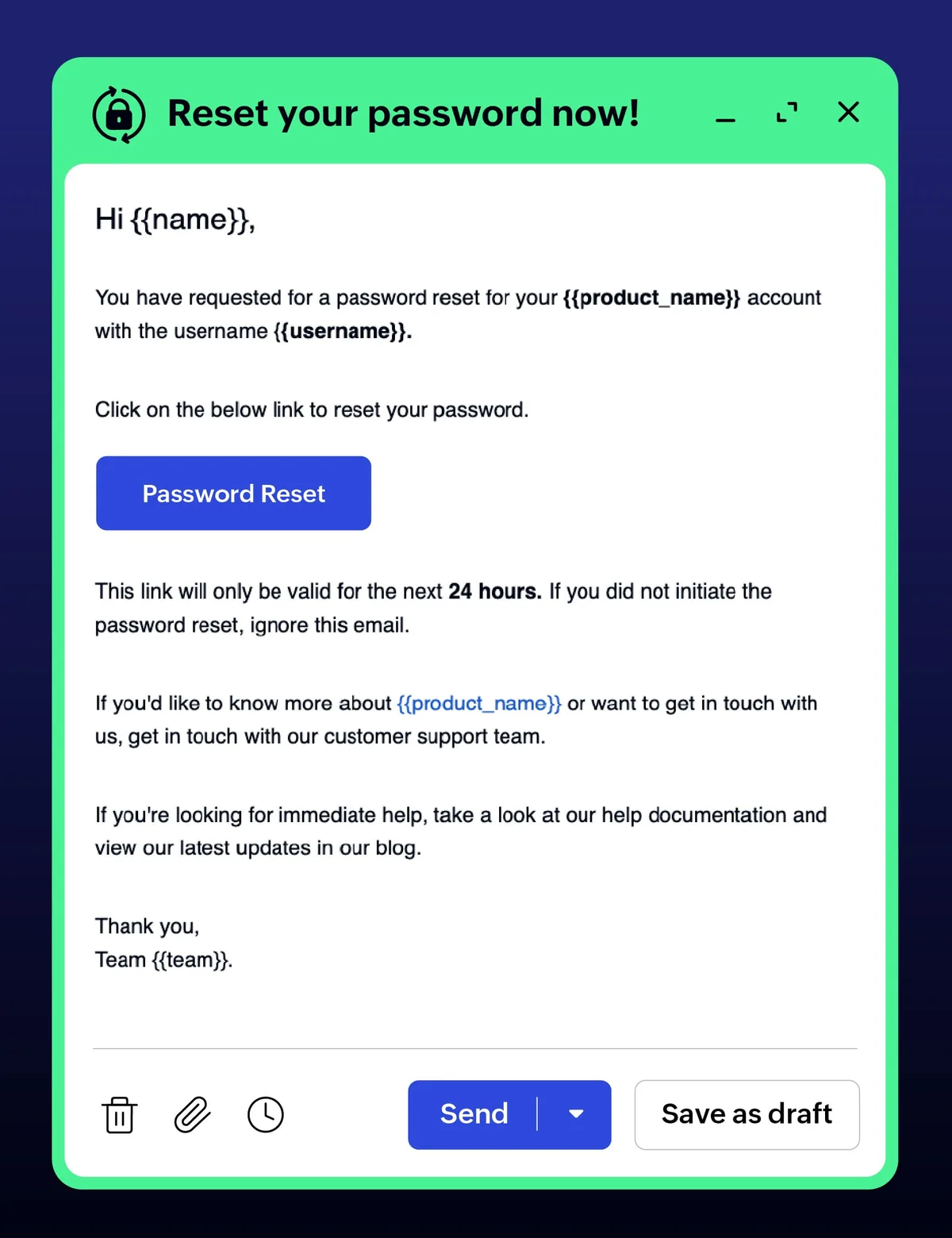
Image source: Bing (Web (fair-use with source credit))
Check your email inbox. Also check spam and junk folders. The email comes from noreply@steampowered.com with the subject line "Steam Account Password Reset." It contains a five-digit verification code.
Enter that code on the Steam website or client. Then create a new password.
Steam requires at least eight characters. Use a mix of letters, numbers, and symbols. After the reset, Steam asks if you want to deauthorize all other devices.
Say yes. This logs out anyone else with your old password. They must re-enter the new one.
What to Do If You Don't Receive the Code
Sometimes the email never arrives. Here is what to check.
Look in the spam folder. Add noreply@steampowered.com to your address book. Type the email address carefully.
A typo sends the code to someone else. Check for email forwarding rules. Wait five minutes and request a new code.
The old code becomes invalid.
If you have a secondary email on the account, try requesting the code to that one instead. Still no luck after three attempts? Your email provider might be blocking Steam's servers.
Try a different email client or log into webmail. As a last resort, switch to the phone method if you have one registered. Our standards for handling sensitive account data are available on our about page.
Branch 2: You Still Have Access to Your Phone Number
If you tied a phone number to your Steam account through Steam Guard, you can reset via SMS. This works even if you cannot access your email.
How to Reset Using SMS
Navigate to the same password reset page. Enter your account name or email. Select the "Phone" option when it appears.
A six-digit verification code arrives via SMS to your registered number. Enter that code. Create your new password.
One important detail: the SMS code expires after 30 minutes. Request a new one if it expires. Steam limits how many SMS codes you can request in a 24-hour period to prevent abuse.
Wait at least ten minutes between requests.
Troubleshooting Delayed or Missing SMS Codes
SMS delivery depends on your carrier and signal. Try these steps.
Wait at least two minutes. Some carriers take longer. Restart your phone.
This forces it to reconnect to the network. Check that your phone number is correct. If you changed numbers and forgot to update it, the code goes to the old phone.
Make sure your phone is not in airplane mode. Disable Wi-Fi calling temporarily. Request a new code after five minutes.
If SMS codes never arrive, your carrier might block short-code messages from Steam's number. Contact your carrier to check. Alternatively, switch to email or the Steam Guard app if available.
Steam also supports voice call backup for some regions. Look for a "call me" option on the reset screen. Steam calls your phone and reads the code aloud.
How we store and protect your data is detailed in our privacy policy.
Branch 3: You Still Have the Steam Guard Mobile App
The Steam Guard mobile authenticator is the fastest and most secure reset method. If you still have the app linked to your account, you can bypass email and SMS entirely.
How to Authorize a Password Reset from the App
Open the Steam app on your phone. Tap the three-line menu icon in the top left. Go to "Steam Guard." You see a six-digit rotating code.
On the password reset page, choose the "Steam Guard" option. Enter the current code from the app. Then create your new password.
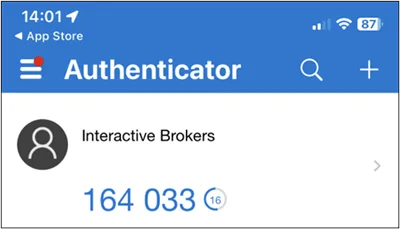
Image source: Bing (Web (fair-use with source credit))
This method requires no external delivery. The code generates locally on your device. It changes every 30 seconds.
As long as you have the app authenticated to your account, you can reset your password anywhere, anytime.
What If the App Won't Generate a Code?
Open the Steam Guard section. If you see a "recovery code" prompt, something went wrong. Common causes include clearing app data, reinstalling the app without saving your recovery key, or logging out of the app.
First, check if you saved the recovery code when you first set up Steam Guard. That code is a one-time backup. Enter it in the Steam Guard section of the app to restore the link.
If you do not have the recovery code, use another reset method. Try email or SMS to recover the account. Then re-set up the authenticator.
If you lost all three, move to the support ticket route.
Branch 4: You've Lost Everything – Email, Phone, and Authenticator
This is the worst-case scenario. You no longer have access to your email. Your old phone number is gone.
The authenticator is on a wiped device. You did not save the recovery code. Do not panic.
You still have a path forward.
Your only option is an account recovery request to Steam Support. It is not instant. But with the right proof of ownership, you can get your account back reliably.
Submitting a Steam Support Ticket Step by Step
Go to help.steampowered.com. Sign out of any existing Steam session first. Click "My Account" then "I lost my Steam Guard or my account was stolen." The system walks you through a series of questions.
Proof of ownership is critical. The strongest proof is a retail CD key from a physical game registered on that account. Digital purchase receipts from Steam also work well.
If you have neither, use a screenshot of the account page showing your custom URL or profile name linked to an old email.
Prepare these items before you start:
- CD keys from games you bought and activated on the account
- Receipt emails from Steam purchases with order numbers
- Screenshots of the account profile page taken before you lost access
- Old payment method details (last four digits of card, PayPal transaction ID)
- A list of games you owned on that account
Steam Support asks you to provide at least one of these. The more you give, the faster the process.
Proving Ownership Without Receipts or CD Keys
Older accounts were created before Steam required keys or digital receipts. Focus on what you can remember. Know your account name?
That helps. Remember the email address used at signup even if you cannot access it? Tell them.
You can also use legitimate ID verification. Steam Support sometimes accepts a government-issued photo ID if the billing name on your purchase history matches your legal name. This only works if you used a credit card or PayPal with your real name.
Expected Wait Times and How to Speed Up Your Ticket
Average response time for account recovery is 24 to 72 hours. During major sales events, wait times can stretch to five days.
To speed things up, submit your ticket in English. Localization teams add delays. Attach all evidence in the first message.
Use a clear subject line: "Account Recovery Request for [your account name]." Do not submit multiple tickets. That resets your place in the queue.
Check your ticket status on the same help page. Once approved, you receive an email with a temporary link to set a new password. Use that link within 48 hours or it expires.
Branch 5: Your Account Was Hacked (Someone Else Changed the Password)
This feels different. You did not forget anything. Someone else broke in, changed your password, and locked you out.
Your email might still be intact. But Steam shows a "wrong password" error no matter what you type.
How Recovering a Hacked Account Differs from a Simple Reset
If you still have access to your email, try the standard email method from Branch 1. If that works, change your password immediately. Use something completely new and unique.
Then deauthorize all devices right away.
If the hacker also changed your email address, you cannot request a password reset. The reset code goes to the hacker's email. In that case, use the "My account was stolen" option on the Steam Support help page.

Image source: Openverse / ₡ґǘșϯγ Ɗᶏ Ⱪᶅṏⱳդ
The process is similar to Branch 4 with one advantage. You likely still have your original email and phone number. The hacker might have added their own, but your old contact methods remain on file.
Steam Support can see both. You just need to prove you are the original owner.
Getting Your Steam Guard Settings Back Under Control
Once you regain access, secure the account immediately. Do these steps in order.
Change your password to a strong, unique one. Use a password manager. Go to Settings, Account, Manage Steam Guard.
Deauthorize all devices. This logs out the hacker and removes their authenticator. Set up Steam Guard Mobile Authenticator on your own device.
Save the recovery code in two places. Check your account email and phone number. Remove anything that does not belong to you.
Revoke API keys under the "Authorizations" tab. Stolen accounts often have API abuse.
If any items were traded or sold while the hacker had control, contact Steam Support separately after securing the account. They have a process for trade reversals in verified theft cases.
Common Mistakes That Ruin a Password Reset Attempt
Most failed resets happen because of small human errors. Here are the ones we see most often.
Entering the Wrong Account Name or Email
Steam accounts have a unique account name that is not always your email. If you always logged in by typing your email, you might have forgotten your account name. Check old emails from Steam.
They address you by your account name. Look at any saved login info in your browser.
If you enter an email that is not the one on file, the reset appears to work but the code goes nowhere. Double check for typos and alternative email addresses you might have used years ago.
Ignoring the Cooldown from Too Many Failed Attempts
Steam implements a temporary lockout after multiple failed password attempts. This also applies to failed code entries during a reset. If you try too many codes, you get a cooldown lasting 15 to 30 minutes.
No new codes are sent during this time.
The fix: wait a full hour. Do not touch the account. Then try again with only the correct information.
If you are unsure of your email, use the "I cannot access my email" option instead of guessing.
Falling for Phishing Sites That Look Like Steam's Reset Page
This is the most dangerous mistake. Scammers create fake login pages that look exactly like Steam. You type your account name and password, and they steal it.
The scam often continues with a fake "password reset" page asking for your email and phone number.
Steam's only official password reset URL is https://store.steampowered.com/passwordreset. Bookmark it. Never click a reset link from an email unless you personally requested it.
Steam never sends an unsolicited password reset email.
Report phishing sites to Steam Support. The official channels for handling security issues are through their help desk.
Frequently Asked Questions
How long does a steam password reset usually take?
With email or phone access, it takes 1 to 3 minutes. With a support ticket, expect 24 to 72 hours. During Steam sales, support can take up to five days.
Can I reset my Steam password without my email?
Yes. Use the phone number on your account or the Steam Guard mobile app. If you have neither, submit a support ticket with proof of ownership.
What if I forgot my Steam account name?
Check old purchase emails from Steam. They include your account name. You can also use the "Forgot account name" tool on the Steam login page by entering your email.
Does Steam send a password reset link in the email?
No. Steam sends a five-digit verification code, not a clickable link. This prevents phishing.
Copy the code and paste it on the reset page.
How many times can I request a reset code?
Steam does not publish the exact limit. Sending too many requests within a short period triggers a temporary cooldown. Wait at least ten minutes between attempts.
Your Decision Guide: Choose the Right Path Based on What You Have
Here is a final quick reference to match your situation to the correct branch.
| Your situation | Best path | Section |
|---|---|---|
| Forgot password, still have email | Self-service via email | Branch 1 |
| Forgot password, still have phone | Self-service via SMS | Branch 2 |
| Forgot password, have Steam Guard app | Self-service via app code | Branch 3 |
| Lost email, phone, and app | Support ticket with evidence | Branch 4 |
| Account hacked, email still accessible | Try Branch 1, then secure account | Branch 1 + Branch 5 |
| Account hacked, email changed | Support ticket as stolen account | Branch 5 |
If you are unsure which path fits, start with the quickest option. Go to store.steampowered.com/passwordreset and enter your account name. The system tells you which recovery methods are still on file.
That alone points you in the right direction.
Steam account recovery does not have to be a nightmare. With a clear head and one working contact method, you are almost always back in within minutes. And if you have lost everything, the support team has seen it before.
They have a process. You just need to follow it step by step.