
Face ID stops working right when you need it most. Maybe you just bought a new iPhone, or the sensor suddenly refuses to recognise your face. Whatever the reason, you need to know how to reset Face ID on iPhone, and this guide covers everything.
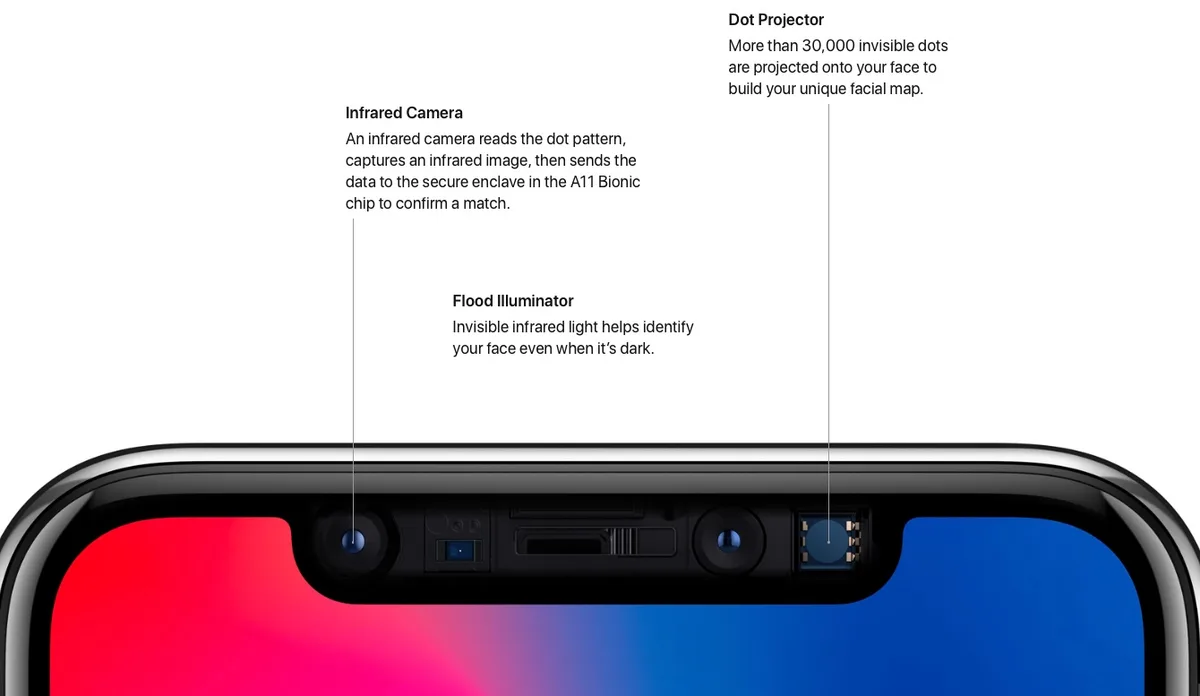
The TrueDepth camera system projects over 30,000 invisible infrared dots to build a precise depth map of your face. Apple stores that map exclusively in the Secure Enclave, and it never leaves your device. Resetting erases that local map, but it does not touch your passcode or data.
Let's walk through when a reset makes sense, what actually happens, and the exact steps.
Quick Answer
Go to Settings > Face ID & Passcode. Enter your passcode. Tap Reset Face ID.
Confirm with the slider. Your face data is erased immediately. You can set up Face ID again right away.
No apps, photos, or settings are touched.
When You Need to Reset Face ID (And When You Do Not)
A reset is the right move in several common scenarios. If you are selling or giving away your iPhone, you want to wipe your biometric data before the new owner takes over. If you had a screen repair, especially an unauthorised one, Face ID may stop working because the TrueDepth camera shifted.
Resetting and re‑enrolling sometimes fixes software hiccups after that work.
You should also reset if your appearance changed significantly. Think new glasses, a full beard, or facial surgery. Face ID learns gradual changes over time, but a big jump can confuse it.
Starting fresh improves recognition rates.
On the flip side, do not reset if you simply forgot your passcode. The reset process requires the passcode as a security gate. Without it, you cannot even reach the slider.
A reset also will not fix a physically damaged TrueDepth camera. If the sensor is cracked, water‑logged, or misaligned, no software reset will help. That calls for hardware service.
The Short Version: Reset in Under 30 Seconds
Here are the bare‑bones steps.
- Open Settings.
- Tap Face ID & Passcode.
- Enter your device passcode.
- Tap Reset Face ID.
- Slide to confirm.
- Tap Set Up Face ID Now to re‑enrol.
That is it. The whole thing takes about 20 seconds. Your phone will not restart, and nothing else on the device changes.
What Resetting Face ID Actually Does (And Does Not Do)
What gets erased
- The face depth map stored in the Secure Enclave.
- Any Alternate Appearance you had set up.
- The Require Attention for Face ID setting returns to its default (on).
What stays untouched
- Your device passcode.
- Your Apple ID and iCloud data.
- All apps, photos, messages, and settings.
- Touch ID, if your device also has it (iPad, older Macs).
- Face ID permissions for third‑party apps. Those apps simply ask you to re‑authorise the next time you use them.
Here is a quick reference table.
| Erased by reset | Not affected by reset |
|---|---|
| Face depth map | Passcode |
| Alternate Appearance | Apple ID |
| Attention toggle (reset to on) | iCloud data |
| Installed apps | |
| Photos, messages, settings |
A reset is a clean slate for the biometric system, nothing more. Apple's Secure Enclave ensures that the old data is cryptographically shredded. There is no way to recover it after the slider confirms.
How to Reset Face ID: The Standard Route
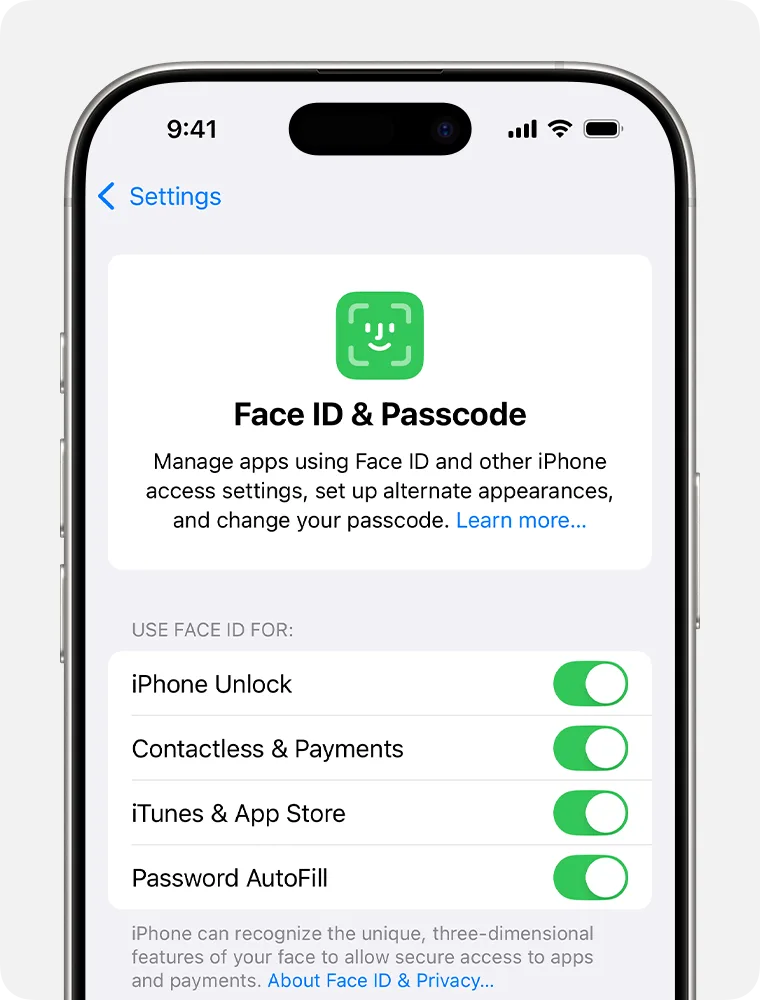
This path works on every iPhone with Face ID, from the iPhone X to the iPhone 16 series and the iPhone SE (3rd generation). Follow it exactly as written.
Step‑by‑step from Settings
- Open the Settings app on your home screen.
- Scroll down and tap Face ID & Passcode. You will see it just below Touch ID & Passcode on older devices.
- Enter your device passcode. This is the same six‑digit or four‑digit code you use to unlock the phone. Without it, you cannot proceed.
- Tap Reset Face ID. It is the red text near the top of the screen.
- Confirm by tapping the red slider that appears at the bottom. The slider reads Reset Face ID. Drag it to the right.
That is all. The phone immediately deletes your enrolled face data. You will see the option to Set Up Face ID Now appear a second later.
What happens after you tap Reset Face ID
- The Secure Enclave wipes the face template. It is instantaneous and irreversible.
- The Set Up Face ID Now button reappears. You can tap it to re‑enrol right away, or tap Later in Settings to do it another time.
- Face ID dependent features like AutoFill passwords, Apple Pay, and app logins will ask for your passcode or a Face ID re‑setup the next time you use them.
There is no reason to restart the phone after a reset. The change takes effect immediately. If you plan to give the phone to someone else, you do not need to re‑enrol.
Just leave it off. The new owner will be prompted to set up their own Face ID when they start using the device.
What to Do If the Reset Slider Is Grayed Out
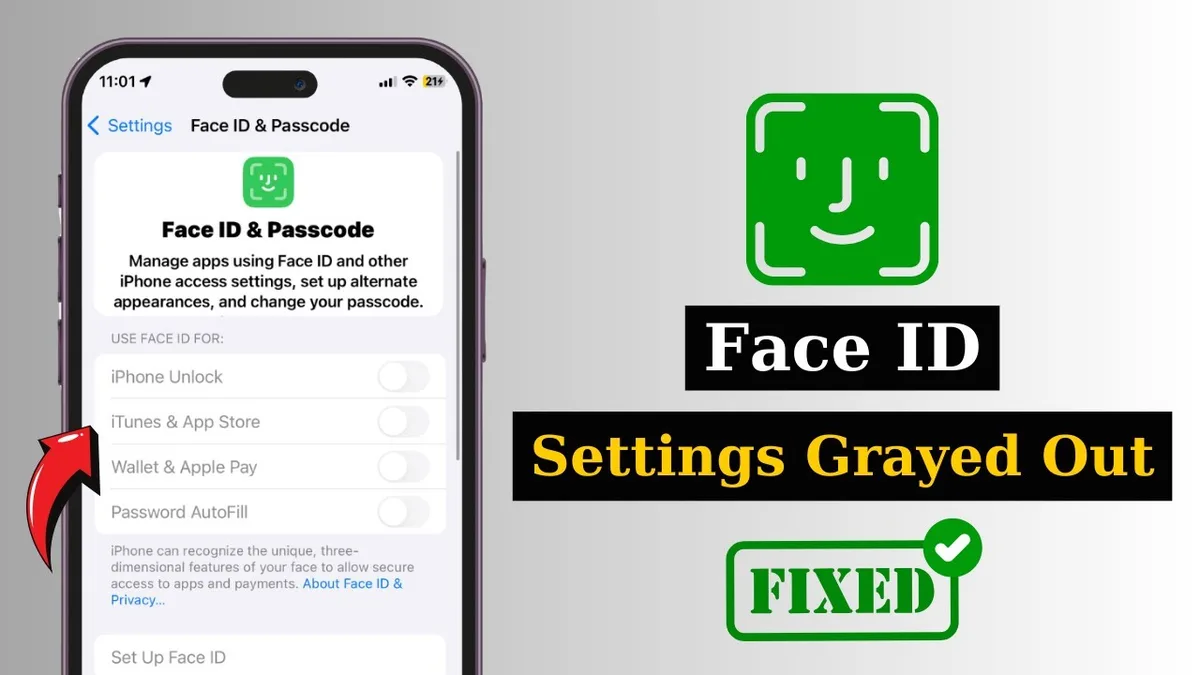
A grayed out Reset Face ID button or a slider that will not move stops you cold. This is one of the most common frustrations people hit. Here is what causes it and how to fix it.
Forgotten your passcode
If you cannot remember your device passcode, the entire Face ID & Passcode screen is locked. You cannot tap Reset Face ID, and you cannot even toggle Face ID on or off. The only solution is a full device restore through a computer.
- Connect the iPhone to a Mac or PC.
- Put it into recovery mode. The steps vary by model.
- Restore the device. This erases everything, including the passcode, so you can set it up as new.
This is drastic but necessary if you truly have no passcode. After the restore, you can set up Face ID from scratch. There is no workaround that skips the passcode requirement.
TrueDepth camera obstruction or damage
Sometimes the slider appears but feels unresponsive. If the TrueDepth camera is blocked by a thick screen protector, a case that covers the notch, or a smear of grease, the phone may refuse to allow a reset. Clean the notch area with a dry, lint‑free cloth and remove any screen protector.
Then try again.
Software glitch vs. hardware failure
A one‑time software hiccup can also gray out the slider. A simple restart often clears it. Press and hold the side button and either volume button until the power‑off slider appears.
Drag the slider, wait 30 seconds, then press and hold the side button again until the Apple logo appears.
If the slider remains grayed after a restart and a clean notch, the issue is likely hardware. The TrueDepth camera may have failed or become misaligned. In that case, contact Apple Support or visit an Apple Store.
Third‑party repair shops can fix the camera, but if they use non‑genuine parts, Face ID may never work again.
What to Do If Face ID Still Does Not Work After Reset
You followed every step correctly. The reset slider moved. You tapped Set Up Face ID Now.
And still, Face ID refuses to recognise you. Here is what to try next.
Re‑enrol with better lighting and positioning
The most common reason for a failed re‑enrolment is poor environment. Face ID relies on the TrueDepth camera, which uses infrared. But the initial scan still benefits from even ambient light.
Hold your iPhone about 25 to 40 centimetres from your face. Remove sunglasses, scarves, or a hat that covers your forehead. Gently rotate your head in a full circle as the animation guides you.
The system needs to map your face from multiple angles. Rushing this step leads to a partial map and lower recognition success.
If the phone says Face ID is now ready but still fails later, delete the face and enrol again. A second enrolment with a slightly different angle can improve consistency.
Check for iOS updates or restore the device
Software bugs sometimes corrupt the enrolment process. Apple addresses these in routine iOS updates. Go to Settings > General > Software Update.
Install any pending update. Then try setting up Face ID again.
If an update does not help, a full device restore might be necessary. Back up your iPhone to iCloud or a computer first. Go to Settings > General > Transfer or Reset iPhone > Erase All Content and Settings.
After the phone restarts, set it up as new and test Face ID before restoring your backup. A corrupted backup can reintroduce the issue.
Run Apple Diagnostics
Apple provides a built‑in hardware diagnostic that checks the TrueDepth camera system. You can access it through Apple Support or at an Apple Store. The test checks each component, including the infrared camera, the dot projector, and the flood illuminator.
Run this if you already tried a software reset, an iOS update, and a clean restore. If the diagnostic reports a hardware failure, no amount of software fiddling will fix it. You will need a repair.
3 Mistakes That Break Face ID Permanently
Some mistakes cannot be undone. These three are the most common ways to permanently damage Face ID.
Third‑party screen replacements
This is the biggest one. When an unauthorised repair shop replaces an iPhone screen, they often damage or misalign the TrueDepth camera. The camera sits inside the screen assembly.
If a technician is not trained on Apple specific micro‑alignment procedure, the camera can shift by less than a millimetre.
That tiny shift is enough to break Face ID permanently. The phone may still recognise your face occasionally, but it will fail more often than not. Once the hardware is misaligned, no reset or recalibration can fix it.
The only solution is a complete display and camera replacement, ideally by Apple or an Apple‑authorised service provider.
Apple repair documentation specifies that the TrueDepth camera must be calibrated with specialised equipment after a screen swap. Third‑party shops rarely have this equipment.
Trying to reset without the device passcode
You cannot reset Face ID without the device passcode. That is a deliberate security feature. The only way around a forgotten passcode is a full device restore.
Some online forums suggest deleting the Face ID plist file via a jailbreak. That approach carries major risks. Jailbreaking voids your warranty and can expose your device to malware.
It also does not help if the passcode is truly unknown.
The safest path if you are locked out is to use Find My iPhone to erase the device remotely. Then set it up as new. You will lose unbacked data, but Face ID will be reset automatically.
Ignoring the Face ID Not Available error
This error appears when the TrueDepth camera fails a self‑check. Some users dismiss it as a temporary glitch and keep trying to reset. The phone will prevent you from even toggling Face ID on.
Ignore this error at your own risk. If you continue using the phone with a faulty camera, you might miss calls or face authentication failures at critical moments. A common example is trying to unlock your phone for a mobile payment, and Face ID fails repeatedly.
A persistent Face ID Not Available message typically indicates a hardware fault. The best course is to schedule a service appointment. Attempting to reset repeatedly only wastes time and may delay a necessary repair.
Pro Tips for a Smoother Face ID Experience
Once you have a clean reset and a working Face ID, a few tweaks can make daily use feel effortless.
Set up an Alternate Appearance for tricky angles
Tap Face ID & Passcode, then tap Alternate Appearance. You can enrol a second face. Many people use this for a face with glasses versus without.
Others use it for a different lighting condition.
A clever workaround is to enrol the same face twice with slightly different head positions. For example, one enrolment with your phone held at arm's length and another held closer. The Secure Enclave stores multiple templates, so the second enrolment can capture angles the first missed.
Toggle Require Attention for Face ID on or off
When Attention Detection is on, your iPhone only unlocks if your eyes are open and looking at the screen. This prevents someone from unlocking your phone while you are asleep.
But it can be inconvenient if you wear sunglasses that block infrared. Or if you have a condition that affects eye movement. In that case, turn off Require Attention for Face ID.
The phone will unlock even if your eyes are closed.
The trade‑off is slightly lower security. For most people, the default (on) is fine. Adjust it based on your personal comfort level.
Enable Face ID with a mask (iOS 15.4+)
If you run iOS 15.4 or later, you can set up Face ID to work while wearing a mask. This feature uses the TrueDepth camera infrared scan around the eyes. It is not perfect, but it works well for most scenarios.
Turn it on in Settings > Face ID & Passcode > Face ID with a Mask. Follow the on‑screen instructions to scan your face a second time. The system asks you to ensure your eyes are visible, so remove glasses during enrolment.
Real‑World Scenarios: When to Reset vs. When to Get Help
The decision tree matters. Here is how to think about common situations.
After a dropped or water‑damaged iPhone
You drop your phone. The screen cracks. Face ID stops working.
Should you reset?
First, assess visible damage. If the notch area is cracked or if the front camera has debris, a reset will not help. The TrueDepth camera likely shifted.
Get a repair quote before resetting.
If the phone seems fine physically but Face ID acts erratically after a drop, a reset costs nothing and takes seconds. It may fix a software calibration glitch. If it does not work, the drop probably caused a hardware issue.
Visit a service centre.
After a significant appearance change
You grew a full beard. You had facial surgery. You gained or lost a significant amount of weight.
Face ID learns gradual changes automatically. Over a few weeks, it adjusts its model. But if the change happened quickly, the stored template may be too different.
Users who shave off a beard often report an immediate drop in recognition for a day or two. A reset and re‑enrolment solves it instantly.
When selling or giving away your iPhone
Always reset Face ID before handing over your device. This protects your biometric data. Even though the data is encrypted and stored in the Secure Enclave, a reset is the best practice.
After the reset, the phone will prompt the new owner to set up their own Face ID during initial setup. Your old face data is gone. Do not forget to also sign out of iCloud and erase all content and settings.
Frequently Asked Questions About Resetting Face ID
Will resetting Face ID delete my passcode or Apple ID?
No. The passcode and Apple ID remain exactly as they were. Reset Face ID only removes the face depth map from the Secure Enclave.
Your apps, photos, and iCloud data are untouched.
Can I reset Face ID without the passcode?
No. The passcode is required to access the Face ID & Passcode settings screen. Without it, you cannot reset.
If you lost the passcode, you must restore the iPhone via recovery mode, which erases the whole device.
Does a factory reset also reset Face ID?
Yes. If you erase all content and settings, Face ID is reset automatically. The new owner will be prompted to set it up.
A factory reset is more thorough than resetting Face ID alone, as it wipes the entire device.
Can I reset Face ID remotely?
No. There is no remote option for resetting Face ID only. You can remotely erase the device through Find My iPhone, but that is a full wipe, not a targeted reset.
Physical access to the phone is required for a standard Face ID reset.
How long does the reset take?
Less than 30 seconds. The process itself is instantaneous. The time is in navigating the menus and confirming the slider.
Will resetting Face ID fix the Face ID Not Available error?
If the error is caused by a software glitch, a reset may help. But if the error persists after a reset, the issue is hardware. Schedule a service appointment.
Your Decision Guide: Is It a Software or Hardware Problem?
Before you do anything else, figure out which side of the fence you are on. Software problems are free to fix. Hardware problems cost money and time.
Here is a quick self‑diagnosis table.
| Symptom | Likely cause | Next step |
|---|---|---|
| Reset slider was grayed but a restart fixed it | Temporary software glitch | No further action needed |
| Reset worked, but Face ID still fails after re‑enrolment | Poor enrolment or lighting | Re‑enrol in bright, even light |
| Face ID Not Available error appears | Hardware failure | Run Apple Diagnostics, then book a repair |
| Face ID worked before a screen replacement, then stopped | Camera misalignment from repair | Return to repair shop or visit Apple |
| Face ID works intermittently after a drop | Partial hardware damage | Schedule service. Reset first to rule out software |
| Everything works, but you want to wipe data before selling | Normal function | Reset in Settings, then sign out of iCloud |
When to Reset Face ID
Reset is the right move in these exact scenarios.
- You are preparing to sell or give away your iPhone.
- Your appearance changed significantly and recognition rates dropped.
- You updated iOS and Face ID started behaving oddly.
- You had a successful screen replacement at an Apple‑authorised centre and Face ID just needs a fresh enrolment.
- You want to set up a second face using Alternate Appearance, and the phone asks you to reset first.
If your situation matches any of those, open Settings, tap Face ID & Passcode, enter your passcode, and tap Reset Face ID. The process takes 20 seconds and carries no risk to your other data.
When to Troubleshoot Further
If a reset does not make Face ID work, you need to go deeper. Do not reset a second time. That will not help.
Try these steps in order.
- Re‑enrol in a different environment. Stand under a soft overhead light. Hold the phone at face level. Remove all accessories.
- Update iOS. Go to Settings > General > Software Update. Install any waiting update.
- Reset all settings. This does not erase your data. Go to Settings > General > Transfer or Reset iPhone > Reset > Reset All Settings. It will keep your media but reset Wi‑Fi passwords, wallpapers, and accessibility options. A corrupted system preference can cause Face ID to malfunction.
- Restore from a backup. Erase the phone and set it up as new. Test Face ID before restoring your backup. If it works on a clean setup but fails after the backup, the backup itself may have a corrupt Face ID configuration.
- Run Apple Diagnostics. Contact Apple Support to initiate a remote diagnostic of the TrueDepth camera. The test checks the infrared camera, dot projector, and flood illuminator individually.
If you complete all five steps and Face ID still fails, you are looking at a hardware issue.
When to Contact Apple Support
Some problems require a professional. You cannot fix them at home.
Contact Apple Support if any of these apply.
- Apple Diagnostics reports a hardware failure.
- You see physical damage to the notch area, such as a crack or moisture.
- Your phone has been in contact with water and Face ID stopped working.
- You had a third‑party screen replacement and Face ID never worked afterward.
- The Face ID Not Available error persists after a software restore.
You can schedule an appointment at an Apple Store or with an Apple‑authorised service provider. The repair cost varies by model and coverage. If you have AppleCare+, the repair may be free or reduced.
Without coverage, a TrueDepth camera replacement for an iPhone 14 Pro typically costs around $200 to $300 depending on your region.
Before you go, back up your iPhone. Also remove any screen protector or case so the technician can inspect the device easily.
We followed our editorial policy to ensure this guidance is accurate and practical. For questions about your specific device or personal data, please contact us.