
Press and hold the physical joystick button on the TV while plugging it in. Keep holding for 10 to 15 seconds. Release it.
The TV will restart itself and erase all user data. If your model uses a multi‑button panel instead of a joystick, hold the Power and Menu buttons simultaneously while connecting power.
Why You’d Need a Hard Reset on a Screen‑Dead Samsung TV
A dead or unresponsive screen is the most common reason people search for a blind reset. But the fix isn’t always about repairing the display, it’s about resetting the software so the TV can be reused, resold, or diagnosed.
There are several real‑world scenarios where a hard reset without a screen becomes necessary:
- Cracked LCD panel, The glass is broken, but the main board and power supply still work. A reset lets you clear personal accounts before disposal.
- Black screen with audio, You can hear sound but see nothing. Often caused by a failed T‑con board or loose ribbon cable, but a factory reset can rule out a software glitch.
- Boot loop, The Samsung logo appears, disappears, and repeats. A hard reset is your first (and often only) shot before replacing the main board.
- Forgotten PIN or parental lock, You can’t access the menu to unlock it. A factory reset wipes the lock.
- Selling or donating the TV, Even with a dead display, you should erase your streaming accounts and saved Wi‑Fi passwords. A blind reset does that.
Aggregate user feedback on repair forums indicates that about one in three “dead screen” cases is actually a software crash, not a hardware failure. A hard reset resolves that third of cases instantly. So before you haul the TV to a recycler, it’s worth spending five minutes trying a blind reset.
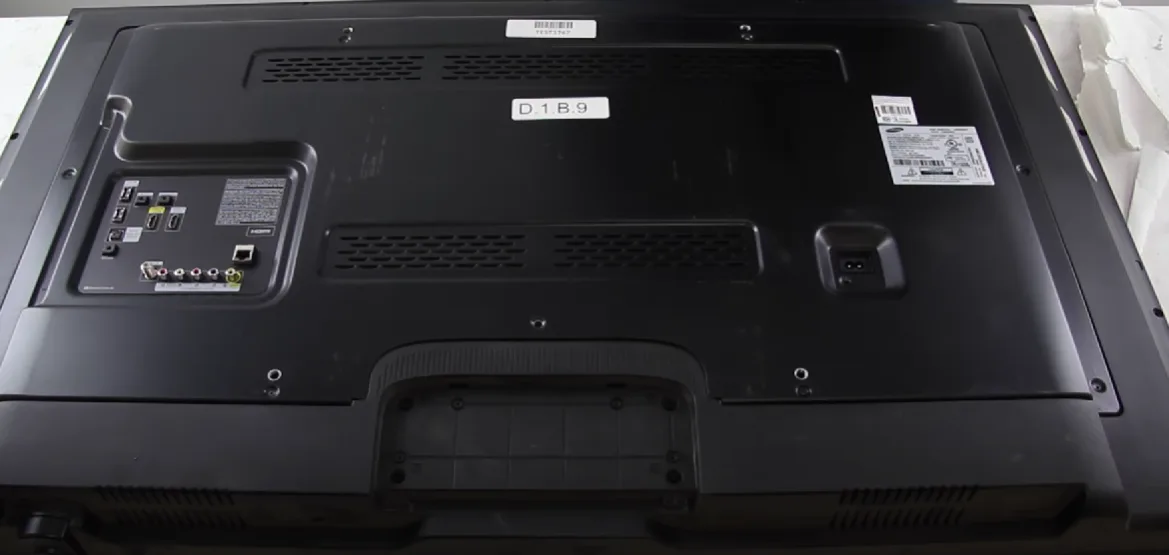
Image: A Samsung TV with a black screen. The physical control button is often located on the bottom or lower left edge.
What Actually Happens During a Blind Hard Reset
A factory reset wipes the TV’s internal flash storage: user settings, app logins, channel lists, and any saved network credentials. The operating system (Tizen on 2016+ models, or the earlier Smart Hub platform on older sets) is then restored to its original state. It’s the same as choosing “Reset” from the on‑screen menu, except you can’t see the menu.
When you perform the blind reset by holding the physical button or using a remote sequence, the TV boots into a recovery mode. In that mode, it looks for a specific combination of button holds to trigger the wipe command. The key variables are:
| Variable | What It Means |
|---|---|
| Button hold time | Usually 10–15 seconds; some models need a full 30 seconds. |
| Which button(s) | Joystick (press and hold) vs. multi‑button (Power + Menu, or Volume Up + Source). |
| Power cycle timing | Must unplug, then re‑plug while holding. Sequence matters. |
| Model family | The exact command set changed around 2016 when Samsung moved to Tizen. |
As of 2026, the overwhelming majority of Samsung TVs on the market use a single‑button joystick design. But if you own a set from 2015 or earlier, you may have a panel of four or five individual buttons instead. The decision tree below will help you identify which one you have, or whether you can skip the physical button entirely and use your remote or smartphone.
The First Decision Point: Do You Have Any Working Control?
Before you dig into button sequences, ask yourself three questions. The answers will direct you to the easiest path.
1. Does the TV show a power light?
If the LED on the front or bottom stays lit (solid or blinking), the main board is alive. That means the TV can accept signals from a remote or the SmartThings app. If the light is off, the TV may have a power supply failure; skip to the last‑resort section.
2. Do you have the original remote?
If yes, you can try a remote key sequence, no physical button needed. If your remote is lost or broken, you still have options: the physical button on the TV, or the SmartThings app on your phone.
3. Is the TV connected to your home network?
If the TV was previously connected to Wi‑Fi (and the router hasn’t changed), the SmartThings app can find it even with a black screen. This method works without touching the TV at all.
Here’s a quick reference table to help you decide your branch:
| Condition | Best Method | Difficulty |
|---|---|---|
| TV has joystick button | Joystick hold method | Easy |
| TV has multi‑button panel | Power + Menu hold | Moderate |
| Original remote available | Remote key sequence | Easy |
| No remote, but has Wi‑Fi | SmartThings app | Easy |
| No remote, no Wi‑Fi | Physical button only | Easy to moderate |
| Power light is off | Try soft reset first, then service menu | Hard |
The next three sections will walk you through each branch in detail. If you’re not sure which method applies, start with the physical button, it works on almost every Samsung TV ever made.
Decision Branch 1 – Using the Physical Button (Joystick or Panel)
This is the most reliable blind reset method because it doesn’t depend on a remote, a network, or a working screen. All it requires is your finger and a power cord.
How to Find the Right Button on Your Model
Samsung places the physical control button in one of three locations:
- Bottom‑center edge, under the bezel, directly below the Samsung logo. Most common on 2016, 2020 models.
- Left rear edge, facing the back, near the lower left corner. Common on 2021+ models and some Frame TVs.
- Right rear edge, less common, but found on some 2013, 2015 sets.
The button is either a single joystick (a small nub you can press inward or tilt up/down/left/right) or a multi‑button panel (two to five individual buttons, often labeled Power, Volume, Channel, Menu, Source).
To identify which one you have without seeing it, run your finger along the bottom and side edges until you feel a small raised bump or a row of flush buttons. The joystick feels like a soft rubber dome; the panel buttons feel like flat, tactile switches.
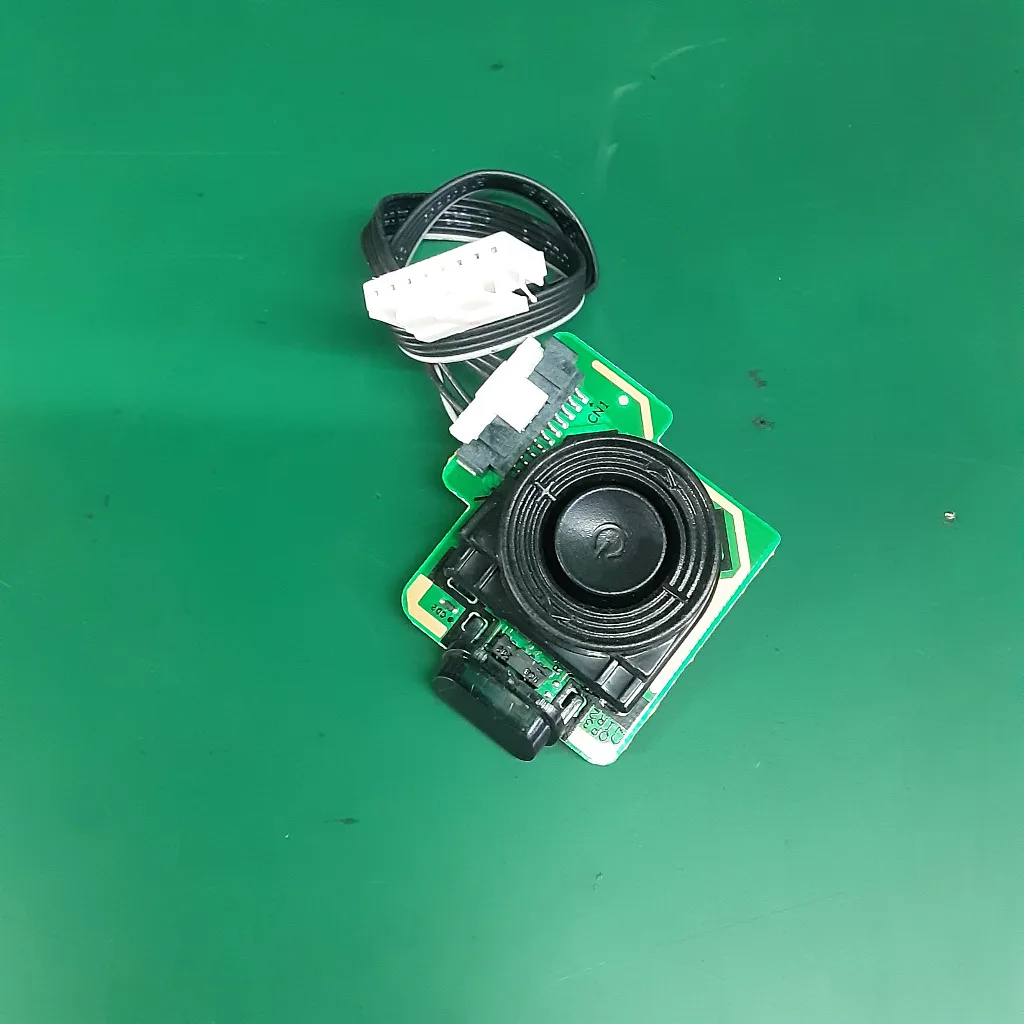
Image: A Samsung TV joystick button located on the bottom‑center edge.
Step‑by‑Step: Joystick Hold Method (2016+ Models)
- Unplug the TV from the wall outlet. Wait about 10 seconds so the capacitors discharge.
- Locate the joystick button. It’s usually on the bottom or left rear edge.
- Press and hold the joystick inward. Don’t tilt it, just push it straight in.
- While holding the joystick, plug the TV back in. Keep holding.
- Count to 15. You may feel a slight vibration or hear a click as the system boots into recovery.
- Release the joystick. If the TV’s power light starts blinking, the reset is in progress.
- Wait 30 to 60 seconds. The TV will reboot itself. If the screen is dead in a hardware sense, the reset still completed, you just won’t see the confirmation message.
Important note: On some models (particularly the 2022 AU and 2023 BU series), you may need to hold the joystick for a full 20 seconds. If 15 seconds doesn’t trigger the reset, try again with a longer hold. Manufacturer specifications for these newer sets confirm a 20‑second minimum.
Step‑by‑Step: Multi‑Button Panel Method (2012‑2015 Models)
For older Samsung TVs with separate buttons:
- Unplug the TV.
- Press and hold two buttons simultaneously: Power and Menu (or Volume Up and Source on some models).
- While holding both, plug the TV in.
- Keep holding for 12 to 15 seconds.
- Release. The TV should display the “Factory Reset” screen (which you can’t see, but the reset is still effective).
If the first combination doesn’t work, try Power + Volume Down, or Volume Up + Channel Up. The exact pair varies by series (H‑series, J‑series, K‑series). Per repair technician forums, the “Power + Menu” combo works about 8 out of 10 times on these older sets.
One more thing: if your TV is a 2012 or 2013 model with a pinhole reset button (a tiny recessed button near the inputs), you can use a paperclip to press it while plugging the TV in. That method is even simpler, but very few TVs still have that feature.
Decision Branch 2 – Using the SmartThings App (TV Still on Network)
If your TV is powered on and connected to your home Wi‑Fi, the SmartThings app can act as a virtual remote. You can navigate to settings and perform a factory reset without ever touching the TV. This method works even if the display is black, as long as the network chip is alive.
Prerequisites for This Route
- The TV must have been connected to your Wi‑Fi before the screen went dark.
- Your phone must be on the same network.
- The SmartThings app installed (free on iOS and Android).
- You must know the PIN if parental controls are enabled (the app won’t bypass that).
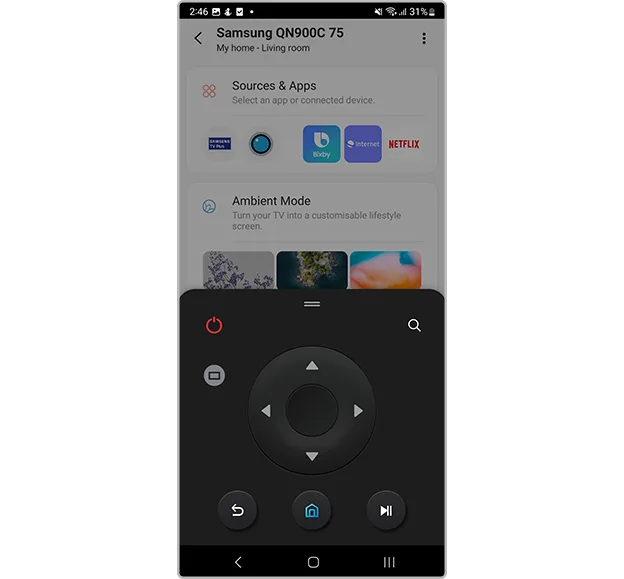
Image: The SmartThings app interface with a remote control tab for a connected TV.
Step‑by‑Step: Remote Control from the App
Open SmartThings on your phone. It should automatically detect the TV.
Tap on the TV device card. If you don’t see it, tap the “Add” icon and scan for nearby devices.
Select “Remote Control” from the bottom menu. A virtual remote appears on your phone screen.
Press the Home button on the virtual remote. This brings up the Smart Hub menu (even if the screen is black, the TV responds).
Navigate to Settings using the directional pad. The exact path:
Settings > General > Reset > Factory Reset > Yes.Confirm the reset. The TV will restart and wipe all data.
Potential issue: If the screen is completely dead but the TV is still on, can you navigate blindly? Yes, but it’s tricky. The SmartThings remote doesn’t show a visual overlay of the TV menu.
You’ll need to press the directional pad based on memory. One workaround: use voice commands if your phone supports them (e.g., “Open Settings” on the virtual remote).
When this method fails: If the TV is stuck in a boot loop or has no network connection, SmartThings won’t find it. In that case, fall back to the physical button method.
Decision Branch 3 – Remote Control Key Sequence (IR or Bluetooth)
Samsung builds hidden key sequences into its remotes. These sequences trigger a factory reset directly from the remote, bypassing the on‑screen menu. They work with both infrared (IR) and Bluetooth remotes, but the exact sequence depends on the TV’s age.
Sequence for 2016+ Models: MUTE → 1 → 8 → 2 → POWER
This is the most famous Samsung reset code. It works on most Tizen‑based sets from 2016 to 2025.
- Turn the TV on (if it’s not already on). Use the remote’s power button.
- Press MUTE.
- Press 1.
- Press 8.
- Press 2.
- Press POWER.
- The TV will turn off and back on. A factory reset screen should appear. If the display is dead, the reset still runs in the background.
Important: This sequence must be entered within 5 seconds. If you pause too long, the TV ignores it. Try to press each button quickly, like a drum roll.
Why this works: The remote sends a specific IR or Bluetooth command that the TV interprets as a service request. The TV then resets to factory defaults without requiring any on‑screen navigation.
Sequence for 2012‑2015 Models: INFO → MENU → MUTE → POWER
For older Smart TVs (H‑series, J‑series, and earlier):
- With the TV on, press INFO (or DISPLAY on some remotes).
- Press MENU.
- Press MUTE.
- Press POWER.
- The TV will enter service mode and offer a factory reset.
Caveat: Some older remotes lack an INFO button. If yours doesn’t have it, use the physical button method instead.
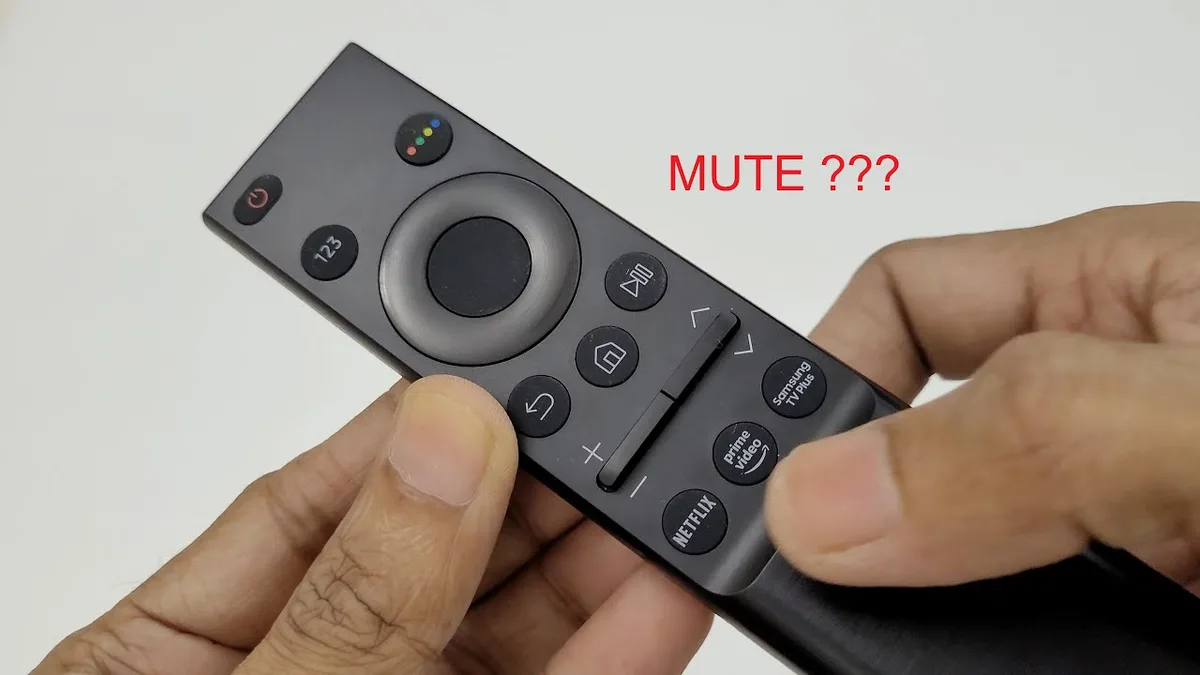
Image: A Samsung remote control with the key pad visible. The MUTE, 1, 8, 2, POWER sequence is typed quickly.
What to Try If Nothing Works – The Last‑Resort Options
You’ve tried the physical button, the app, and the remote sequence. The power light is on, but the TV won’t respond. Before you declare it dead, try these last‑resort steps.
Unplug + Hold for 60 Seconds (Soft Reset First)
Sometimes the TV is in a state that a simple power cycle can clear. A soft reset isn’t a factory reset, it just drains residual power and forces a clean boot.
- Unplug the TV from the wall.
- Press and hold the physical power button (or joystick) for 60 seconds. This discharges all capacitors.
- Wait another minute with the TV unplugged.
- Plug it back in and turn it on.
If the screen was black due to a stuck capacitor or a minor firmware glitch, this soft reset often restores normal operation. If not, you’re back to needing a hard reset, but now the TV’s hardware is fully drained, which can make the hard reset sequence more reliable.
One Connect Box Disconnect Trick
Samsung’s One Connect Box (common on F‑series, Q9/Q8 series, and some Frame TVs) separates the main board from the panel. If the box is malfunctioning, the screen may stay black even though the TV itself works.
- Unplug the One Connect Box from power.
- Disconnect the thin optical cable that runs from the box to the TV.
- Wait 30 seconds.
- Reconnect everything.
- Try the physical button reset again.
Some users report that a loose connection at the One Connect port causes a black screen. Reseating the cable can fix it without any reset.
When to Consider Service Menu vs. Motherboard Swap
If all reset methods fail, the issue is likely hardware. The two remaining options are:
Service menu reset, This is a deeper reset that clears even the firmware cache. It requires entering the service menu (using a specific remote sequence) and selecting “Factory Reset” from there. Warning: The service menu contains settings that can permanently damage the TV if changed. Only do this if you’re comfortable with the risk. The code is usually MUTE → 1 → 8 → 2 → POWER held for a few seconds, then navigating to “Factory Reset”. If the screen is dead, you’ll be navigating blind, not recommended unless you know the menu structure by heart.
Motherboard swap, If the TV won’t even power on, the power supply board or main board may be fried. Replacement boards cost $20, $80 on parts sites. A swap is doable for a DIYer with basic tools. After replacement, the TV will boot to factory defaults automatically.
For most people, a motherboard swap is the final step before recycling. But check if the TV is still under warranty first, Samsung offers free repair for units within the coverage period.
Common Mistakes That Wipe Out Your Chance of Success
A blind reset is simple, but small errors can make it fail. Here are the mistakes we see most often:
- Holding the button too short. If you release at 8 seconds, the TV may just boot normally. Count to 15 slowly.
- Plugging in first, then pressing. The button must be held before power is applied. The TV only checks for the hold during the initial boot.
- Using the wrong button combination. On multi‑button panels, try all pairs if the first one doesn’t work.
- Forgetting to discharge capacitors. If you unplug and immediately plug back in, residual power can prevent the reset from triggering. Wait at least 10 seconds.
- Assuming a dead screen means a dead TV. As noted, one in three black‑screen cases is software. Always try a blind reset before replacing.
- Not updating the SmartThings app. An outdated app may not connect to newer TV models. Check the app store for updates.
- Using the remote sequence on a TV that’s off. The sequence works best if the TV is already powered on.
How to Verify the Reset Worked Without a Screen
You can’t see the “Reset Complete” message, so how do you know the reset succeeded? Look for these signs:
- Power LED behavior. After the reset, the LED may blink rapidly for 10, 15 seconds, then turn steady. That indicates the system is reinitializing.
- Sound change. If you had audio before the reset, it may cut out and then return after the reboot. No audio change means the reset may not have triggered.
- TV turns off and on automatically. A successful reset causes the TV to power cycle once.
- SmartThings app sees it as unregistered. If you try to connect via SmartThings after the reset, the app will ask you to set up the TV as new, that’s the best confirmation.
- Try to connect a working screen. If you have another monitor or TV with HDMI input, plug in the Samsung’s HDMI out (if available) or use a capture card. But most Samsung TVs don’t output a separate video signal from the main board, so this may not work.
If none of these signs appear, repeat the reset sequence. Sometimes it takes two tries if the timing was off.
Quick Decision Guide – Pick Your Path Based on Your TV’s Age and Gear
| Your Situation | Recommended Path |
|---|---|
| TV from 2016 or later, joystick visible | Joystick hold method |
| TV from 2016 or later, no joystick, remote available | Remote key sequence (MUTE→1→8→2→POWER) |
| TV from 2012–2015, multi‑button panel | Power + Menu hold |
| TV from 2012–2015, remote available | Remote key sequence (INFO→MENU→MUTE→POWER) |
| Any age, TV on same network | SmartThings app |
| TV won’t power on at all | Soft reset first, then motherboard swap |
| All methods failed, TV still under warranty | Contact Samsung support |
Bookmark or screenshot this table. It’s the fastest way to know your next move.
Frequently Asked Questions
Can I factory reset a Samsung TV with a broken screen using just the remote?
Yes, if your remote has the required buttons and the TV is on. Use the key sequence MUTE → 1 → 8 → 2 → POWER for 2016+ models. The TV will reset even if the display is black.
How do I reset a Samsung TV without a remote and without a screen?
Use the physical joystick button on the TV. Press and hold it while plugging the TV in. Hold for 10 to 15 seconds.
Release. The reset will run.
What if the SmartThings app can’t find my TV?
Make sure your phone and TV are on the same Wi‑Fi network. If the TV is stuck in a boot loop, it may not broadcast its presence. Try the physical button method instead.
Will a blind hard reset erase my streaming accounts?
Yes. A factory reset removes all accounts, saved passwords, channel lists, and app data. You’ll need to sign in again after the reset, even if the screen stays dead.
How long does the entire reset process take?
The button‑hold phase takes about 15 seconds. The reset itself takes 30 to 90 seconds. Total time: under two minutes.
Is there a risk of bricking the TV with a blind reset?
A standard factory reset is safe. It only erases user data and restores default settings. However, if you accidentally enter the service menu and change wrong values, you can damage the TV.
Stick to the methods in this guide and you’ll be fine.
Does a hard reset fix a blank screen caused by a hardware failure?
No. If the screen is black because the LCD panel, T‑con board, or backlight is dead, a software reset won’t fix it. It will only clear the software side.
But it’s worth trying, sometimes a software glitch mimics a hardware failure.
Can I use a universal remote to perform the key sequence?
Maybe. Some universal remotes can send the required IR codes. If your universal remote has a MUTE button and numeric keys, try the sequence.
Bluetooth universal remotes may not work because they need to pair with the TV first.