
If you're searching for an hp laptop factory reset without password, you're probably staring at a locked login screen with no way in. Maybe you bought a used machine and never got the credentials. Or a forgotten password is blocking your own laptop.
Either way, the goal is the same: wipe everything and start fresh.
Manufacturer specifications indicate that most HP laptops shipped after 2015 include a dedicated recovery partition between 10 and 20 GB. That partition stores the exact factory image. You can trigger it without ever logging into Windows.
The real question is whether yours is still intact, and whether you can reach it. Let's walk through the exact steps based on your situation.
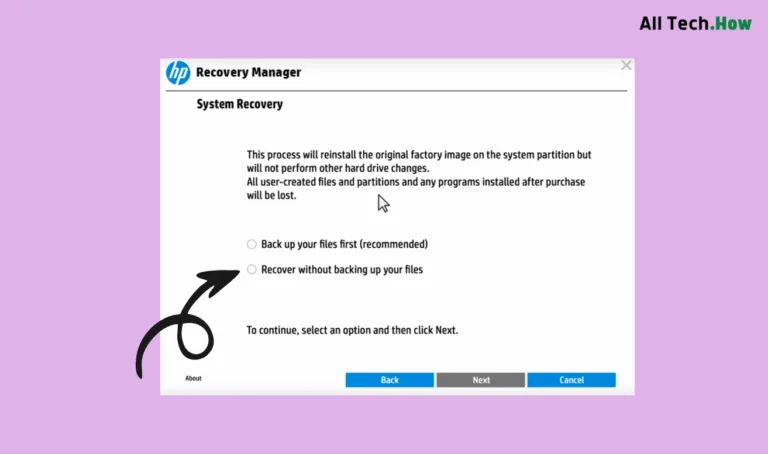
Image source: Bing (Web (fair-use with source credit))
Quick Answer
Restart the laptop. Press F11 repeatedly at the first sign of the logo. Choose Troubleshoot, then Reset this PC.
Select "Remove everything." Follow the prompts. No password needed.
Is Factory Reset Even the Right Move?
Not every locked laptop needs a full wipe. Ask yourself a simple question: do you want to keep any files, or just get in?
If the laptop belongs to you and you've simply forgotten the password, try Microsoft's online account recovery first. Go to account.live.com on another device. Reset your Microsoft account password.
Once changed, log in on the HP laptop with the new credentials.
If that doesn't work, for example, you used a local account with no recovery email, then a factory reset is your only way back in. It's also the right move if you're selling the laptop, donating it, or dealing with malware so severe that Windows won't boot properly.
When to skip the reset:
- You can still access a hidden administrator account
- You have a password reset disk you created earlier
- The laptop is company-owned and requires IT approval
In every other case, a factory reset is both safe and effective. Just be aware that it wipes all your personal files, installed programs, and settings. There's no going back once it starts.
The Three Questions That Determine Your Path
The method you'll use depends on three yes-or-no conditions. Answer them honestly, and you'll know which branch to follow.
Question 1, Can you see the Windows login screen?
Not the blank black screen at boot. The actual lock screen with the password box and the power icon in the bottom right. If you can see it, you can access the Windows Recovery Environment directly from that screen.
Question 2, Does pressing F11 during startup do anything?
On most HP laptops, tapping F11 repeatedly right after you press the power button launches the HP Recovery Manager. If you see a blue screen with "Choose an option," you're in business. If nothing happens or it boots normally, the recovery partition may be missing or corrupted.
Question 3, Do you have access to a second computer?
Some recovery methods require you to download software on a different machine and create a bootable USB drive. No second computer means you're limited to what's already on the laptop.
Here's the decision tree in a nutshell:
| Your situation | Best method |
|---|---|
| See login screen | Trigger reset from lock screen |
| F11 works | Use HP Recovery Manager |
| No F11, have second PC | HP Cloud Recovery Tool |
| No F11, no second PC | Windows installation USB (if you have one) |
Decision Branch A – You Can See the Login Screen
This is the easiest scenario. You don't need the password to reset the machine.
Step 1, Boot into Windows Recovery Environment
On the lock screen, click the power icon at the bottom right. Hold down the Shift key on your keyboard. While holding Shift, click Restart.
The laptop will reboot into a blue screen with options.
Step 2, Navigate to the reset option
From that blue screen:
- Click Troubleshoot
- Click Reset this PC
- Choose Remove everything (skip "Keep my files" for a full wipe)
Step 3, Choose the right reset type
Windows will ask if you want to reinstall from the cloud or from the local recovery partition. Pick Cloud download if you have a stable internet connection. It's the most reliable option and ensures you get the latest Windows build.
Pick Local reinstall if you're offline or on a metered connection.
Step 4, Follow the prompts
The process takes anywhere from 30 minutes to two hours. The laptop will restart multiple times. Let it finish without interruption.
⚠️ Important warning about BitLocker
If BitLocker encryption was turned on (common on HP business models like ProBook and EliteBook), the reset may prompt you for a recovery key. Without that 48-digit key, the drive becomes permanently unreadable. Check your Microsoft account at account.microsoft.com/devices/recoverykey.
That's where most users' keys are stored. If you don't have it, do not proceed. Contact HP support or your IT department first.
Decision Branch B – The F11 Recovery Partition Is Working
If you can't see the login screen, maybe the laptop boots but stalls, the F11 key is your best bet. It bypasses Windows entirely and launches the HP factory recovery environment.
Step 1, Power off the laptop completely
Hold the power button for 10 seconds until all lights go off. Don't just close the lid or put it to sleep.
Step 2, Turn it on and tap F11
Press the power button. Immediately start tapping the F11 key once per second. Not pressing and holding, tapping.
Do this until you see "Please wait" or a blue screen.
Step 3, Use HP Recovery Manager
Once the recovery environment loads:
- Select Troubleshoot
- Choose System Recovery (or Factory Reset, depending on your model)
- Confirm that you understand all data will be erased
- Wait. The process restores the laptop to the exact state it was when it left the factory.
Step 4, Accept the license and reboot
The screen may ask you to acknowledge that your personal files are gone. Click through, and the laptop will restart. The first boot can take 10, 20 minutes as it applies the factory image.
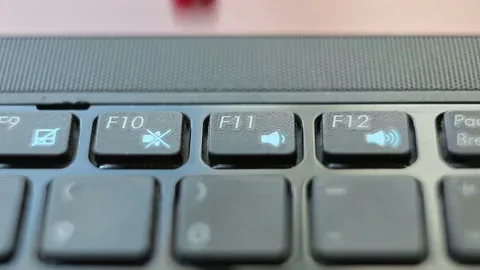
Image source: Bing (Web (fair-use with source credit))
Troubleshooting if F11 doesn't respond
- Try pressing Esc first, then F9 for boot menu, then choose "HP Recovery."
- Some older models (pre-2015) use F9 or Esc → F10.
- If the key does nothing, the recovery partition is missing or corrupted. Move to the next branch.
Decision Branch C – Recovery Partition Is Gone or Dead
If F11 gives you nothing and you can't boot, the recovery partition is probably damaged, deleted, or never existed. This is common on refurbished units or laptops where someone previously installed a clean version of Windows. This is where the HP Cloud Recovery Tool saves the day.
What you need:
- A second computer with internet access
- A USB drive with at least 32 GB of space (the tool will erase it)
- The serial number of your HP laptop (look on the bottom sticker or inside the BIOS)
Step 1, Download the HP Cloud Recovery Tool
On the second computer, go to HP's official support website and download the HP Cloud Recovery Tool. It's a free utility.
Step 2, Create a recovery USB
Run the tool. It will ask for your HP laptop's serial number. Enter it.
The tool will download the exact factory image for your model. This download is typically 5, 20 GB, so give it time.
Step 3, Boot the locked laptop from the USB
Insert the USB drive into the locked HP laptop. Turn it on. Press Esc then F9 to open the boot menu.
Select the USB drive. The laptop will boot into the HP recovery environment.
Step 4, Run the factory reset
From the HP Cloud Recovery menu, select Factory Reset. Confirm. The tool will write the image to the internal drive.
This takes 20, 40 minutes.
⚠️ Watch out for Secure Boot
If the laptop refuses to boot from the USB, restart, enter the BIOS by pressing F10 during startup, and disable Secure Boot. You can re-enable it after the reset.
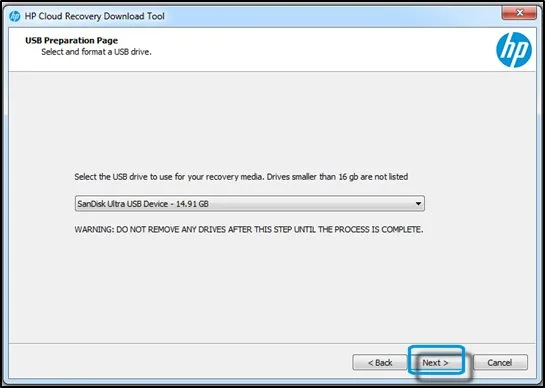
Image source: Bing (Web (fair-use with source credit))
Once the reset finishes, the laptop will behave exactly as it did when new, but with updated drivers from the cloud download.
If you don't have a second computer, borrow a friend's for an hour, or head to a public library. The USB creation only takes 30 minutes.
When cloud recovery fails
Rare, but possible if the serial number isn't recognized (very old models) or if the tool can't find the right image. In that case, you'll need a generic Windows installation USB.
Decision Branch D – You Have a Windows Installation USB
If the recovery partition is dead and you don't have a second computer for the Cloud Recovery Tool, a generic Windows installation USB is your next best option. This method installs a clean version of Windows without any HP-specific drivers or software. You'll need to download those separately later.
What you need:
- A Windows installation USB (version 10 or 11)
- The USB must be bootable and created with the Media Creation Tool
Step 1, Boot from the USB
Insert the USB drive. Restart the laptop. Press Esc then F9 to open the boot menu.
Select the USB drive.
Step 2, Access the recovery environment
On the Windows Setup screen, click Next. Then click Repair your computer in the bottom-left corner. This takes you to the blue recovery screen.
Step 3, Reset this PC
From the recovery screen:
- Click Troubleshoot
- Click Reset this PC
- Choose Remove everything
Step 4, Choose the installation source
Select Local reinstall. Windows will use the files on your USB drive to reset the system.
Step 5, Follow the prompts
The process takes 30, 60 minutes. Once finished, the laptop will boot to a fresh Windows setup screen. You'll need to create a new local account or sign in with a Microsoft account.
Pros and cons vs. HP Cloud Recovery:
| Factor | Windows USB | HP Cloud Recovery |
|---|---|---|
| HP drivers | Not included | Included |
| Bloatware | None | HP preinstalled software |
| Time to set up | 30–60 min + driver downloads | 20–40 min |
| Requires second PC | No (if you already have the USB) | Yes |
If you go the Windows USB route, visit HP's support site afterward to download drivers for your specific model. Without them, Wi-Fi, audio, and trackpad may not work properly.
Decision Branch E – The Shift+F10 Trick (Windows 7/8 Local Accounts)
This method only works on older HP laptops running Windows 7, 8, or 8.1 with a local administrator account. It does not work on Windows 10 or 11, or on Microsoft accounts. If your laptop is newer than 2015, skip this branch.
How it works:
The trick replaces the Ease of Access utility (utilman.exe) with a command prompt at the login screen. From there, you can reset the password without logging in.
Step 1, Boot to the Windows Recovery Environment
Restart the laptop. During boot, press F8 repeatedly (Windows 7) or follow Branch A's Shift+Restart method (Windows 8/8.1).
Step 2, Open command prompt
From the recovery screen:
- Click Troubleshoot
- Click Advanced options
- Click Command Prompt
Step 3, Replace Utilman.exe
At the command prompt, type:
ren c:\windows\system32\utilman.exe utilman.exe.bak
ren c:\windows\system32\cmd.exe utilman.exe
Step 4, Reboot normally
Type exit and restart. On the login screen, click the Ease of Access icon in the bottom-left corner. Instead of the accessibility tools, a command prompt will open.
Step 5, Reset the password
Type:
net user username newpassword
Replace "username" with the actual account name and "newpassword" with a password you'll remember.
Step 6, Restore Utilman.exe
After logging in, open an administrator command prompt and type:
ren c:\windows\system32\cmd.exe utilman.exe.bak
ren c:\windows\system32\utilman.exe cmd.exe
⚠️ Important notes:
- This trick is patched in Windows 10 and 11. Don't waste time trying it.
- If you mistype the account name, you'll need to use
net userto list all accounts. - This does not wipe your data. It only resets the password.
What If Even the Boot Menu Is Locked?
A BIOS or UEFI password prevents you from accessing boot menus, changing boot order, or booting from USB. A factory reset cannot remove a BIOS password. You need to clear it at the hardware level.
Options to try:
Remove the CMOS battery
On some HP laptops, removing the CMOS battery for 5, 10 minutes resets the BIOS password. This involves opening the laptop's bottom panel. Not all models allow it.
Check your service manual first.
Use the motherboard jumper
Some business-class HP laptops have a clear CMOS jumper on the motherboard. Shorting it with a jumper cap or screwdriver resets the BIOS. Again, check your service manual.
Contact HP support
If you can't clear it yourself, HP can provide a master password. You'll need proof of ownership (serial number and purchase receipt). This is free for the original owner but may cost a fee for out-of-warranty units.
Replace the motherboard
As a last resort, replacing the motherboard removes the BIOS password. This costs $100, $300 depending on the model and is only worthwhile on high-end laptops.
What not to do:
- Don't guess the password. HP locks the BIOS after 3, 5 incorrect attempts, sometimes permanently.
- Don't try third-party BIOS cracking tools. Most don't work on modern UEFI systems and can brick the laptop.
- Don't assume a factory reset removes the BIOS password. It doesn't.
If you're locked out of both Windows and the BIOS, and you can't prove ownership, the laptop is essentially a paperweight. This is by design. HP's security measures work.
The Big Mistake People Make – Forgetting Data and BitLocker
Two things ruin a factory reset: losing irreplaceable files and hitting the BitLocker recovery key wall. Both are preventable.
Saving your data first
If you can't log in, you can still recover files using a Linux live USB. Here's how:
- On a second computer, download Ubuntu or any Linux live ISO.
- Use Rufus (free) to create a bootable USB.
- Boot the locked HP laptop from the USB (Esc → F9).
- Select "Try Ubuntu" (don't install).
- Open the file manager. Your Windows drive will appear under "Devices."
- Copy files to an external USB drive.
This method works on all HP laptops regardless of Windows version. It bypasses the password entirely.
The BitLocker trap
BitLocker encryption is common on HP business models (ProBook, EliteBook) and on any laptop that was upgraded to Windows 10 or 11 Pro. If BitLocker is active, the drive is encrypted with a 48-digit recovery key.
What happens during a factory reset:
The reset process reformats the drive. Without the recovery key, the data is unrecoverable. The key is usually stored in your Microsoft account.
Log in to account.microsoft.com/devices/recoverykey and check.
If you find the key: Write it down. You'll need it during the reset.
If you don't have the key:
- Do not proceed with the reset.
- Check if you printed it when BitLocker was first enabled (common in corporate environments).
- Check your email inbox for "BitLocker recovery key" messages.
- Contact your IT department if the laptop is work-issued.
Image source: Bing (Web (fair-use with source credit))
The bottom line: Back up your files with a Linux USB first. Then check for BitLocker before starting the reset. Ten minutes of prevention saves hours of regret.
Quick Reference Table – Which Method for Which Situation
| Your situation | Method | Time required | Data loss |
|---|---|---|---|
| Can see login screen | Shift+Restart | 30 min – 2 hrs | All data |
| F11 works | HP Recovery Manager | 30 min – 1 hr | All data |
| No F11, have second PC | HP Cloud Recovery | 20–40 min + download | All data |
| Have Windows USB | Windows installation USB | 30–60 min + drivers | All data |
| Windows 7/8 local account | Shift+F10 trick | 10 min | None |
| BIOS locked | Contact HP or replace motherboard | Varies | Depends |
After the Reset – What to Do So This Never Happens Again
A factory reset gives you a clean slate. Don't waste it. Set up your HP laptop so you never get locked out again.
Set a PIN instead of a password
Windows Hello PIN is tied to the hardware. It's faster to type and doesn't require an internet connection. Go to Settings → Accounts → Sign-in options → Add a PIN.
Link a Microsoft account
A local account has no recovery options. A Microsoft account lets you reset the password from any device. Go to Settings → Accounts → Your info → Sign in with a Microsoft account instead.
Create a password reset disk
On a USB drive, go to Control Panel → User Accounts → Create a password reset disk. Follow the wizard. Store the USB in a safe place.
If you forget your password again, insert the USB and follow the prompts on the login screen.
Write down the BitLocker recovery key
If BitLocker is enabled, back up the 48-digit key to your Microsoft account AND print a physical copy. Sticky note it inside the laptop case if you're comfortable with that.
Back up your data regularly
Use File History (Settings → Update & Security → Backup) or a third-party cloud service. A backup means a factory reset is an inconvenience, not a tragedy.
Keep a recovery USB handy
Create a Windows installation USB or HP Cloud Recovery USB and label it. Store it with your laptop. If the recovery partition fails, you're covered.
When Nothing Works – Real Paths Forward
Sometimes every method fails. The recovery partition is gone. The Cloud Recovery Tool can't find the image.
The BIOS is locked. You don't have a second computer. Here's what you're left with.
Option 1, HP repair service
HP's authorized service centers can reflash the BIOS, replace the motherboard, or restore the recovery partition. Cost: $50, $200 depending on the issue. Proof of ownership required.
Option 2, Third-party repair shop
Local repair shops often handle locked laptops. They may charge $50, $100 for a BIOS unlock or data recovery. Risks: they may not have the right tools for modern HP models, and you're handing over your hardware.
Option 3, Motherboard replacement
If the BIOS is permanently locked and HP won't help, a used or new motherboard is the nuclear option. Cost: $100, $300. You'll need to disassemble the laptop yourself or pay for labor.
Option 4, Accept the loss
If the laptop is old, low-value, or the repair cost exceeds its worth, recycler it. Remove the hard drive for data security. Move on.
Honest advice:
Don't spend $200 to unlock a $150 laptop. Do spend $50 to unlock a laptop with irreplaceable data. Every situation is different.
Make the call based on the laptop's value and your data's importance.
Frequently Asked Questions
Can I factory reset an HP laptop without the password?
Yes. You can use the F11 recovery key, a Windows installation USB, or the HP Cloud Recovery Tool. None of these methods require your Windows password.
Will a factory reset remove the BIOS password?
No. A factory reset only wipes the Windows installation. BIOS passwords are stored on the motherboard and must be cleared separately.
How do I force a factory reset on an HP laptop when F11 doesn't work?
Use the HP Cloud Recovery Tool from a second computer, or boot from a Windows installation USB and select "Reset this PC" from the repair menu.
Can I reset a company-owned HP laptop without the IT password?
No. Company laptops typically have BIOS passwords and BitLocker encryption set by the IT department. Attempting a reset without authorization may violate company policy or local laws.
Return the laptop to your employer.
Does resetting an HP laptop remove all viruses?
A factory reset removes all software, including malware. However, some advanced rootkits can survive a reset by hiding in the BIOS or firmware. Use HP's BIOS recovery tool if you suspect firmware-level infection.
How long does an HP factory reset take?
30 minutes to 2 hours. The time depends on the reset method, drive speed (SSD vs. HDD), and whether you choose to clean the drive fully.
What happens if the reset gets stuck?
Wait 30 minutes. If nothing changes, force a shutdown by holding the power button for 10 seconds. Restart and try again.
If it keeps failing, the recovery partition or USB may be corrupted. Switch to a different method.
Do I need an internet connection for a factory reset?
For HP Recovery Manager (F11), no. For HP Cloud Recovery Tool, yes. For a Windows installation USB, no, but you'll need internet afterward to download drivers and updates.