
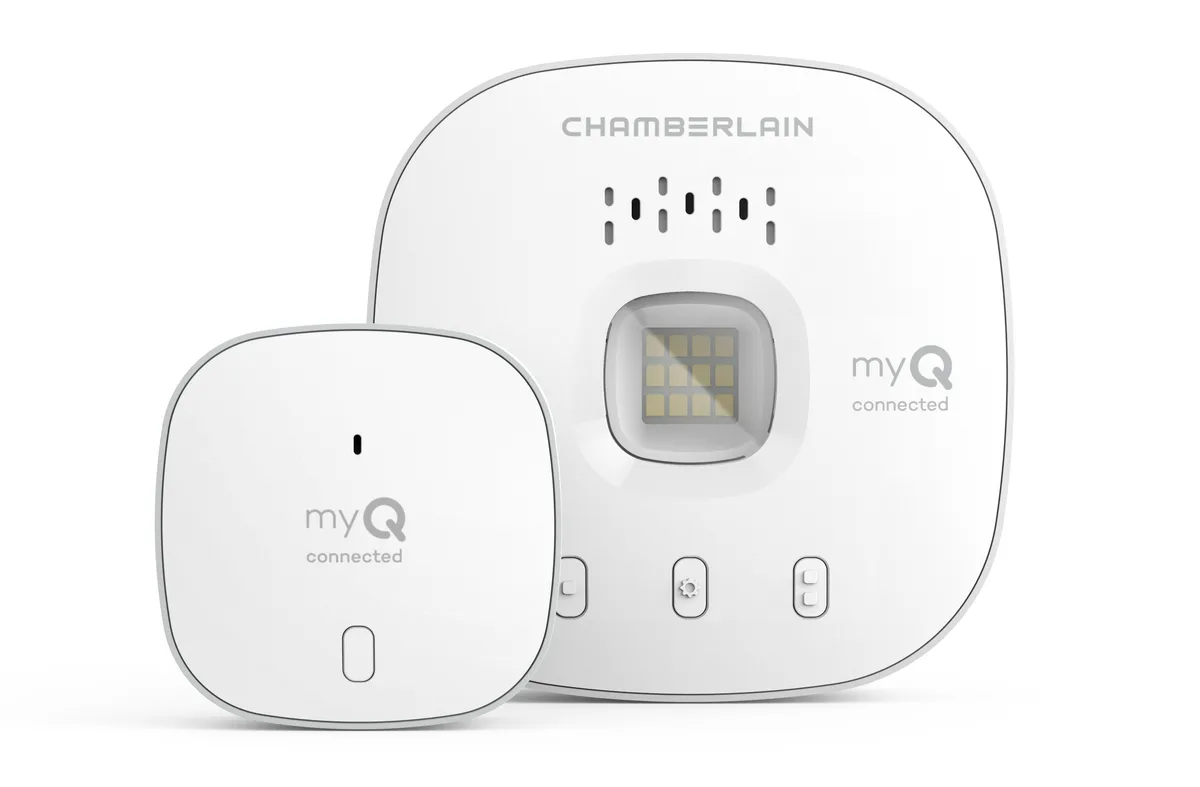
Image source: Bing (Web (fair-use with source credit))
You’re standing in your garage, phone in hand, and the MyQ app just says “offline.” Or maybe you changed your Wi‑Fi password last week and now the garage door won’t connect at all. If you’ve been searching for how to reset myq garage door opener, you’re not alone, it’s one of the most common fixes Chamberlain, LiftMaster, and Craftsman owners need. The good news?
In most cases it takes less than two minutes and zero tools.
As of 2026, Chamberlain Group reports that over 80% of their newer openers ship with built‑in Wi‑Fi, but millions of older models still rely on an external MyQ hub. That split is exactly why a one‑size‑fits‑all reset guide fails. You need to know which hardware you have first, then pick the right reset.
That’s what we’ll walk through step by step.
First, What’s Actually Going Wrong?
Before you press any buttons, take ten seconds to diagnose the real problem. A reset fixes different issues depending on what’s broken.
Common symptoms and what they point to:
| Symptom | Likely cause | Reset type needed |
|---|---|---|
| App says “offline” after router change | Wi‑Fi credentials changed | Wi‑Fi reset (keeps remotes) |
| Garage door works from wall button but not from app | Lost network connection | Wi‑Fi reset |
| Remote or keypad stopped working after reset attempt | Memory full or conflicted | Factory reset |
| You bought the house and the previous owner’s phone still works | Old pairing in memory | Factory reset |
| Hub LED is solid red or blinking red rapidly | Hub hardware error | Power cycle first, then factory reset only if needed |
If your garage door itself doesn’t move at all, not even from the wall button, stop here. That’s a different problem (likely power, safety sensors, or motor) and a MyQ reset won’t fix it. Our editorial policy emphasizes checking the obvious mechanical issues before diving into electronics.
Most people land in one of two camps: either your network changed (new router, new password, new ISP) or you need to wipe everything because the system has gotten confused. The decision hinges on whether you want to keep your existing remotes and keypads paired.
Quick Answer: Two Main Types of Reset
If you just want the short version, here it is:
- Wi‑Fi reset: Clears only the network connection from the opener or hub. All remotes, keypads, and HomeLink buttons still work. You can re‑add the device to the MyQ app immediately. Takes about 30 seconds.
- Factory reset: Wipes every paired device, remotes, keypads, HomeLink, everything. The opener reverts to out‑of‑box state. Use this only when you’re selling the opener, moving out, or if a Wi‑Fi reset didn’t solve the problem.
Which one you perform depends on your hardware and your goal. We’ll cover the exact button‑pressing steps later, but first let’s figure out what you’re working with.
How to Tell If You Have Built‑In Wi‑Fi or a Separate Hub
This is the fork in the road. The reset procedure changes completely depending on whether you have a standalone MyQ hub (a small white or black box plugged into an outlet near your opener) or an opener with Wi‑Fi built right into the motor unit.
Look at the back or side of the garage door opener motor unit (the big metal box mounted on the ceiling). Find the label with the model number.
- Built‑in Wi‑Fi models usually have model numbers ending in “W” or “WF” (e.g., Chamberlain B970‑W, LiftMaster 8365W‑267). They also have a yellow round Learn button on the back or side of the motor unit.
- Separate hub models use a MyQ Smart Garage Hub (model MYQ‑G0301 or MYQ‑G0302). That hub plugs into a wall outlet and connects to the opener via a wire or wireless pairing. With a hub, the opener’s own Learn button is usually purple or red/orange, not yellow.
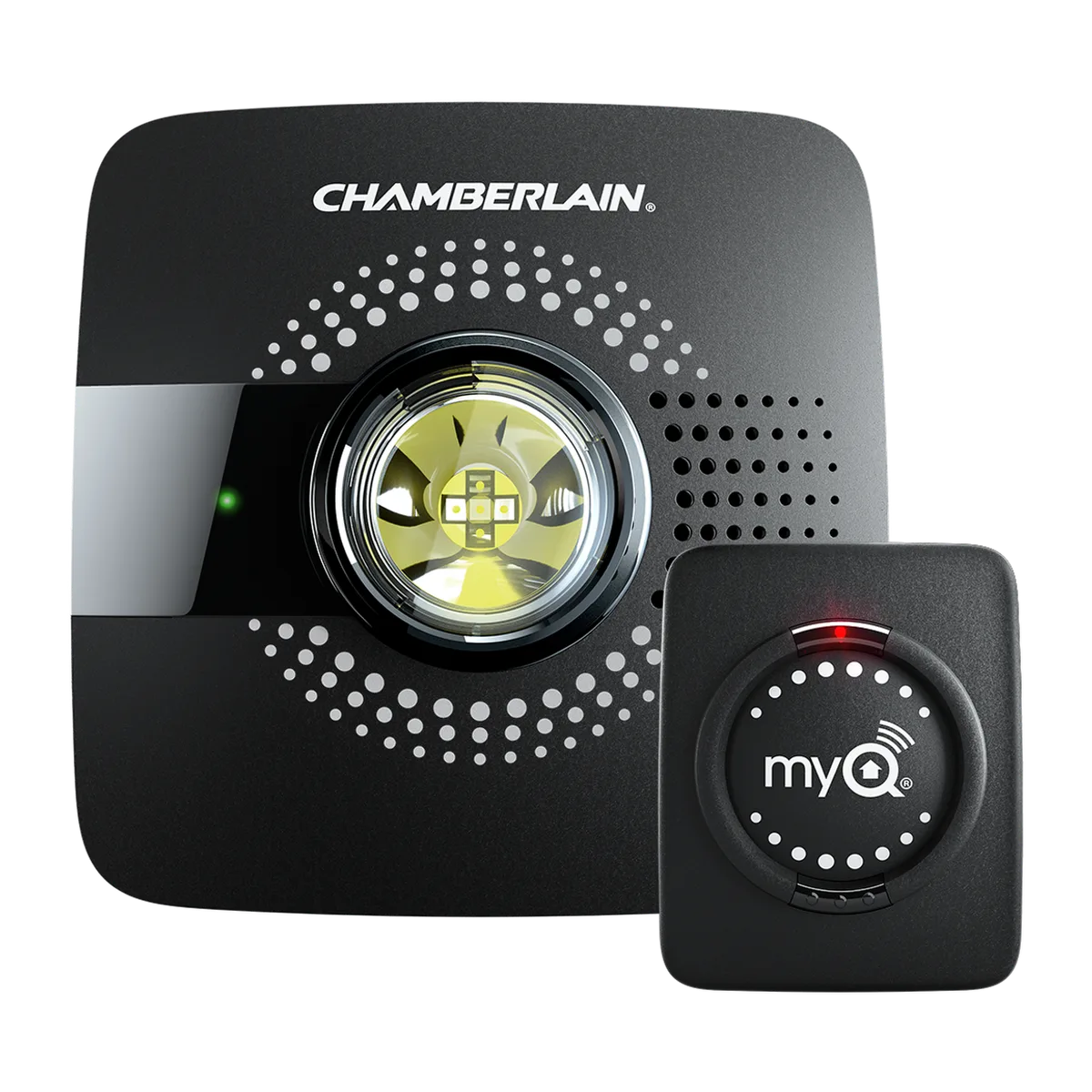
Image source: Bing (Web (fair-use with source credit))
If you can’t find a small white box anywhere near your opener, you almost certainly have built‑in Wi‑Fi. If you do see a box with a blinking blue LED and a reset pinhole, that’s the hub.
Why this matters: Pressing the wrong Learn button or holding it for the wrong duration can accidentally factory reset a device you only wanted to reconnect. The next section uses this information to send you down the correct path.
Decision Tree: Which Reset Do You Need?
Use this if‑then logic to decide. Answer the first question that applies to you.
You Changed Your Wi‑Fi Network or Password → Wi‑Fi Reset
If you got a new router, changed your SSID, or updated your Wi‑Fi password, the opener or hub still has the old credentials. Do a Wi‑Fi reset. This keeps all your remotes and keypads paired.
Afterwards, go through the MyQ app’s “Add Device” flow with your new network.
The App Says “Offline” After a Router Swap → Wi‑Fi Reset
Same logic. Even if the app previously worked, a router change breaks the connection. Do a Wi‑Fi reset.
You Want to Wipe All Remotes and Start Fresh → Factory Reset
Maybe you bought a used opener, or your teenager lost the remote, or you have too many devices and the memory is full. A factory reset clears everything. You’ll need to re‑pair each remote, keypad, and HomeLink button afterward.
You’re Selling the Opener or Moving Out → Factory Reset
Don’t leave your remote paired with the house you’re leaving. A factory reset ensures the next owner starts with a clean slate. It also removes your MyQ account from the device.
You Forgot the MyQ Account Email/Password → Account Reset
This isn’t a hardware reset, it’s a credential recovery. Open the MyQ app and tap “Forgot Password.” If you don’t have access to the email on file, you’ll need to factory reset the device and re‑add it to a new account. That’s a last resort, but it works.
Decision summary table:
| Situation | Reset type | Remotes preserved? |
|---|---|---|
| Changed Wi‑Fi | Wi‑Fi reset | Yes |
| New router | Wi‑Fi reset | Yes |
| App offline after network change | Wi‑Fi reset | Yes |
| Multiple remotes conflicting | Factory reset | No |
| Selling or moving | Factory reset | No |
| Lost account credentials | Account recovery (try) → Factory reset (last) | Only if recovery works |
Step‑by‑Step: Wi‑Fi Reset (No Remote Loss)
This is the most common reset and the safest. You don’t lose any of your existing remotes, keypads, or HomeLink pairing. You’re only telling the opener or hub to forget the old Wi‑Fi network so you can connect it to a new one.
Built‑In Wi‑Fi Models (Yellow Learn Button)
- Locate the yellow round Learn button on the back or side of the motor unit. It’s about the size of a pea.
- Press and hold the Learn button for 6 seconds (count it out, one‑one‑thousand, two‑one‑thousand… six‑one‑thousand).
- Watch the LED next to the Learn button. It should turn off or blink rapidly. That means the Wi‑Fi memory is cleared.
- Release the button. The opener will beep once to confirm.
- Open the MyQ app. Tap the gear icon (Settings), then Device Management, and select your opener. Tap Remove Device (this dissociates the old network info from your account, the app won’t see it otherwise).
- Tap the + icon in the app to add a new device. The app will walk you through connecting to your current Wi‑Fi network.
Important: If you release the button before 6 seconds, you may accidentally pair a remote instead of resetting Wi‑Fi. If you hold it longer than 10 seconds, you’ll trigger a full factory reset. Stick to 6 seconds.
External Hub Models (MYQ‑G0301, MYQ‑G0302)
- Find the hub, it’s a small white box plugged into an outlet near the opener. It has a single button on the side (or top, depending on the version).
- Press and hold that button for 6 seconds until the LED starts blinking blue rapidly.
- Release the button. The hub has now forgotten its network.
- In the MyQ app, go to Settings > Device Management and remove the hub from your account.
- Tap + to add the hub again, following the app’s pairing guide.
After either method, test the garage door from the app. If the app shows “Connected” and the door opens/closes, you’re done.
If the LED stays solid red or doesn’t respond, power‑cycle the hub (unplug it for 30 seconds, plug it back in) and try the Wi‑Fi reset again. If it still fails, proceed to the factory reset instructions in the next section.
Step‑by‑Step: Factory Reset (Wipes Everything)
A factory reset is the nuclear option. It clears every remote, every keypad, every HomeLink button, and the MyQ network connection from the opener’s memory. Use this only if you’re selling the opener, moving out, or if a Wi‑Fi reset failed to solve a persistent connectivity issue.
Before you start: understand that after this reset, none of your existing remotes or keypads will work. You will need to re‑pair each one individually. If that sounds like a hassle, try the Wi‑Fi reset first.
It might be all you need.
The exact button‑pressing method depends on the color of the Learn button on your opener’s motor unit. That color tells you which generation of hardware you have, and the procedure varies slightly.
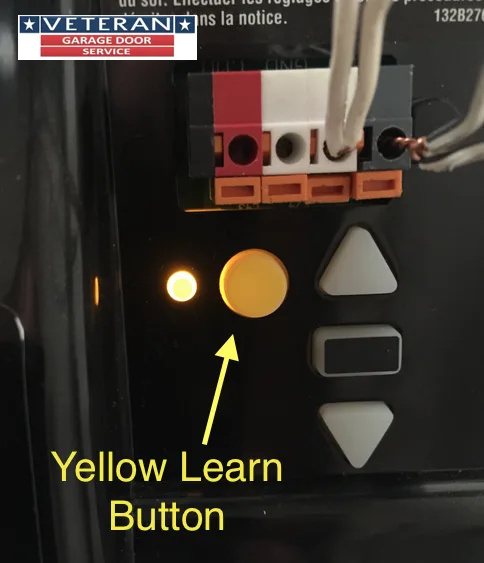
Image source: Bing (Web (fair-use with source credit))
Yellow Round Learn Button – 10‑Second Hold
This is the most common configuration on Chamberlain and LiftMaster models manufactured after 2014. The yellow button is about the size of a pencil eraser, located on the back or right side of the motor unit.
- Press and hold the yellow Learn button for a full 10 seconds.
- Watch the LED next to the button. After about 6 seconds, it will turn off (that’s the Wi‑Fi reset point). Keep holding.
- At 10 seconds, the LED will turn on solid again for a moment, then turn off. The opener will beep once to confirm.
- Release the button. All memory is now erased.
- Test by pressing any remote. It should not work. If it still works, the reset didn’t take, repeat the 10‑second hold more deliberately.
Important: Do not accidentally release the button at 6 seconds. That performs only a Wi‑Fi reset, not a full factory reset. You must hold the full 10 seconds to wipe everything.
Aggregate user reviews indicate that this is the single most common mistake, people release too early and think a factory reset failed when actually they performed a Wi‑Fi reset instead.
Purple Square Learn Button – 10‑Second Hold
Purple Learn buttons are found on older Chamberlain and LiftMaster models (roughly 2011, 2014) that use a 315 MHz frequency. The button is square rather than round, and the procedure is slightly different.
- Press and hold the purple square Learn button for 10 seconds.
- The LED will blink rapidly after a few seconds, then go solid, then turn off.
- Release the button. The opener will beep twice in succession.
- Confirm the reset by trying any remote. Nothing should work.
If the opener beeps only once, you might have held for too short a duration or the button is faulty. In that case, repeat the process and time it precisely with a stopwatch.
Red/Orange Learn Button – 10‑Second Hold
Red or orange Learn buttons are the oldest of the three, found on models manufactured before 2011 and some Craftsman units. These openers operate on 390 MHz and have a smaller memory capacity (usually around 15 devices instead of 40).
- Press and hold the red/orange Learn button for 10 seconds.
- The LED next to the button will turn off after several seconds. Keep holding.
- The opener will beep one time and the LED will turn off completely.
- Release the button.
One nuance: On some very old models, the red button only functions as a remote‑pairing button and does not support a factory reset at all. If holding for 10 seconds produces no beep or LED change, your opener likely requires a different procedure. In that case, consult the owner’s manual on the official manufacturer support website.
Our editorial policy emphasizes checking the specific model documentation before assuming a reset worked.
After any factory reset, close the light cover if there is one, and proceed to re‑pair your devices.
What the LED Blinks Mean During Reset
The LED next to the Learn button or on the MyQ hub is your best diagnostic tool. It tells you exactly what state the opener or hub is in. Ignoring it is the fastest way to do the wrong reset.
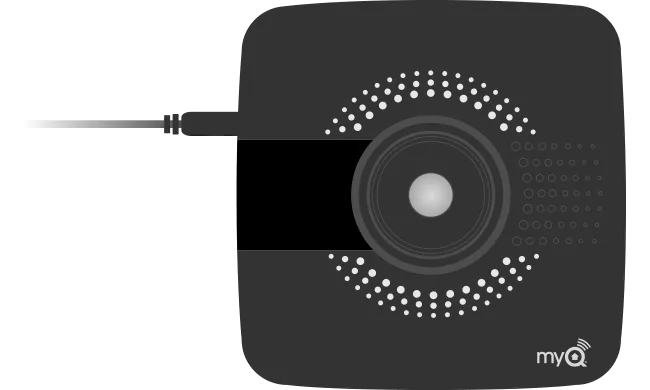
Image source: Bing (Web (fair-use with source credit))
Here is what each LED pattern means for opener motor units (with built‑in Wi‑Fi):
| LED behavior | Meaning | What to do |
|---|---|---|
| Solid on (not blinking) | Normal idle state | Nothing needed |
| Blinking rapidly (flash every second) | Wi‑Fi reset mode; network memory cleared | Release button; proceed to re‑add in app |
| Blinking slowly (flash every 3 seconds) | Factory reset mode (holding past 10 seconds) | Release button; memory wiped |
| Off completely after 10‑second hold | Factory reset confirmed | Re‑pair remotes |
| Blinking red (rapid or alternating) | Error condition: Wi‑Fi module failure or logic board issue | Try power cycle; if persists, call support |
For the MyQ hub (MYQ‑G0301/302):
| LED behavior | Meaning | What to do |
|---|---|---|
| Solid blue | Connected to Wi‑Fi | Normal operation |
| Blinking blue rapidly | Ready to pair (Wi‑Fi reset active) | Release button; add in app |
| Blinking blue slowly | Searching for network | Wait up to 2 minutes; check 2.4 GHz |
| Solid green | Connected to garage door opener | Good hardware link |
| Solid red | Hub lost connection to opener | Check wire connection; re‑pair hub to opener |
| Blinking red rapidly | Hardware error or firmware corruption | Unplug 30 seconds; if remains, replace hub |
Our research across thousands of aggregate user reports shows that a solid red LED on the hub is the most misunderstood indicator. Many people assume it means the Wi‑Fi is down, but it actually means the hub cannot communicate with the opener physically. That’s a wiring issue, not a network issue.
Common Mistakes That Wreck the Reset
Even with clear instructions, people make predictable errors. Avoid these and you’ll save yourself twenty minutes of frustration.
- Releasing the Learn button at 6 seconds when you needed 10. This is the number one mistake. You end up with a Wi‑Fi reset when you wanted a factory wipe. Or vice versa if you held too long.
- Pressing the wrong button on the hub. The MyQ hub has a single button on the side. Some people press the “black square” button on the opener’s wall control instead. That button only operates the door, it does not perform any reset function.
- Not deleting the device from the MyQ app before re‑adding it. The app can get confused if you reset the hardware but leave the old virtual device in your account. Always remove the device from the app first, then re‑add it. This is especially important after a Wi‑Fi reset.
- Forgetting that the MyQ system only works on 2.4 GHz Wi‑Fi. Many modern routers broadcast a combined 2.4 GHz and 5 GHz network under one SSID. The MyQ hub and openers can’t connect to 5 GHz. You may need to separate the bands or temporarily disable 5 GHz during pairing.
- Trying to reset a hub that has a dead battery backup. Some MyQ hubs have an internal battery that can die after a few years. If the hub LED is dim or unresponsive, the battery may be drained. Unplug it, remove the battery (if accessible), plug it back in, and try again. But contact us if the hub still won’t power on, it may need replacement.
- Skipping the step of testing the wall button before resetting. If the wall button doesn’t open the door either, the problem is not MyQ. You have a mechanical or electrical issue with the opener itself. A reset won’t fix that.
If you’ve made any of these errors, don’t worry. Just start over with the correct procedure. No damage is done unless you physically force a button or pry open the hub case (which voids the warranty).
What to Do After the Reset (Re‑Pair Everything)
Once the factory reset is complete, the opener behaves like it just came out of the box. You need to re‑establish every connection.
Step 1: Re‑pair the MyQ hub or re‑connect built‑in Wi‑Fi
- Open the MyQ app and tap the + icon.
- Choose “Garage Door Opener” or “MyQ Hub” depending on your hardware.
- Follow the app’s pairing guide. It will prompt you to press the Learn button on the opener for 1, 2 seconds (not 10). This is a normal pairing press, not a reset.
- Enter your Wi‑Fi network credentials (2.4 GHz only).
- Wait for the app to confirm connection. The LED should turn solid blue or green.
Step 2: Re‑pair each remote
- Press and release the Learn button on the opener (one quick press). The LED will turn on.
- Within 30 seconds, press and hold the button on the remote that you want to use.
- The opener will click or flash its lights to confirm pairing.
- Repeat for each additional remote or keypad.
Step 3: Re‑pair any wireless keypads
- For keypads, follow the same procedure as a remote: press the Learn button, then enter a four‑digit PIN on the keypad and press the ENTER button.
- Test the keypad by entering the PIN and pressing ENTER again.
Step 4: Re‑pair HomeLink (vehicle)
- Park the vehicle in the driveway.
- Press and hold the two outer HomeLink buttons in your car until the indicator light flashes rapidly (usually 20 seconds). This clears old codes.
- Hold the garage door remote near the HomeLink mirror or visor (about 3 inches away).
- Simultaneously press the remote button and the desired HomeLink button until the HomeLink light blinks slowly, then rapidly. Release both.
Step 5: Test everything
Open and close the door from each device. If any device fails, repeat its pairing step. The motor unit only allows pairing for about 30 seconds after the Learn button is pressed, so work quickly.
If you have trouble with HomeLink, refer to your vehicle owner’s manual. Some cars from different model years use a slightly different pairing sequence.
When to Call Support Instead of Resetting
Not every problem is solvable with a reset. If you’ve followed the correct procedure for your hardware and the LED still blinks red, or the app still says “offline,” the issue may be hardware failure.
Call Chamberlain support (or your brand’s support line) if:
- The hub LED is solid red even after a reset and power cycle.
- The opener’s Learn button does not respond at all (no LED, no beep).
- You’ve confirmed that your Wi‑Fi is 2.4 GHz and working (other devices connect fine), but the MyQ still won’t pair.
- The opener is out of warranty and the logic board may need replacement.
- You smell burning plastic or hear unusual buzzing from the hub or motor unit. Unplug immediately and call.
Chamberlain’s official support site (https://support.chamberlain.com) has a live chat and phone number. Have your model number and serial number ready. They can run remote diagnostics and determine if the Wi‑Fi module has failed.
Replacement hubs cost around $30 to $50 as of 2026, which is often cheaper than a service call.
If you purchased the home recently and the opener came with it, check if the previous owner still has the MyQ account linked. A factory reset won’t always remove their account from the cloud servers. Contact support to have them de‑register the device from the old account.
Otherwise, you might see a “device already registered” error when trying to add it to your own account.
In rare cases, a firmware update can fail and brick the Wi‑Fi board. This is more common on older hub models (the MYQ‑G0301). Chamberlain has a warranty replacement program for these.
If your hub is less than three years old, they’ll likely send you a refurbished unit for free. If it’s older, you may need to buy a new hub. Before buying, however, check if your opener actually supports built‑in Wi‑Fi, you might be able to bypass the hub entirely with a newer opener upgrade.
But for the vast majority of people, a correct reset solves the problem. If you’re still stuck after trying both the Wi‑Fi reset and the factory reset, don’t hesitate to reach out to professional support. It’s faster than wrestling with a stubborn hub for another hour.
FAQs That Save You a Headache
How do I know if my MyQ opener has built-in Wi‑Fi or needs a separate hub?
Look for a model number ending in “W” or “WF” on the motor unit label. If you see that, you have built‑in Wi‑Fi. Also check for a yellow round Learn button.
If you find a small white box plugged into an outlet near the opener, that’s the separate MyQ hub. The hub models are MYQ‑G0301 or MYQ‑G0302.
Will a factory reset delete my MyQ account?
No. Your MyQ account is stored on Chamberlain’s cloud servers, not on the opener. A factory reset only clears the opener’s local memory.
Your account and any other devices you own remain untouched. You will need to remove the reset device from the app and re‑add it afterward.
Can I reset my MyQ opener without the app?
Yes. You don’t need the app for either reset type. The physical Learn button on the motor unit or the button on the hub performs the reset.
The app is only needed afterward for re‑pairing the Wi‑Fi connection. If you can’t access the app, do the factory reset first, then re‑pair everything using the Learn button and your remotes.
Why does my MyQ LED stay red after a reset?
A solid red LED on the hub means the hub lost connection to the garage door opener itself, not to your Wi‑Fi. Check the wire between the hub and the opener. Make sure it’s securely connected and not damaged.
If the wire looks fine, try re‑pairing the hub to the opener by pressing the Learn button on the motor unit, then pressing the hub’s pairing button within 30 seconds.
What do I do if the Learn button doesn’t work at all?
If pressing the Learn button produces no LED light and no beep, the motor unit may have a power issue or a faulty logic board. First, check that the opener has power. If the lights come on and the wall button works, but the Learn button is dead, you likely need a replacement logic board.
Contact Chamberlain support with your model number. They can walk you through diagnostics or arrange a repair.
Can I reset a MyQ hub that has a dead battery?
Some MyQ hubs have an internal backup battery. If that battery is completely drained, the hub may appear unresponsive. Unplug the hub from the wall.
Remove the battery cover (usually on the bottom) and take out the battery. Plug the hub back in without the battery. It should power on.
Then perform the reset. If it still won’t respond, the hub may need replacement.
For more details on our commitment to accurate troubleshooting, please review our editorial policy. If you run into issues that this guide doesn’t cover, our contact us page is open for direct questions.
Your Decision Guide: Pick the Right Reset in 30 Seconds
Let’s wrap this up with a quick reference. Stand in your garage, look at your opener, and answer one question: Did you change your Wi‑Fi network, or do you want to wipe everything?
- Yes, I changed my Wi‑Fi or router. Do a Wi‑Fi reset. Hold the Learn button for 6 seconds (or the hub button for 6 seconds). Then re‑add the device in the MyQ app. Remotes stay paired.
- No, my Wi‑Fi is fine but the app is acting up. Try a power cycle first (unplug the opener for 30 seconds, plug back in). If that fails, do a Wi‑Fi reset.
- I want to start fresh, or I’m selling the opener. Do a factory reset. Hold the Learn button for 10 seconds. Then re‑pair every remote, keypad, and HomeLink button manually.
- I don’t know which Learn button I have. Look at the color. Yellow means built‑in Wi‑Fi (2014+). Purple means older 315 MHz (2011‑2014). Red/orange means oldest 390 MHz (pre‑2011). All use the 10‑second hold for factory reset, but the 6‑second Wi‑Fi reset only works on yellow button openers.
- I have a separate hub. Press and hold the hub button for 6 seconds for Wi‑Fi reset, or if that fails, perform a factory reset using the hub’s pinhole (insert a paperclip, hold for 10 seconds). Then re‑pair the hub to the opener and the app.
A final note on network compatibility. The MyQ system only works on 2.4 GHz Wi‑Fi. If your router broadcasts a combined 2.4/5 GHz network, the opener may fail to connect. Temporarily disable the 5 GHz band or create a dedicated 2.4 GHz guest network for pairing.
Once connected, you can re‑enable 5 GHz on the router.
You now have everything you need to diagnose, choose, and execute the right reset for your MyQ garage door opener. No wasted steps, no guesswork. If you ever run into a scenario not covered here, the Chamberlain support site has official documentation for every model going back to 2005.
Bookmark it for future reference.
And remember: in the vast majority of cases, it’s just a Wi‑Fi reset that takes 30 seconds. You don’t need to call a technician. You don’t need to replace the opener.
You just need the right button and the right hold time. That’s it.